Close Menu
  • Gaming
    • Game Guides
    • Codes
    • Game News
    • Game Previews
    • Game Reviews
    • Game Features
    • Game Lists
    • Platforms
      • Nintendo
      • PC
      • PlayStation
      • Xbox
      • Mobile
  • Entertainment
    • Movies
    • Movie Features
    • Movie Reviews
    • TV
    • Reality TV
    • Royals
  • Celebrity
    • Hollywood
  • Human Interest
  • Astrology
  • Videos
  • More
    • Anime
    • Lists
    • Podcasts
    • Reviews
Facebook X (Twitter) Instagram LinkedIn YouTube
  • About Us
  • Join Our Team
  • Meet the Team
  • Privacy Policy
  • DMCA Policy
  • Contact Us
  • Terms of Use
  • Sitemap
  • Editorial Guidelines
  • Advertising Policy
The Nerd Stash
  • Gaming
  • Celebrity
    • Hollywood
  • Human Interest
  • Videos
The Nerd Stash
Home»Android»Minecraft: How to Update to Version 1.19.1

Minecraft: How to Update to Version 1.19.1

Mojang has released the latest update to Minecraft’s The Wild update, version 1.19.1, to all Minecraft players. Aside from the usual bug fixes, version 1.19.1.…

Sidharta F. RasidiBy Sidharta F. RasidiJuly 29, 20222 Mins Read
Minecraft: How to Update to Version 1.19.1

Skip To...

  • How to Update Minecraft: Java Edition to Version 1.19.1
  • How to Update Minecraft: Bedrock Edition to Version 1.19.1
This article is over 3 years old and may contain outdated information.

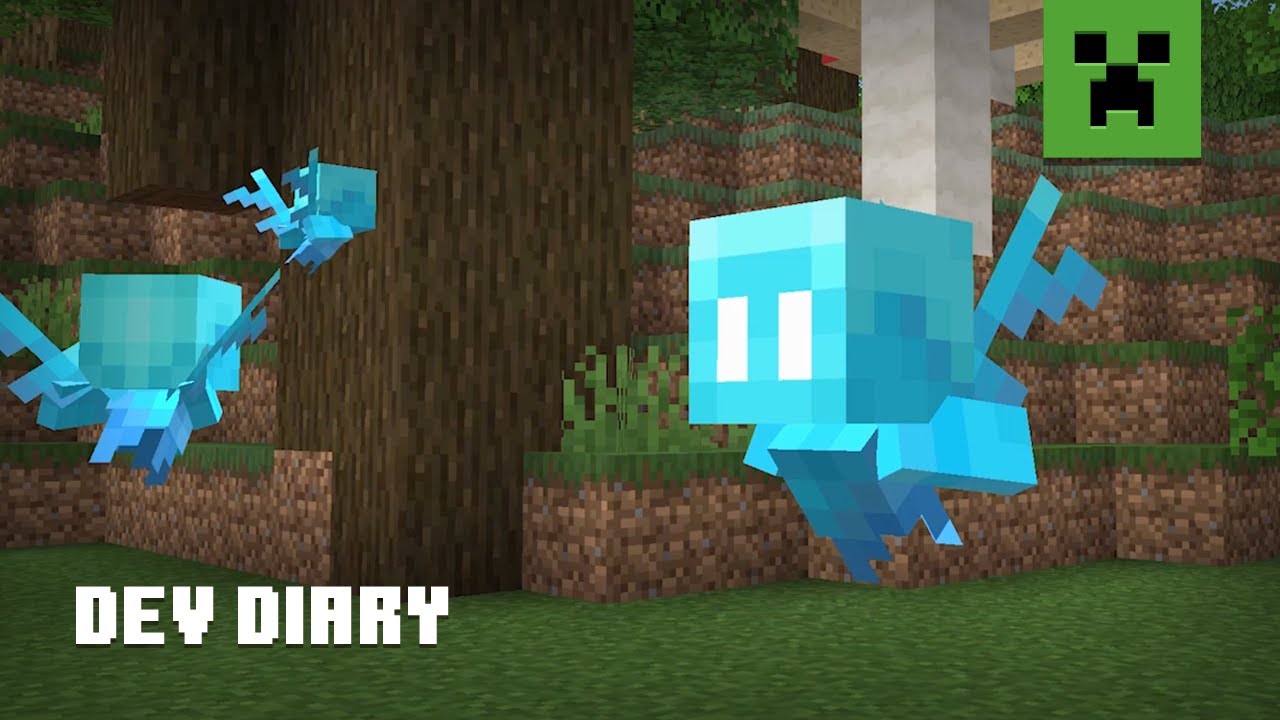
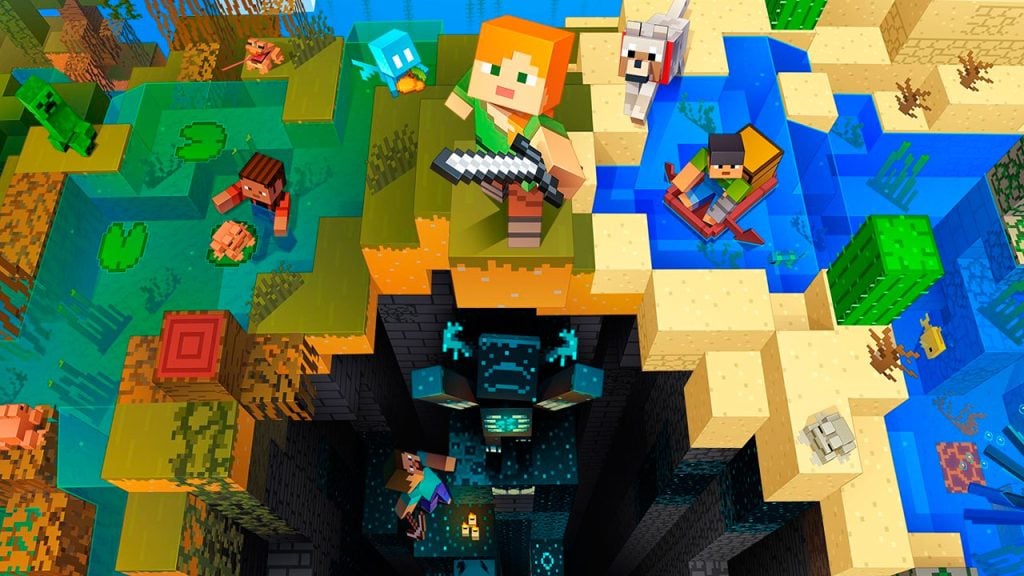
Mojang has released the latest update to Minecraft‘s The Wild update, version 1.19.1, to all Minecraft players. Aside from the usual bug fixes, version 1.19.1. also made new changes, notably to Allays that can now duplicate if handed an Amethyst Shard while dancing, as well as the implementation of the Trust system and chat reporting. Here’s how you can update both your Minecraft: Java Edition and Bedrock Edition to the latest Version 1.19.1, The Wild update.

How to Update Minecraft: Java Edition to Version 1.19.1

Since Windows, macOS, and Linux all use the same launcher for Minecraft: Java Edition, updating it should be simple:

  • Open the Minecraft launcher.
  • Click on the Installations options.
  • Click New Installation.
  • Click the Version option.
  • Select the latest version, 1.19.1.
  • Launch the game.

How to Update Minecraft: Bedrock Edition to Version 1.19.1

Unlike the Java Edition, manually updating the Bedrock Edition to version 1.19.1 varies depending on the type of gaming device you use. Below is the list of how to manually download the 1.19.1 update; nevertheless, auto-update should be enabled by default.

Updating Minecraft on Android:

  1. Open Google Play.
  2. Press the My Apps icon.
  3. Look for Minecraft in your apps list.
  4. Press the Update button if available.

Updating Minecraft on iOS:

  1. Open App Store.
  2. Press the Search button.
  3. Search for Minecraft.
  4. Press the Update button if available.

Updating Minecraft on a Windows PC:

  • Microsoft Store:
    1. Open Microsoft Store.
    2. Click on Library.
    3. Click on Get Updates.
    4. Look for Minecraft, then update it to the latest version.
  • Xbox Gaming App:
    1. Open the Xbox app.
    2. Click on My Library.
    3. Click on Minecraft.
    4. Select the Latest release tab to the left of the Play button, and pick version 1.19.1.

Updating Minecraft on a PlayStation console:

  1. Press the Options button on your DualShock 4.
  2. Check for updates.
  3. The console will download the latest update.

Updating Minecraft on an Xbox console:

  1. Go to My Apps & Games.
  2. Click on the More Options button.
  3. Select Manage game & add-ons.
  4. Select Updates.
  5. The console will download the latest update.

Updating Minecraft on Switch:

  • Open Minecraft.
  • A prompt will ask you about an update.
  • Confirm and the game should download the update.

Related:
Mojang Will Not Support Minecraft NFTs In-Game

Minecraft is available on PC, Android, iOS, Xbox One, Xbox Series X|S, Nintendo Switch, and PlayStation platforms.
Related Topics
Guide Minecraft
Share. Facebook Twitter LinkedIn Reddit Email
Sidharta F. Rasidi
  • Website

An ordinary Indonesian who enjoys playing and talking about video games. His favorite games are Monster Hunter: World, Space Invader Extreme 2, THE iDOLM@STER SP, Road Trip Adventure, Halo series, and KOEI Tecmo's Warriors series.

SUGGESTED READS

PC Gamers Can't Catch a Break as Nvidia Plans 40% GeForce GPU Production Cuts, Report: 'Who Needs a PC Anyways'
Game News

PC Gamers Can’t Catch a Break as Nvidia Reportedly Plans 40% GeForce GPU Production Cuts: ‘Who Needs a PC Anyways’

Jeremy Renner
Features

You Won’t Believe the Shocking Details of This Iconic Hollywood Star’s Near-Fatal Accident

Features

10 Beloved Celebrities Who Left Hollywood Behind

Destiny 2 How to Get the Praxic Blade
Game Guides

How to Get the Praxic Blade in Destiny 2: Renegades

Marathon Arrives March 2026 at $40 Without 'FOMO Passes': 'Concord 3 Release Date Confirmed'
Features

Marathon Arrives March 2026 at $40 Without ‘FOMO Passes’: ‘Concord 3 Release Date Confirmed’

Destiny 2 Renegades Equilibrium Dungeon Loot Table
Game Guides

Destiny 2: Renegades – Equilibrium Dungeon Loot Table Full Armor, Weapons, and Perks

Trending
PC Gamers Can't Catch a Break as Nvidia Plans 40% GeForce GPU Production Cuts, Report: 'Who Needs a PC Anyways'

PC Gamers Can’t Catch a Break as Nvidia Reportedly Plans 40% GeForce GPU Production Cuts: ‘Who Needs a PC Anyways’

Jeremy Renner

You Won’t Believe the Shocking Details of This Iconic Hollywood Star’s Near-Fatal Accident

10 Beloved Celebrities Who Left Hollywood Behind

Destiny 2 How to Get the Praxic Blade

How to Get the Praxic Blade in Destiny 2: Renegades

The Nerd Stash
Facebook X (Twitter) Instagram YouTube LinkedIn
  • About Us
  • Join Our Team
  • Meet the Team
  • Privacy Policy
  • DMCA Policy
  • Contact Us
  • Terms of Use
  • Sitemap
  • Editorial Guidelines
  • Advertising Policy
© 2025 The Nerd Stash. All Rights Reserved.

Type above and press Enter to search. Press Esc to cancel.