Close Menu
  • Gaming
    • Game Guides
    • Codes
    • Game News
    • Game Previews
    • Game Reviews
    • Game Features
    • Game Lists
    • Platforms
      • Nintendo
      • PC
      • PlayStation
      • Xbox
      • Mobile
  • Entertainment
    • Movies
    • Movie Features
    • Movie Reviews
    • TV
    • Reality TV
    • Royals
  • Celebrity
    • Hollywood
  • Human Interest
  • Astrology
  • Videos
  • More
    • Anime
    • Lists
    • Podcasts
    • Reviews
Facebook X (Twitter) Instagram LinkedIn YouTube
  • About Us
  • Join Our Team
  • Meet the Team
  • Privacy Policy
  • DMCA Policy
  • Contact Us
  • Terms of Use
  • Sitemap
  • Editorial Guidelines
  • Advertising Policy
The Nerd Stash
  • Gaming
  • Celebrity
    • Hollywood
  • Human Interest
  • Videos
The Nerd Stash
Home»Game Guides»How to Lock on in Final Fantasy 16

How to Lock on in Final Fantasy 16

Final Fantasy 16 has introduced a new exhilarating, action-packed, and chaotic combat system. Target lock is just one of the additions in Final Fantasy 16…

Nikola PajticBy Nikola PajticJune 23, 20233 Mins Read
How To Lock On in Final Fantasy 16 Feature
Image Source: Square Enix

Skip To...

  • Final Fantasy 16: How to Lock On
  • How To Change Lock On Target
  • Can You Turn Off the Lock On
This article is over 2 years old and may contain outdated information.

Final Fantasy 16 has introduced a new exhilarating, action-packed, and chaotic combat system. Target lock is just one of the additions in Final Fantasy 16 you need to learn. It will unlock the full potential of the battle mechanics. This ability can make or break your battles, so it is always good to familiarize yourself with how lock-on works in Final Fantasy 16.

Final Fantasy 16: How to Lock On
Lock on Final Fantasy 16
Image Source: Square Enix via The NerdStash Screenshot

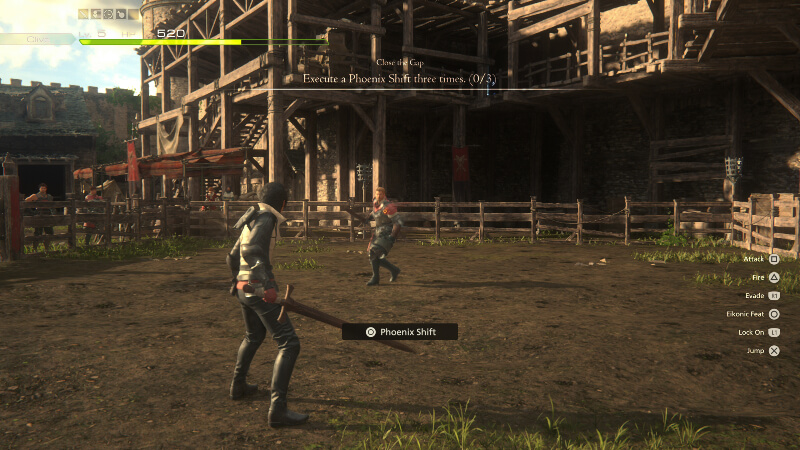
To lock on a target in Final Fantasy 16, press L1 on your controller. This action snaps the camera to the closest enemy you’re facing, allowing you to focus your attacks without worrying about camera movement. When facing multiple enemies, target a specific foe and press L1 to fixate the camera on them. This ensures you can concentrate your combat skills and spells on the selected enemy, eliminating the need to adjust the camera constantly. This feature will give you an upper hand in most battles.

How To Change Lock On Target

Changing your target is a simple task once you’ve locked onto an enemy in Final Fantasy 16. Instead of continuously pressing L1 to switch enemies, you only need to click the left analog stick, also known as L3. This action allows you to cycle between other enemies present in the same battle, granting you flexibility in your targeting strategy. However, if you wish to focus on a particular enemy specifically, pressing R3 is the key. Remember that the lock-on feature may initially prioritize enemies to the right of your target.

Can You Turn Off the Lock On

Turning off the target lock in Final Fantasy 16 is a breeze. Tap L1 on your controller once again to disable it. This feature functions as a toggle, so one tap enables lock-on while another tap deactivates it.

However, there are situations where using a lock-on proves beneficial. In the fast-paced and chaotic battles of Final Fantasy 16, with both you and your enemies swiftly maneuvering and attacking from various angles, maintaining a clear view can be a challenge. Locking onto enemies allows you to string combos together more smoothly, enhancing your combat performance.

On the other hand, when facing multiple targets simultaneously, turning off the lock-on can be advantageous. This grants you greater camera control. It will enable you to quickly scan the battlefield and anticipate attacks outside your locked view. If you frequently take unexpected damage, consider canceling the target lock by tapping L1 again and utilizing the right stick more actively during gameplay.

This is everything you need to know about the Lock On mechanic in Final Fantasy 16.

Final Fantasy 16 is available on PS5.

Related Topics
Final fantasy Guide
Share. Facebook Twitter LinkedIn Reddit Email
Nikola Pajtic
  • Website

Nikola has been a gamer his whole life, and you can find him playing AAA titles but also unknown indie games.

SUGGESTED READS

PC Gamers Can't Catch a Break as Nvidia Plans 40% GeForce GPU Production Cuts, Report: 'Who Needs a PC Anyways'
Game News

PC Gamers Can’t Catch a Break as Nvidia Reportedly Plans 40% GeForce GPU Production Cuts: ‘Who Needs a PC Anyways’

Destiny 2 How to Get the Praxic Blade
Game Guides

How to Get the Praxic Blade in Destiny 2: Renegades

Marathon Arrives March 2026 at $40 Without 'FOMO Passes': 'Concord 3 Release Date Confirmed'
Features

Marathon Arrives March 2026 at $40 Without ‘FOMO Passes’: ‘Concord 3 Release Date Confirmed’

Destiny 2 Renegades Equilibrium Dungeon Loot Table
Game Guides

Destiny 2: Renegades – Equilibrium Dungeon Loot Table Full Armor, Weapons, and Perks

Battlefield 6 Winter Offensive Challenges Guide
Game Guides

Battlefield 6 Season 1 – Winter Offensive Challenges Guide

Druid Starter Guide Path of Exile 2
Game Guides

Ultimate Druid Starter Guide for Path of Exile 2

Trending
PC Gamers Can't Catch a Break as Nvidia Plans 40% GeForce GPU Production Cuts, Report: 'Who Needs a PC Anyways'

PC Gamers Can’t Catch a Break as Nvidia Reportedly Plans 40% GeForce GPU Production Cuts: ‘Who Needs a PC Anyways’

Destiny 2 How to Get the Praxic Blade

How to Get the Praxic Blade in Destiny 2: Renegades

Marathon Arrives March 2026 at $40 Without 'FOMO Passes': 'Concord 3 Release Date Confirmed'

Marathon Arrives March 2026 at $40 Without ‘FOMO Passes’: ‘Concord 3 Release Date Confirmed’

Destiny 2 Renegades Equilibrium Dungeon Loot Table

Destiny 2: Renegades – Equilibrium Dungeon Loot Table Full Armor, Weapons, and Perks

The Nerd Stash
Facebook X (Twitter) Instagram YouTube LinkedIn
  • About Us
  • Join Our Team
  • Meet the Team
  • Privacy Policy
  • DMCA Policy
  • Contact Us
  • Terms of Use
  • Sitemap
  • Editorial Guidelines
  • Advertising Policy
© 2025 The Nerd Stash. All Rights Reserved.

Type above and press Enter to search. Press Esc to cancel.