Close Menu
  • Gaming
    • Platforms
      • Nintendo
      • PC
      • PlayStation
      • Xbox
  • Entertainment
    • Movies
    • TV
    • Royals
  • Celebrity
    • Hollywood
  • Human Interest
  • Astrology
  • More
    • Reviews
Facebook X (Twitter) Instagram LinkedIn YouTube
  • About Us
  • Join Our Team
  • Meet the Team
  • Privacy Policy
  • DMCA Policy
  • Contact Us
  • Terms of Use
  • Sitemap
  • Editorial Guidelines
  • Advertising Policy
The Nerd Stash
  • Gaming
  • Celebrity
  • Hollywood
  • Human Interest
The Nerd Stash
Home»Gaming»How to Use Photo Mode in Assassin’s Creed Mirage

How to Use Photo Mode in Assassin’s Creed Mirage

Beautiful pictures of Baghdad.

John EspositoBy John EspositoOctober 5, 20232 Mins Read
how to use Photo Mode in Assassin's Creed Mirage
Image Source: Ubisoft
This article is over 2 years old and may contain outdated information.

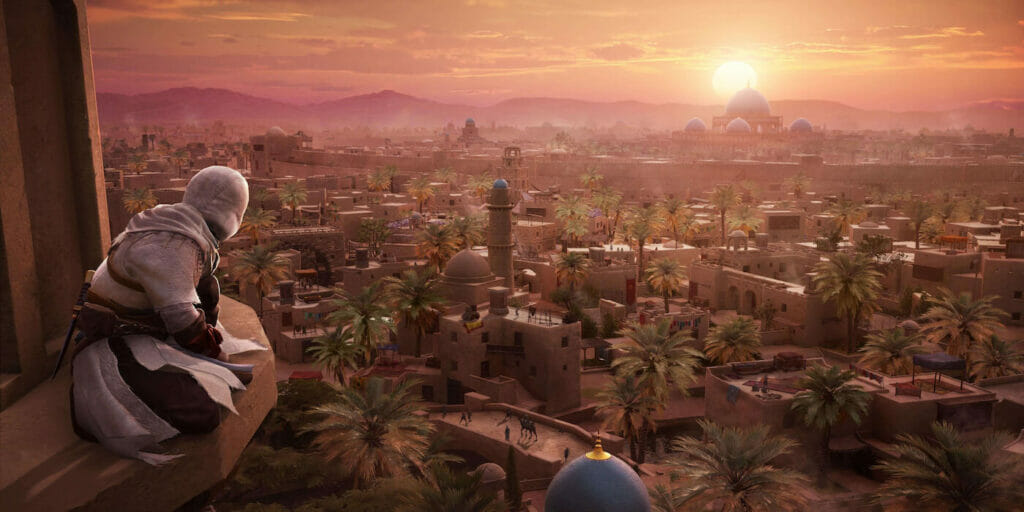
Assassin’s Creed Mirage thrusts players into the role of Basim Ibn Ishaq as he starts his journey in the Assassin’s Brotherhood in 9th-century Baghdad. This setting may not sound thrilling, but the city of Baghdad holds some of the most beautiful vistas to date as you sneak and perform the duties of an Assassin. Naturally, if you appreciate the art, you’ll want to take screenshots. Fortunately, there’s a Photo Mode, and here’s what you need to know on how to use it.

Does Assassin’s Creed Mirage Have a Photo Mode?

Good news members of the Brotherhood; Mirage does have a Photo Mode. This may seem like a silly point to make, but some titles have launched without it, only to add this feature in a later update.

Another double dose of good news; Photo Mode is available right from the get go, and it’s super easy to use.

How to Use Photo Mode

Photo mode in Assassin's Creed Mirage
Image Source: Ubisoft via TheNerdStash

To use Photo Mode in Mirage, simply follow one of these two steps:

  • On console: Press L3 and R3 together
  • On PC: Press the Z key

Upon inputting one of these commands, you’ll open the Photo Mode and treat yourself to a handful of options. Changing the filters, messing with the exposure, and other settings are just a few customizable details. You can preview your photo, and when you’re ready, snap away!

As mentioned, Baghdad is beautiful, so you might find yourself spending plenty of time in Photo Mode. Just make sure you continue to serve the Brotherhood! It’s also worth noting that the game does actually pause when you’re in the photo mode. That means you don’t have to worry about a guard firing an arrow through your skull while enjoying the sites. Always handy.

Related

How To Use Enkidu in Assassin’s Creed Mirage

Assassin’s Creed Mirage is out now for Xbox One, Xbox Series X|S, PlayStation 4, PlayStation 5, and PC.

Related Topics
Assassin’s Creed Mirage Guide
Share. Facebook Twitter LinkedIn Reddit Email
John Esposito
  • Website
  • X (Twitter)

Fan of nearly every game, and avid supporter of "Ugly Sonic" (just a joke, glad they changed that).

SUGGESTED READS

Gaming

GTA 6 Leaker Hunt Goes Nuclear as Take-Two Demands Discord and Microsoft Hand Over Private Data

Raid Shadow Legends new players
Gaming

7 New-Player Mistakes That Cost You Free Rewards in Raid: Shadow Legends (August 2026)

PlayStation's Phantom Blade Zero Preorders Have 'Far Exceeded Expectations' Despite Disc-less Release Concerns
Gaming

PlayStation’s Phantom Blade Zero Preorders Have ‘Far Exceeded Expectations’ Despite Disc-less Release Concerns

Gaming

Interview: Dawn of War 4 Voice Actor Toby Longworth Discusses Space Marine Voices and How RoboCop Inspired His Dreadnought Performance

Mortal Shell 2 Sester Genessa Unlock
Gaming

How to Unlock Sester Genessa in Mortal Shell 2

Mortal Shell 2 Enable Easy Mode
Gaming

How To Enable Easy Mode in Mortal Shell 2

The Nerd Stash
Facebook X (Twitter) Instagram YouTube LinkedIn
  • About Us
  • Join Our Team
  • Meet the Team
  • Privacy Policy
  • DMCA Policy
  • Contact Us
  • Terms of Use
  • Sitemap
  • Editorial Guidelines
  • Advertising Policy
© 2026 The Nerd Stash. All Rights Reserved.

Type above and press Enter to search. Press Esc to cancel.