Close Menu
  • Gaming
    • Game Guides
    • Codes
    • Game News
    • Game Previews
    • Game Reviews
    • Game Features
    • Game Lists
    • Platforms
      • Nintendo
      • PC
      • PlayStation
      • Xbox
      • Mobile
  • Entertainment
    • Movies
    • Movie Features
    • Movie Reviews
    • TV
    • Reality TV
    • Royals
  • Celebrity
    • Hollywood
  • Human Interest
  • Astrology
  • More
    • Anime
    • Lists
    • Podcasts
    • Reviews
Facebook X (Twitter) Instagram LinkedIn YouTube
  • About Us
  • Join Our Team
  • Meet the Team
  • Privacy Policy
  • DMCA Policy
  • Contact Us
  • Terms of Use
  • Sitemap
  • Editorial Guidelines
  • Advertising Policy
The Nerd Stash
  • Gaming
  • Celebrity
  • Hollywood
  • Human Interest
The Nerd Stash
Home»Game Guides»How To Get Custom Crosshair in Fortnite

How To Get Custom Crosshair in Fortnite

Crosshairs: a secret weapon, or just a pretty dot on your screen?

Asanga WijeratneBy Asanga WijeratneDecember 2, 20232 Mins Read
How To Get Custom Crosshair in Fortnite
Image Source: Epic Games
This article is over 2 years old and may contain outdated information.

A custom crosshair can jazz up your game aesthetics and improve your Fortnite gaming experience. However, there’s a catch: the custom crosshair is only available in the Creative mode. Although this may be a disappointment for those hoping to use it in other game types, there are still some methods to try and use it in different modes. But before we get into that, let’s first learn how to get it in Fortnite Creative mode.

Steps to Get a Custom Crosshair in Fortnite Creative Mode
Custom Crosshair in Fortnite Creative Mode
Image Source: Epic Games via The Nerd Stash

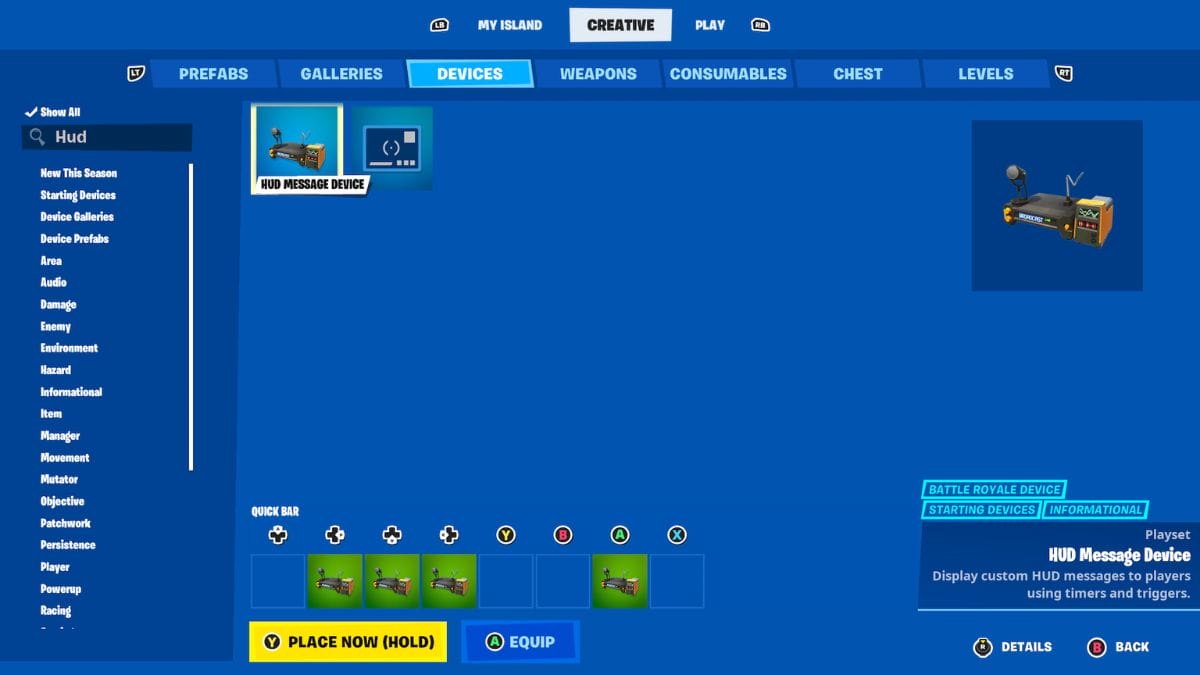
Below are the steps you can follow to get a custom crosshair in Fortnite Creative mode:

  1. Launch Fortnite Creative mode and enter your island.
  2. Go to Creative in Settings and select the Devices tab.
  3. Search for HUD Messaging Device in the search bar and select it.
  4. Place the device and open it by clicking X.
  5. Change the crosshair from the message bar as you wish.

Can You Use Change Crosshair in Other Game Modes?

As mentioned earlier, the custom crosshair is only available in the Fortnite Creative mode. However, there are some methods that players have tried to enable it in other modes.

PC players have successfully used a program to create a custom overlay crosshair on their screen. Players can download Crosshair V2. Once they install the program, the crosshair will change, and they can select their preferred one by pressing F2. Then, they need to change some settings in Fortnite. 

The rendering mode under the advanced graphics section has to be changed to DirectX (beta). Widow Mode under the Display section has to be changed to the Windowed Fullscreen. However, Epic Games does not officially support this method of custom crosshair in Fortnite and may violate their terms of service, so use it at your discretion.

Also, at the moment, there is no method for Fortnite Nintendo players to custom crosshair. The option might be available for all platforms in the future, but at the moment, it is only limited to Creative mode.

Related Topics
Fortnite Guide
Share. Facebook Twitter LinkedIn Reddit Email
Asanga Wijeratne
  • Website

SUGGESTED READS

Honkai: Star Rail 4.2 Update
Game News

Honkai: Star Rail Is Gearing Up For Its Third Anniversary Coming With Version 4.2

'SteamGPT' Datamine May Bring AI Chatbot, Anti-cheat Support to Steam
Game News

‘SteamGPT’ Datamine May Bring AI Chatbot, Anti-cheat Support to Steam

GTA 6 Online May Not Launch Day One, and That Might Be a Smart Move From Rockstar
Game News

GTA 6 Online May Not Launch Day One, and That Might Be a Smart Move From Rockstar

Invincible VS Open Beta Features
Game News

The Invincible VS Open Beta Will Feature 10 Characters and Three Game Modes

Samson PC Review
7
Game Reviews

Samson Review – An Uninspiring Tyndalston Story

Best mods for Project Zomboid Build 42
Game Guides

Top 10 Best Project Zomboid Mods (Updated for Build 42.16)

The Nerd Stash
Facebook X (Twitter) Instagram YouTube LinkedIn
  • About Us
  • Join Our Team
  • Meet the Team
  • Privacy Policy
  • DMCA Policy
  • Contact Us
  • Terms of Use
  • Sitemap
  • Editorial Guidelines
  • Advertising Policy
© 2026 The Nerd Stash. All Rights Reserved.

Type above and press Enter to search. Press Esc to cancel.