Close Menu
  • Gaming
    • Platforms
      • Nintendo
      • PC
      • PlayStation
      • Xbox
  • Entertainment
    • Movies
    • TV
    • Royals
  • Celebrity
    • Hollywood
  • Human Interest
  • Astrology
  • More
    • Reviews
Facebook X (Twitter) Instagram LinkedIn YouTube
  • About Us
  • Join Our Team
  • Meet the Team
  • Privacy Policy
  • DMCA Policy
  • Contact Us
  • Terms of Use
  • Sitemap
  • Editorial Guidelines
  • Advertising Policy
The Nerd Stash
  • Gaming
  • Celebrity
  • Hollywood
  • Human Interest
The Nerd Stash
Home»Gaming»How To Fix the Disk Write Error in Tekken 8

How To Fix the Disk Write Error in Tekken 8

Time to finally get ready for the next battle.

Sidharta F. RasidiBy Sidharta F. RasidiJanuary 26, 20243 Mins Read
How To Fix the Disk Write Error in Tekken 8
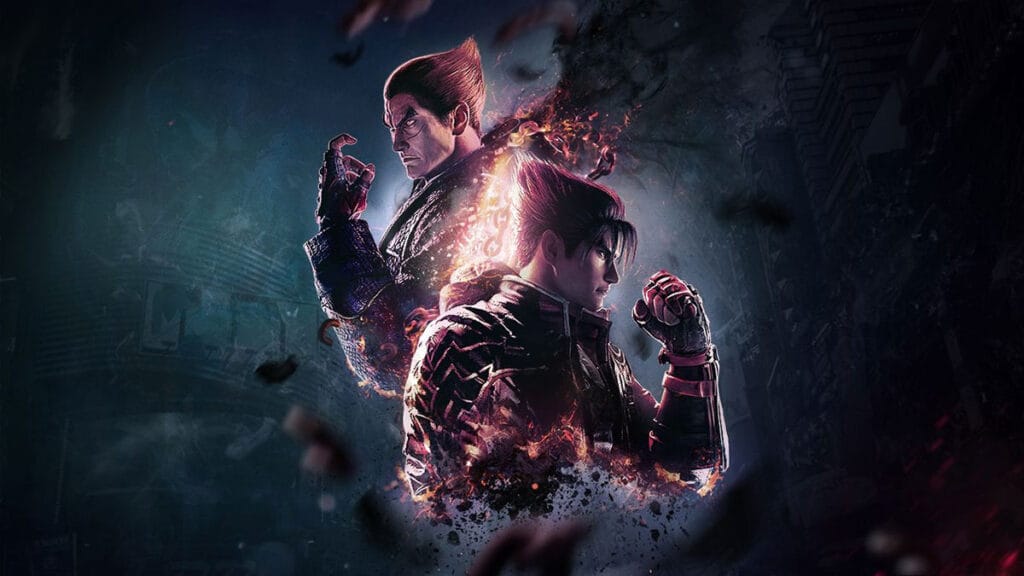
Image source: Bandai Namco
This article is over 2 years old and may contain outdated information.

Tekken 8 players on PC who bought the game on Steam might encounter the “Disk Write Error” when launching the game. The message typically appears when you attempt to install or download a new game, and you don’t have enough space. However, dedicated fans who have prepared more than 100 GB of disk space for Tekken are still experiencing this issue. So what is actually causing the problem, and how can you fix it?

Tekken 8: How Can You Fix the Disk Write or Missing Executable Error Message?

Tekken 8: How Can You Fix the Disk Write or Missing Executable Error Message?
Image source: The Nerd Stash

The main culprit of the “Disk Write Error” in Tekken 8 is your antivirus mistakenly reading the game’s launcher as a false positive. Most antivirus will end up quarantining the game’s Polaris-Win64-Shipping.exe launcher file, making Steam unable to download and update it. Sometimes, this will also cause the “Missing Executable” error message when running Tekken 8. For that reason, you will need to either restore the quarantine file or whitelist the Steam folder on your PC’s antivirus program.

For Windows Security, you can do these steps to restore Tekken 8‘s quarantined launcher and fix the Disk Write Error:

Related:

All Game Modes in Tekken 8, Explained
  1. Open Windows Security.
  2. Select the “Virus & threat protection” option.
  3. Under “Current threats,” select “Protection history.”
  4. Filter on “Quarantined Items.”
  5. Select the “Restore” option on Polaris-Win64-Shipping.exe or Tekken8.exe.
  6. Then select “Manage settings.”
  7. Under Exclusions, select “Add or remove exclusions.”
  8. Select Add an exclusion, pick folders, then choose your Tekken 8 installation folder to whitelist it from future false positive flagging.

If you’re using other antivirus programs like Malwarebytes or Avast, try checking the Scan or Protection History and list of Quarantined Items. From there, you should be able to restore Tekken 8‘s Polaris-Win64-Shipping.exe and fix the Disk Write Error message as well. Don’t forget to make a scan Exception to your game’s installation folder.

Afterward, to ensure you do a clean reinstall of the game, open the Tekken 8‘s install folder. You can easily do so from Steam by opening the game’s Properties, selecting the Installed Files, and pressing the Browse button. From there, Tekken‘s file size should be at 0 KB or any size too small for a game. Delete the whole folder, and then try to download the game again. Otherwise, you can also try verifying the game’s file integrity through the Steam menu.

Related:

How Many Chapters Are in Tekken 8? Story Mode Length, Explained

Tekken 8 is available on PlayStation, Xbox, and PC via Steam.
Related Topics
Guide tekken 8
Share. Facebook Twitter LinkedIn Reddit Email
Sidharta F. Rasidi
  • Website

Since middle school, Sidharta has used his video game blog as a handy excuse to avoid studying. After graduating with a degree in Management Information Systems from Bina Nusantara University, he spent years honing his skills as a games journalist, working as an editor for a local gaming site and freelancing elsewhere. Nowadays, when he’s not busy crafting outrageous plots for his serialized comic, Sidharta covers niche games on his personal blog, StoPlayinGame.com. His favorite game series includes Monster Hunter, Earth Defense Force, THE iDOLM@STER, Road Trip Adventure, and KOEI Tecmo's Warriors.

SUGGESTED READS

GTA 6's Lucia Shows How Far Latina Representation in Games Has Come
Gaming

GTA 6’s Lucia Shows How Far Latina Representation in Games Has Come

Rogue Fortune Reveal
Gaming

Rogue Fortune Approaches Roguelikes With In-Depth Build-Crafting and Puzzle-Solving Systems

GTA 6 Extended Look Netflix
Gaming

How & Where to Watch the GTA 6 Extended Look

Resonance A Plague Tale Legacy PC Review
8
Gaming

Resonance: A Plague Tale Legacy Review – Bold Ideas, Predictable Story

Heroes of Might and Magic 3 Remake Preview
Gaming

Heroes of Might & Magic 3 Remake Hands-On Preview – Bigger, Bolder, and Better

9.5
Gaming

Star Wars Zero Company Review – My Turn Is One With the Force, and the Force Is With My Turn

The Nerd Stash
Facebook X (Twitter) Instagram YouTube LinkedIn
  • About Us
  • Join Our Team
  • Meet the Team
  • Privacy Policy
  • DMCA Policy
  • Contact Us
  • Terms of Use
  • Sitemap
  • Editorial Guidelines
  • Advertising Policy
© 2026 The Nerd Stash. All Rights Reserved.

Type above and press Enter to search. Press Esc to cancel.