
Close Menu
  • Gaming
    • Game Guides
    • Codes
    • Game News
    • Game Previews
    • Game Reviews
    • Game Features
    • Game Lists
    • Platforms
      • Nintendo
      • PC
      • PlayStation
      • Xbox
      • Mobile
  • Entertainment
    • Movies
    • Movie Features
    • Movie Reviews
    • TV
    • Reality TV
    • Royals
  • Celebrity
  • Human Interest
  • Astrology
  • Videos
  • More
    • Anime
    • Lists
    • Podcasts
    • Reviews
Facebook X (Twitter) Instagram LinkedIn YouTube
  • About Us
  • Join Our Team
  • Meet the Team
  • Privacy Policy
  • DMCA Policy
  • Contact Us
  • Terms of Use
  • Sitemap
  • Editorial Guidelines
  • Advertising Policy
The Nerd Stash
  • Gaming
  • Celebrity
  • Human Interest
  • Videos
The Nerd Stash
Home»Android»How To Play Warzone Mobile on PC

How To Play Warzone Mobile on PC

Talk about bringing a PC to the phone fight.

Amir NaseriBy Amir NaseriMarch 26, 20242 Mins Read
How To Play Warzone Mobile on PC
Image Source: Activision via The Nerd Stash

Skip To...

  • Warzone Mobile Minimum PC Requirements (Unofficial):
  • Install Tutorial
This article is over 1 years old and may contain outdated information.

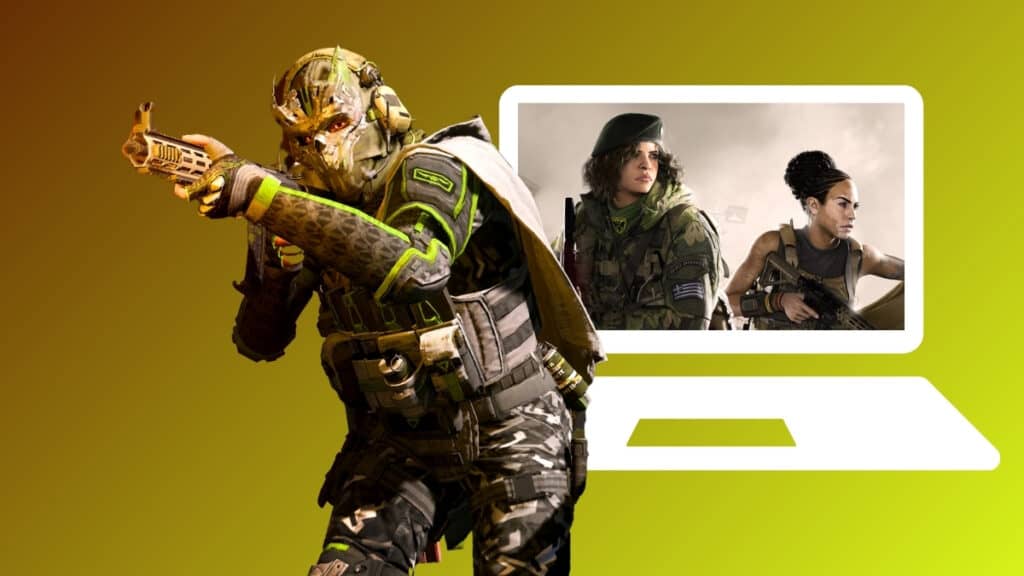
So you want to play Warzone Mobile on a PC? This will give you more frame rates, better graphics, and a heartwarming return to Verdansk without having to risk your phone’s battery and heating issues. There’s only one application you can currently run the game on, and you’ll also need a suitable piece of hardware to run Warzone Mobile smoothly on it.

Warzone Mobile Minimum PC Requirements (Unofficial):

WZM Global Launch
Image Source: Activision
  • Graphics: (Nvidia): GTX 1050 Ti or (AMD): RX 570
  • Memory: 8 GB
  • OS: Windows 10 64-bit
  • Drive Space: ~ 10 GB

Install Tutorial

Play Warzone Mobile on PC
Image Source: Activision

To run Warzone Mobile on your PC, you’d first need to download an emulator application. Follow these steps:

  1. Download Bluestacks from here. Remember to download the latest version which is called Bluestacks 5 Android 11.
  2. Now start the app, and set the system specifications on high. If you set some of these settings on low or even medium, Warzone Mobile may give you the “Incompatible Device” error.
  3. After the installation is complete, open the app, and look for the Google Play Store.
  4. Here you need to log into your Google account.
  5. Search for the term “Warzone Mobile“, and install the game.

There you have it! If your PC or Laptop meets the system requirements of running Warzone Mobile, you’ll be playing the game on high frame rates without an issue. However, you can always tune the settings if you’re experiencing any lags or stutters in the game.

Related:

Android Users Are Hitting Warzone Mobile With The Lowest Review Scores
BlueStacks settings
Image Source: Activision via The Nerd Stash

Don’t worry about the control scheme though. Warzone Mobile is already set to be played with Mouse and Keyboard on PC with Bluestacks 5. However, you can also manage the controls, or take advantage of using a controller for better aim assist in the game.

Notice! Some players have recently reported that playing Warzone Mobile on PC has got their accounts banned. For your profile’s safety, test the game on another Activision account first, and play a few test matches. Only add your main Activision account if everything seems right.

Warzone Mobile is currently available to play on Android and iOS devices.

Related Topics
Guide Warzone Mobile
Share. Facebook Twitter LinkedIn Reddit Email
Amir Naseri
  • Website

Amir is an absolute Call of Duty nerd, preferring shooter games more than everything. However, he does like to do uppercuts in Mortal Kombat and feel the NOS going through the engines in Need For Speed games.

SUGGESTED READS

Astra Malorum Zombies easter egg song
Game Guides

Where To Find Astra Malorum Easter Egg Song In Black Ops 7 Zombies

Path of Exile 2 The Last of the Druids Update Preview
Features

One Of the Most Unique Druid Archetypes Is Ready to Land on Path of Exile 2: The Last of the Druids

Avatar TLA Fans Are Finally Getting the Open-World Game They've Been Waiting For: 'We Got Avatar's Creed Before GTA 6'
Game News

Avatar TLA Fans Are Finally Getting the Open-World Game They’ve Been Waiting For: ‘We Got Avatar’s Creed Before GTA 6’

Best Augments in Black Ops 7 Zombies
Game Guides

Best Augments You Need To Fully Research In Call of Duty: Black Ops 7 Zombies

All Steps in the Destiny 2 Renegades Campaign
Game Guides

How To Complete the Renegades Campaign in Destiny 2

Octopath Traveler 0 PS5 Review
9
Features

Octopath Traveler 0 Review – A Tale of Revenge and Restoration

Trending
Astra Malorum Zombies easter egg song

Where To Find Astra Malorum Easter Egg Song In Black Ops 7 Zombies

Path of Exile 2 The Last of the Druids Update Preview

One Of the Most Unique Druid Archetypes Is Ready to Land on Path of Exile 2: The Last of the Druids

Avatar TLA Fans Are Finally Getting the Open-World Game They've Been Waiting For: 'We Got Avatar's Creed Before GTA 6'

Avatar TLA Fans Are Finally Getting the Open-World Game They’ve Been Waiting For: ‘We Got Avatar’s Creed Before GTA 6’

Best Augments in Black Ops 7 Zombies

Best Augments You Need To Fully Research In Call of Duty: Black Ops 7 Zombies

The Nerd Stash
Facebook X (Twitter) Instagram YouTube LinkedIn
  • About Us
  • Join Our Team
  • Meet the Team
  • Privacy Policy
  • DMCA Policy
  • Contact Us
  • Terms of Use
  • Sitemap
  • Editorial Guidelines
  • Advertising Policy
© 2025 The Nerd Stash. All Rights Reserved.

Type above and press Enter to search. Press Esc to cancel.