Close Menu
  • Gaming
    • Game Guides
    • Codes
    • Game News
    • Game Previews
    • Game Reviews
    • Game Features
    • Game Lists
    • Platforms
      • Nintendo
      • PC
      • PlayStation
      • Xbox
      • Mobile
  • Entertainment
    • Movies
    • Movie Features
    • Movie Reviews
    • TV
    • Reality TV
    • Royals
  • Celebrity
    • Hollywood
  • Human Interest
  • Astrology
  • Videos
  • More
    • Anime
    • Lists
    • Podcasts
    • Reviews
Facebook X (Twitter) Instagram LinkedIn YouTube
  • About Us
  • Join Our Team
  • Meet the Team
  • Privacy Policy
  • DMCA Policy
  • Contact Us
  • Terms of Use
  • Sitemap
  • Editorial Guidelines
  • Advertising Policy
The Nerd Stash
  • Gaming
  • Celebrity
    • Hollywood
  • Human Interest
  • Videos
The Nerd Stash
Home»Game Guides»How To Use Sensor in Wuthering Waves

How To Use Sensor in Wuthering Waves

Everbody say mystery mouseketool

Giovanna De ItaBy Giovanna De ItaMay 23, 20242 Mins Read
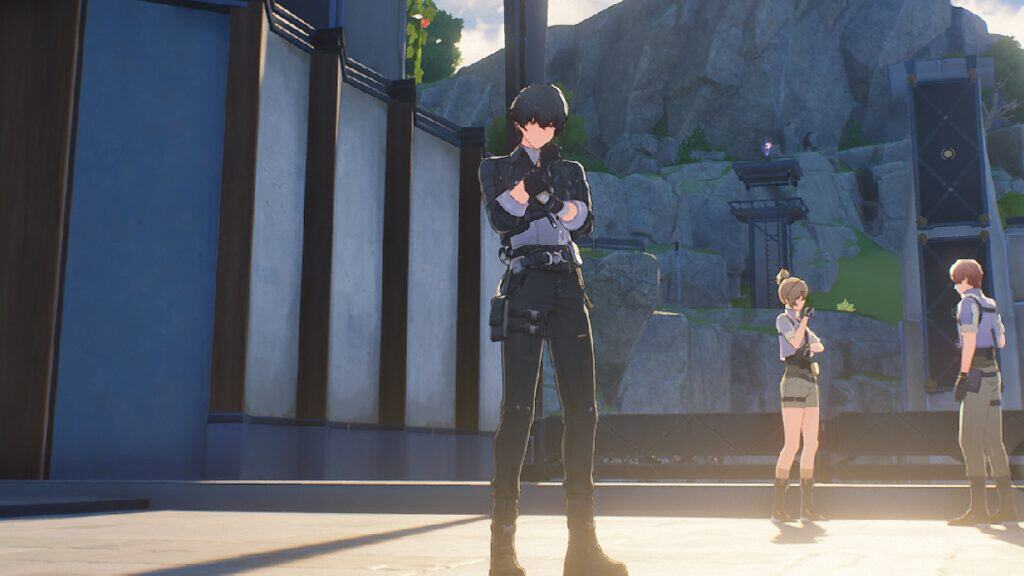
How to Use Sensor in Wuthering Waves 
Image Source: Kuro Games via The Nerd Stash
This article is over 1 years old and may contain outdated information.

The Sensor is one of the modules, or tools, used by all Resonators with their Pangu Terminal. The Sensor is particularly useful for finding items and recreating traces, similar to how Genshin Impact‘s Elemental Vision works. However, in Wuthering Waves, you need to use it in the Echoing Marche mission to find out which path a ranger took to follow him. The problem arose when several players had trouble finding the module because of the different platforms’ control schemes, but using the Sensor in Wuthering Waves is actually really simple.

How Does the Sensor in Wuthering Waves Work?
Sensor Wuthering Waves
Image Source: Kuro Games via The Nerd Stash

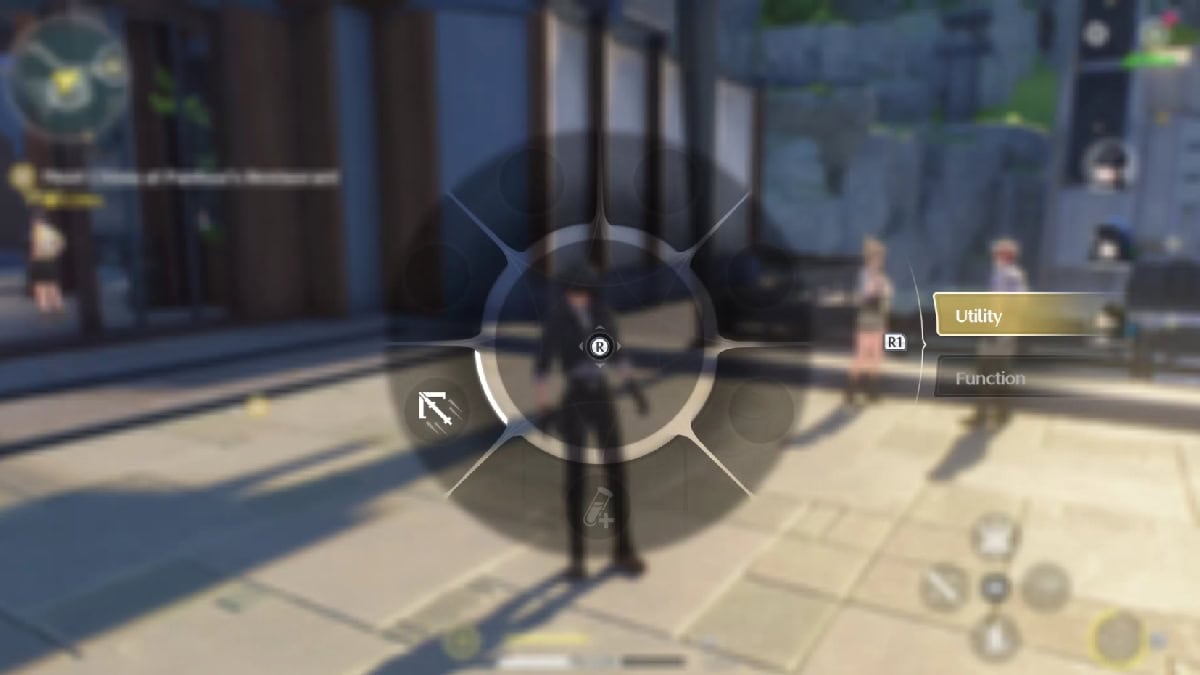
You can obtain the Sensor during the Echoing Marche mission, a quest that is part of the main events of the history mission. Here, after initiating a conversation with one of the midnight rangers, they will task you with finding the patrol route; to do so, you will get the Sensor. Now, let’s get into how to use this Sensor tool, which varies depending on your gaming hardware for Wuthering Waves. These are all the ways you can access your tool menu:

PC

  • When you are on a PC and using the keyboard to play, you must press the ALT+TAB keys to open the tool wheel and select the Sensor. To use the Sensor, press the T key.
  • If you use a controller, press the Left Arrow button on the D-Pad to open the tool wheel, then press R1 to switch to the Utility menu. Next, select the Sensor. To activate the Sensor Module, hold L1 and press Triangle.

Mobile

The default place for the tools button is on the right side of the screen above the Skill and below where the characters appear. On the button will appear the logo of the tool you have active. To activate it, hold the button, and the selection wheel will appear. Then, select the Sensor.

Related:

7 Mistakes You Should Avoid When Starting Wuthering Waves: Don’t Ruin Your Account

Now, you can continue with the mission if you can’t complete it because of the Sensor and look for different items on the map. You never know what you might encounter, but every material you find can be very useful to upgrade a character, maximize weapons, or increase your cooking level. Everything counts towards finding more Union EXP and getting those precious Tides. Besides, you already know how to use Sensor and the rest of the tools in Wuthering Waves when you get them.

Related Topics
Guide Wuthering Waves
Share. Facebook Twitter LinkedIn Reddit Email
Giovanna De Ita
  • Website

Giovanna is a fan of every single game HoYoverse has launched. When she's not covering videogames, she writes her daily horoscopes and tarot readings for the astrology vertical in The Nerd Stash.

SUGGESTED READS

Nintendo Demanded Mario Always Be ‘Ahead’ of Sonic in Crossovers, Says Ex-SEGA Producer
Game News

Nintendo Demanded Mario Always Be ‘Ahead’ of Sonic in Crossovers, Says Ex-SEGA Producer: ‘Or There Will be No Deal’

Dynasty Warriors Origins Visions of Four Heroes Review
9
Game Features

Dynasty Warriors: Origins – Visions of Four Heroes Review – Old Foes, New Allies

Marvel Rivals Season 6 Hands-On Preview
Game Features

Marvel Rivals Season 6 Hands-On Preview: The Merc With a Mouth Has Arrived

Amazon's Tomb Raider Reveals Sophie Turner's Accurate Lara Croft Looks, But Fans Still Have One Major Concern
Game News

Amazon’s Tomb Raider Reveals Sophie Turner’s Classic-Inspired Lara Croft Looks, But Fans Still Have One Major Concern

Monster Hunter Wilds DLC FPS
Game News

More DLC Equals More FPS: Monster Hunter Wilds Player Discovers an Unintentional Flaw In the Game’s Performance

Marathon Raid Map
Features

Marathon Will Break Extraction Shooter Conventions by Bringing Destiny-like Raids Into the Mix

Trending
Nintendo Demanded Mario Always Be ‘Ahead’ of Sonic in Crossovers, Says Ex-SEGA Producer

Nintendo Demanded Mario Always Be ‘Ahead’ of Sonic in Crossovers, Says Ex-SEGA Producer: ‘Or There Will be No Deal’

Dynasty Warriors Origins Visions of Four Heroes Review
9

Dynasty Warriors: Origins – Visions of Four Heroes Review – Old Foes, New Allies

Marvel Rivals Season 6 Hands-On Preview

Marvel Rivals Season 6 Hands-On Preview: The Merc With a Mouth Has Arrived

Amazon's Tomb Raider Reveals Sophie Turner's Accurate Lara Croft Looks, But Fans Still Have One Major Concern

Amazon’s Tomb Raider Reveals Sophie Turner’s Classic-Inspired Lara Croft Looks, But Fans Still Have One Major Concern

The Nerd Stash
Facebook X (Twitter) Instagram YouTube LinkedIn
  • About Us
  • Join Our Team
  • Meet the Team
  • Privacy Policy
  • DMCA Policy
  • Contact Us
  • Terms of Use
  • Sitemap
  • Editorial Guidelines
  • Advertising Policy
© 2026 The Nerd Stash. All Rights Reserved.

Type above and press Enter to search. Press Esc to cancel.