Close Menu
  • Gaming
    • Game Guides
    • Codes
    • Game News
    • Game Previews
    • Game Reviews
    • Game Features
    • Game Lists
    • Platforms
      • Nintendo
      • PC
      • PlayStation
      • Xbox
      • Mobile
  • Entertainment
    • Movies
    • Movie Features
    • Movie Reviews
    • TV
    • Reality TV
    • Royals
  • Celebrity
    • Hollywood
  • Human Interest
  • Astrology
  • Videos
  • More
    • Anime
    • Lists
    • Podcasts
    • Reviews
Facebook X (Twitter) Instagram LinkedIn YouTube
  • About Us
  • Join Our Team
  • Meet the Team
  • Privacy Policy
  • DMCA Policy
  • Contact Us
  • Terms of Use
  • Sitemap
  • Editorial Guidelines
  • Advertising Policy
The Nerd Stash
  • Gaming
  • Celebrity
    • Hollywood
  • Human Interest
  • Videos
The Nerd Stash
Home»Game Guides»Once Human: How to Use Photo Mode

Once Human: How to Use Photo Mode

Smile for the camera.

Nat CollazoBy Nat CollazoJuly 29, 20242 Mins Read
Once Human: How to Use Photo Mode
Image source: Starry Studio via The Nerd Stash

Skip To...

  • Finding the Photo Mode Button
  • Photo Mode Settings

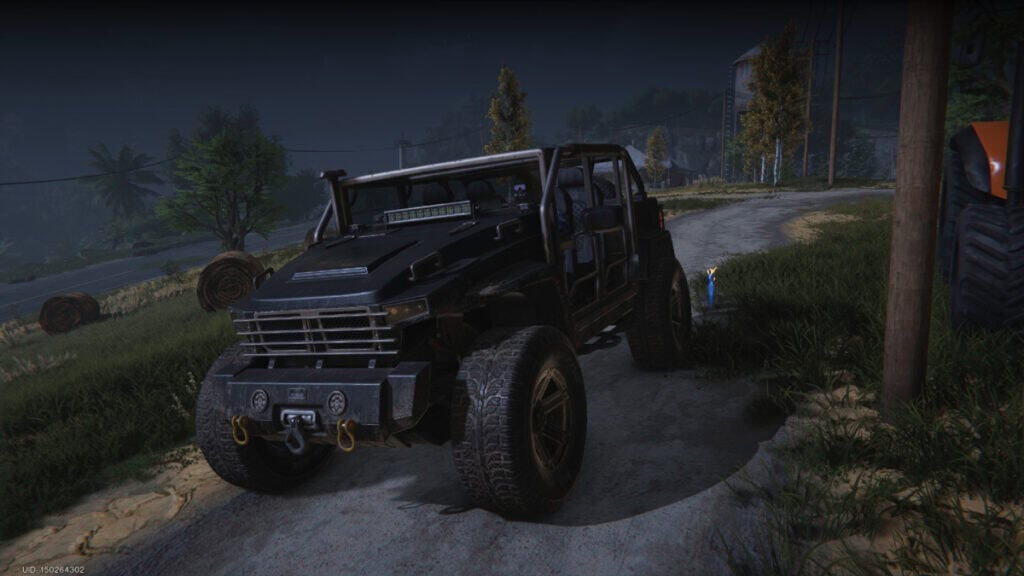
Personally, having a photo mode in games automatically makes them better; especially if it’s a game where I created my character. Once Human has so many interesting locations and sceneries to take photos of that it just wouldn’t have made sense not to add one. Unfortunately, it seems as though Starry Studio didn’t think that people would be using it as often as they are. Let’s take a look at how to use the camera in Once Human and what settings it has.

Finding the Photo Mode Button

Once Human: How to Use Photo Mode
Image source: Starry Studio via The Nerd Stash

To use photo mode in Once Human, press and hold the Tab button on your keyboard to open an option wheel. One of these options is the camera option. To use photo mode, hide the UI with the V button and take a picture by pressing the Enter button. Of course, you’re free to take screenshots directly from Steam instead so that it stays in your screenshot library.

Screenshots taken with your character will also be stored in your Netease character account. You can then choose to download the image, share it with your friends, or save it to your camera roll.

Photo Mode Settings

Once Human: How to Use Photo Mode
Image source: Starry Studio via The Nerd Stash

The settings for the camera in Once Human can be a little tricky. However, they can yield incredible results if you have the patience to tinker with it. This is everything that you can do with it:

  • Basic Settings
    • Type.
    • Templates.
    • Field of View.
    • Flip Image.
    • Rotate Character.
    • Change Weather.
    • Change Time.
  • Camera
    • Type.
    • Field of View.
  • Depth of Field
    • Depth of Field.
  • Character
    • Show Character.
    • Action.
    • Face the Camera.
    • Rotate Character.
    • Weapons On.
  • Effects
    • Exposure.
    • Contrast.
    • Texture.
  • Environments
    • Weather.
    • Time.
  • Stickers
    • Sticker.
    • Frame.
    • Text.

Related:

Once Human: Shadow Hound Location & Boss Guide

Once Human can be played on PC and mobile devices.
Related Topics
Guide Once Human
Share. Facebook Twitter LinkedIn Reddit Email
Nat Collazo
  • Website
  • X (Twitter)
  • Instagram

I am a game journalist and guide writer with ten years of experience as well as the CEO/ Founder of Frowns Marketing, a marketing company that caters to indie games, tabletop games, and board games to help developers get more wishlists, backers, and players!

SUGGESTED READS

Minecraft Accused of Mocking Lonely Kids, Sparking Mental Health Backlash: 'One of the Ickiest Things I've Seen'
Features

Minecraft Accused of Mocking Lonely Kids, Sparking Mental Health Backlash: ‘One of the Ickiest Things I’ve Seen’

Destiny 2 Renegades PS5 Review
8.5
Features

Destiny 2: Renegades Review – The Shooter Strikes Back

Clair Obscur: Expedition 33 Loses GOTY, Other Award from Indie Game Awards Over Generative AI: 'Some Weird Performative BS'
Game News

GOTY Stripped Over AI?: Clair Obscur: Expedition 33 Loses Awards at Indie Game Awards, ‘Some Weird Performative BS’

Sony Patents Real-time AI Game Censorship Tech That Could Even Make GTA 6 Kid-Friendly
Game News

Sony Patents Real-Time AI Game Censorship Tech That Could Even Make GTA 6 Kid-Friendly

Zenless Zone Zero Version 2.5 Announcement
Game News

Zenless Zone Zero Version 2.5 Is Ready To Wrap Up the Year With Two New Agents and a Free Outfit

PC Gamers Can't Catch a Break as Nvidia Plans 40% GeForce GPU Production Cuts, Report: 'Who Needs a PC Anyways'
Game News

PC Gamers Can’t Catch a Break as Nvidia Reportedly Plans 40% GeForce GPU Production Cuts: ‘Who Needs a PC Anyways’

Trending
Minecraft Accused of Mocking Lonely Kids, Sparking Mental Health Backlash: 'One of the Ickiest Things I've Seen'

Minecraft Accused of Mocking Lonely Kids, Sparking Mental Health Backlash: ‘One of the Ickiest Things I’ve Seen’

Destiny 2 Renegades PS5 Review
8.5

Destiny 2: Renegades Review – The Shooter Strikes Back

Clair Obscur: Expedition 33 Loses GOTY, Other Award from Indie Game Awards Over Generative AI: 'Some Weird Performative BS'

GOTY Stripped Over AI?: Clair Obscur: Expedition 33 Loses Awards at Indie Game Awards, ‘Some Weird Performative BS’

Sony Patents Real-time AI Game Censorship Tech That Could Even Make GTA 6 Kid-Friendly

Sony Patents Real-Time AI Game Censorship Tech That Could Even Make GTA 6 Kid-Friendly

The Nerd Stash
Facebook X (Twitter) Instagram YouTube LinkedIn
  • About Us
  • Join Our Team
  • Meet the Team
  • Privacy Policy
  • DMCA Policy
  • Contact Us
  • Terms of Use
  • Sitemap
  • Editorial Guidelines
  • Advertising Policy
© 2025 The Nerd Stash. All Rights Reserved.

Type above and press Enter to search. Press Esc to cancel.