Many Hytale players will find it very reminiscent of Minecraft. And if there’s one thing that also makes the Windows sandbox unique, it’s the excellent ability to customize games and servers. However, Hytale is not far behind, as there are already countless mods that allow players to add, remove, or change the content of their game. Best of all, installing mods in Hytale is very easy. The really complicated part is deciding how many and which mods to add.
How to Install Mods in Hytale?
Before you start installing any mods, the essential thing is to have the game, in this case, Hytale, already installed. Once you have the Hytale launcher, you need to do the following:
1. Download CurseForge; this app lets you find all kinds of mods and keep them organized.
- Note: CurseForge is compatible with Overwolf.
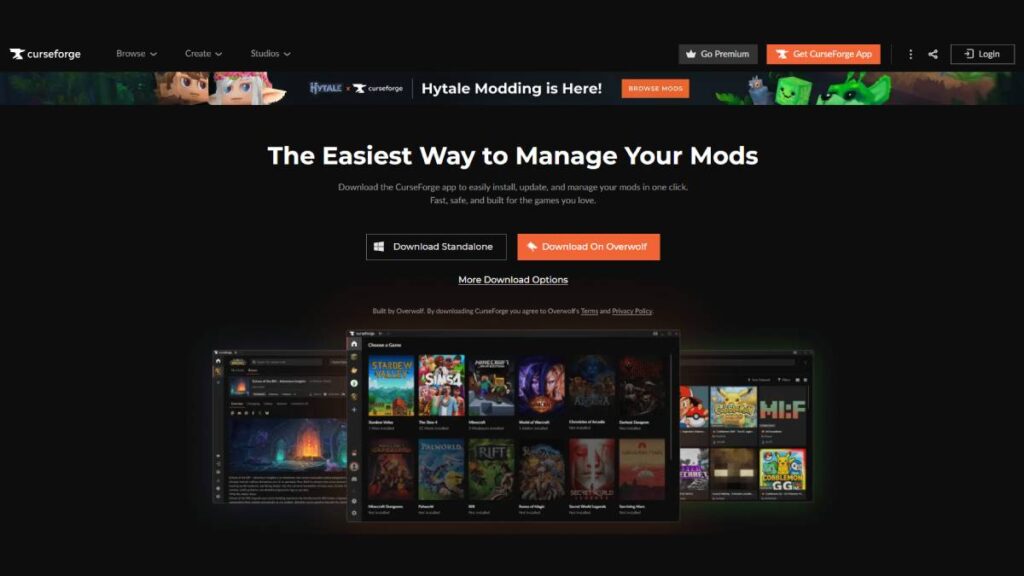
2. A catalog of games will appear in CurseForge; just search for Hytale.
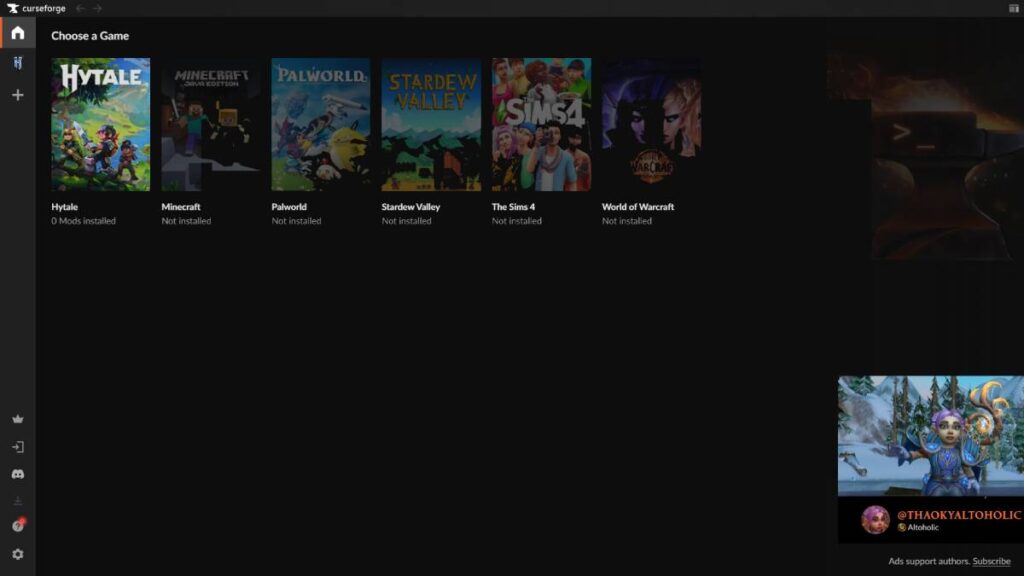
3. When you install CurseForge for the first time, “Browse for Mods” or the “Discovery” tab will appear, which will take you to the catalog of all available mods for Hytale. However, if you already have some external mods, you can select “Scan mods folder” to add them.
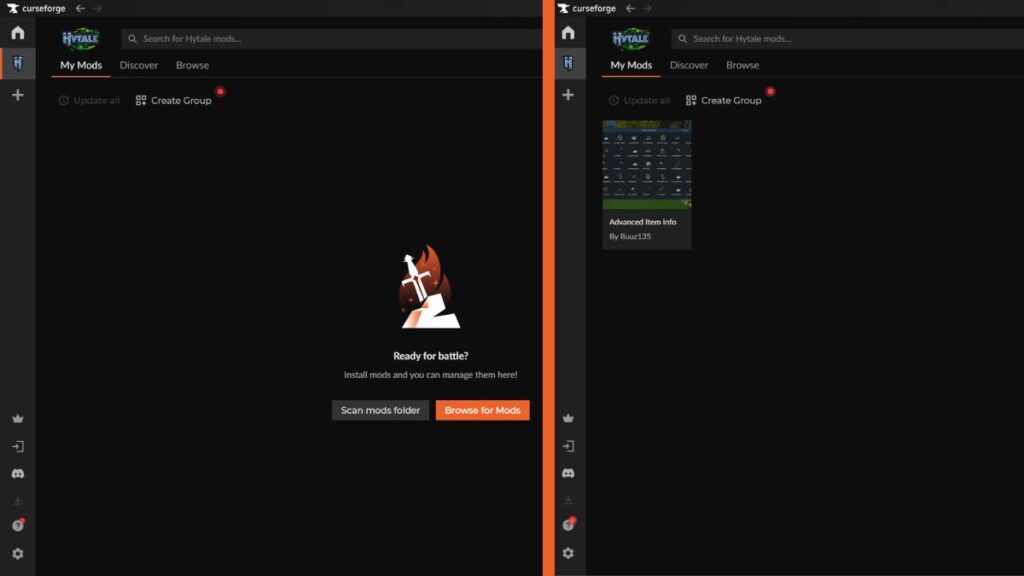
4. In “Discovery,” simply select the mod you want to add and press the “Install” button. This will automatically add the mod.
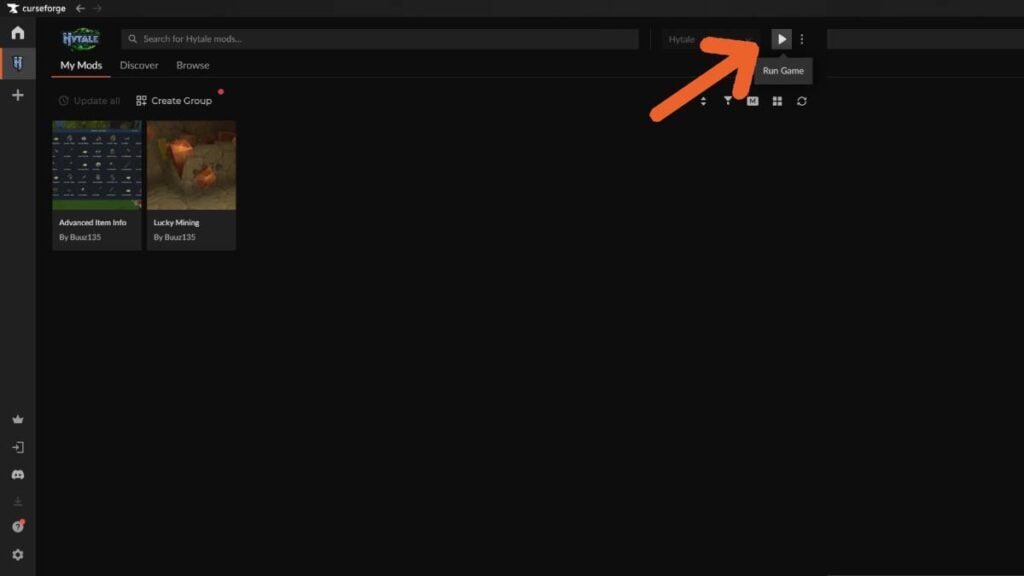
5. Start Hytales from CurseForge using the play button in the upper right corner.
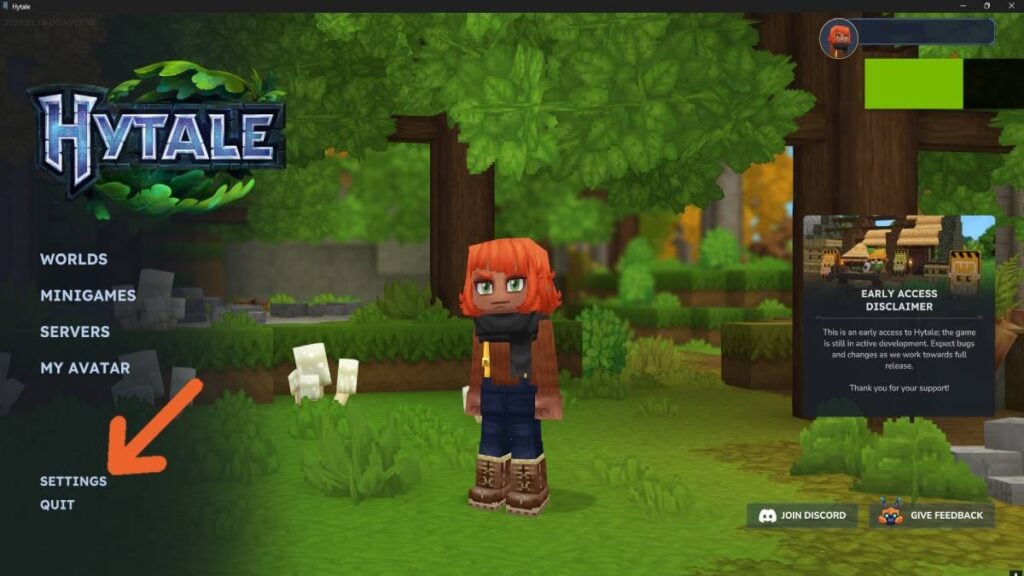
6. Before you can play, you must enable the mods in your worlds. So, when you are in the main menu, select “Settings.”
7. In the “Settings” window, look for the first tab at the top, “Worlds.”
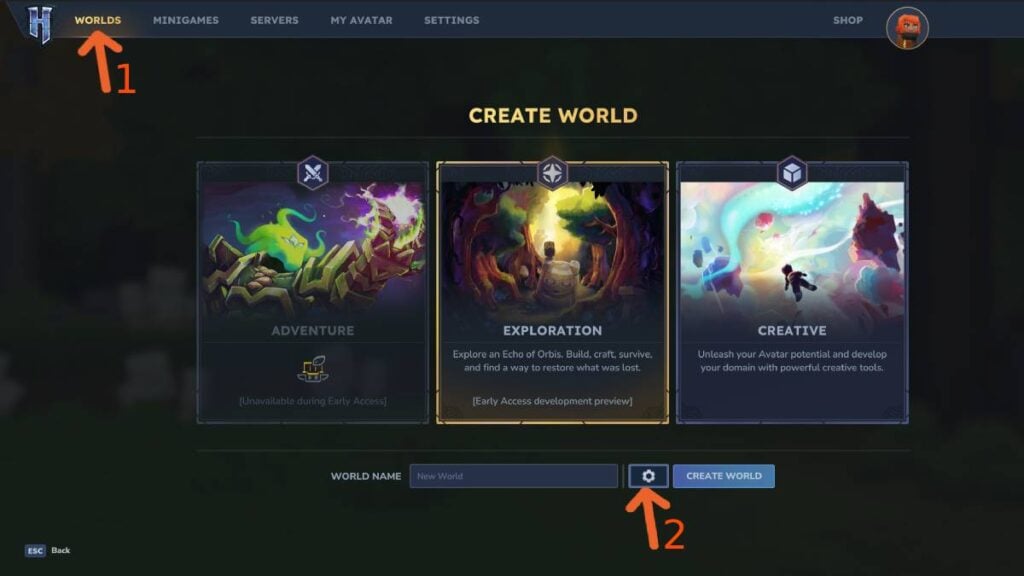
8. In “Worlds,” you will see some settings for your world, but most importantly, on the left side, you will see a list of mods that you have already installed. Just check the box for the mods you want to enable.
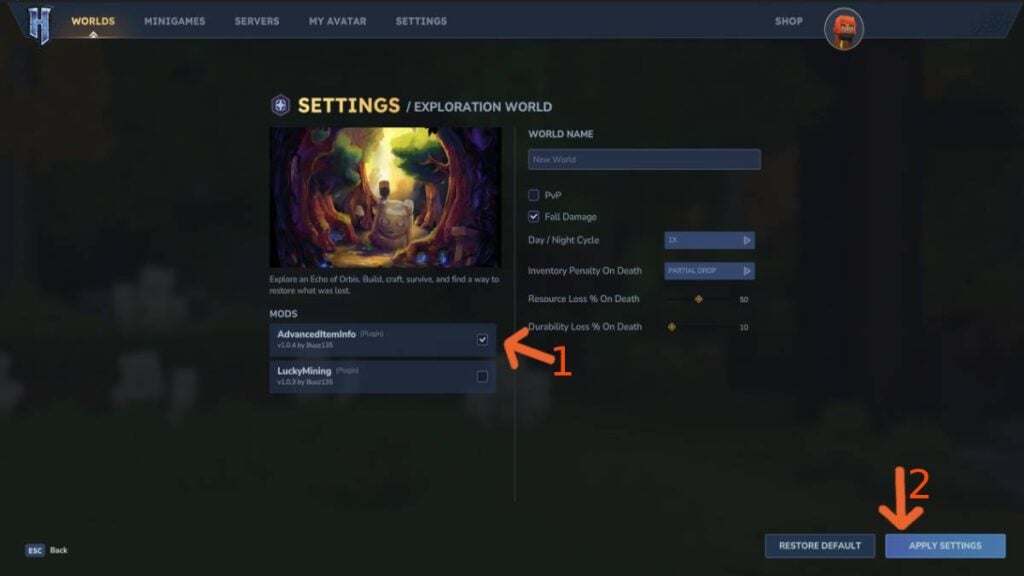
9. Once you have finished enabling your mods, press “Apply Settings” in the lower right corner to save everything.
With all these steps completed, you can now enjoy your mods in your world. However, when installing new mods, be sure to activate them using the same steps in this guide. Also, keep in mind that if you are setting up a multiplayer server to play with your friends, you will need to take your world offline, install the mods, and then reconnect. This will help you avoid any issues with installing and operating your mods.