Close Menu
  • Gaming
    • Game Guides
    • Codes
    • Game News
    • Game Previews
    • Game Reviews
    • Game Features
    • Game Lists
    • Platforms
      • Nintendo
      • PC
      • PlayStation
      • Xbox
      • Mobile
  • Entertainment
    • Movies
    • Movie Features
    • Movie Reviews
    • TV
    • Reality TV
    • Royals
  • Celebrity
    • Hollywood
  • Human Interest
  • Astrology
  • Videos
  • More
    • Anime
    • Lists
    • Podcasts
    • Reviews
Facebook X (Twitter) Instagram LinkedIn YouTube
  • About Us
  • Join Our Team
  • Meet the Team
  • Privacy Policy
  • DMCA Policy
  • Contact Us
  • Terms of Use
  • Sitemap
  • Editorial Guidelines
  • Advertising Policy
The Nerd Stash
  • Gaming
  • Celebrity
    • Hollywood
  • Human Interest
  • Videos
The Nerd Stash
Home»Game Guides»How To Install Mods in Hytale

How To Install Mods in Hytale

Customize your world

Giovanna De ItaBy Giovanna De ItaJanuary 13, 20263 Mins Read
Hytale How To Install Mods
Image Source: Hypixel Studios

Many Hytale players will find it very reminiscent of Minecraft. And if there’s one thing that also makes the Windows sandbox unique, it’s the excellent ability to customize games and servers. However, Hytale is not far behind, as there are already countless mods that allow players to add, remove, or change the content of their game. Best of all, installing mods in Hytale is very easy. The really complicated part is deciding how many and which mods to add.

How to Install Mods in Hytale?

Before you start installing any mods, the essential thing is to have the game, in this case, Hytale, already installed. Once you have the Hytale launcher, you need to do the following:

1. Download CurseForge; this app lets you find all kinds of mods and keep them organized.

  • Note: CurseForge is compatible with Overwolf.

Hytale mods CurseForge
Image source: CurseForge via The Nerd Stash

2. A catalog of games will appear in CurseForge; just search for Hytale.
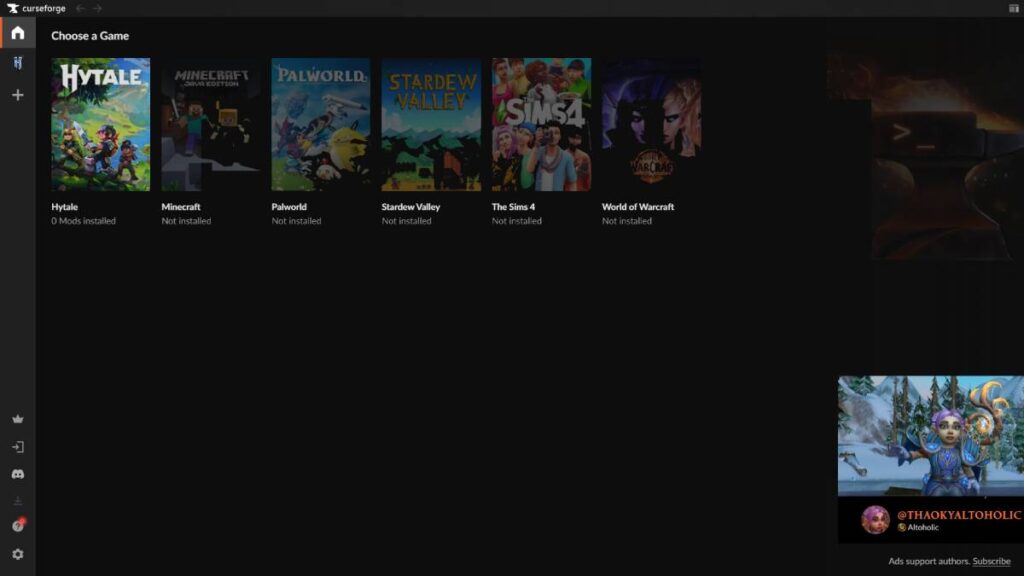
Hytale CurseForge
Image source: CurseForge via The Nerd Stash

3. When you install CurseForge for the first time, “Browse for Mods” or the “Discovery” tab will appear, which will take you to the catalog of all available mods for Hytale. However, if you already have some external mods, you can select “Scan mods folder” to add them.
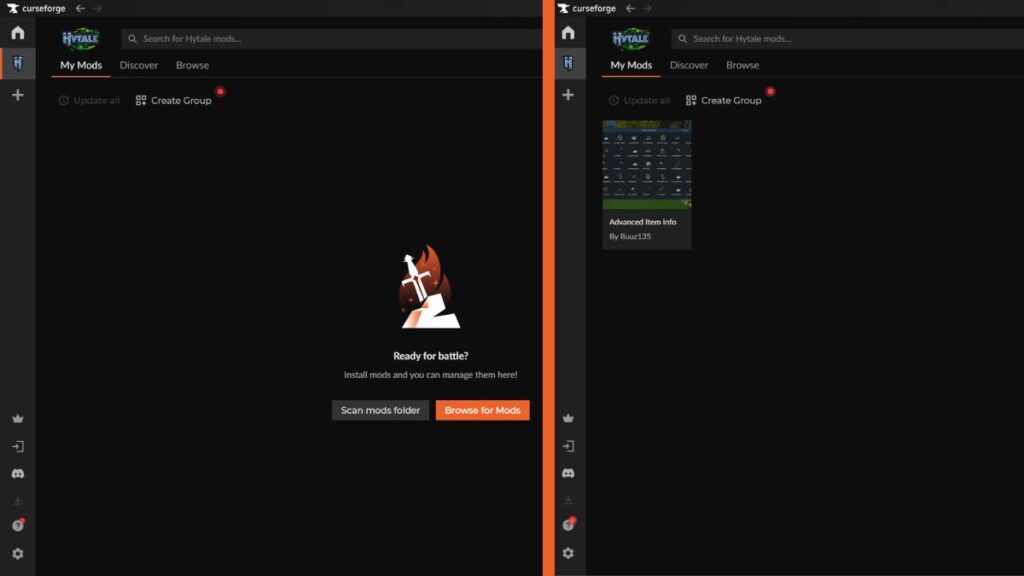
CurseForge Hytale
Image source: CurseForge via The Nerd Stash

4. In “Discovery,” simply select the mod you want to add and press the “Install” button. This will automatically add the mod.

5. Start Hytales from CurseForge using the play button in the upper right corner.
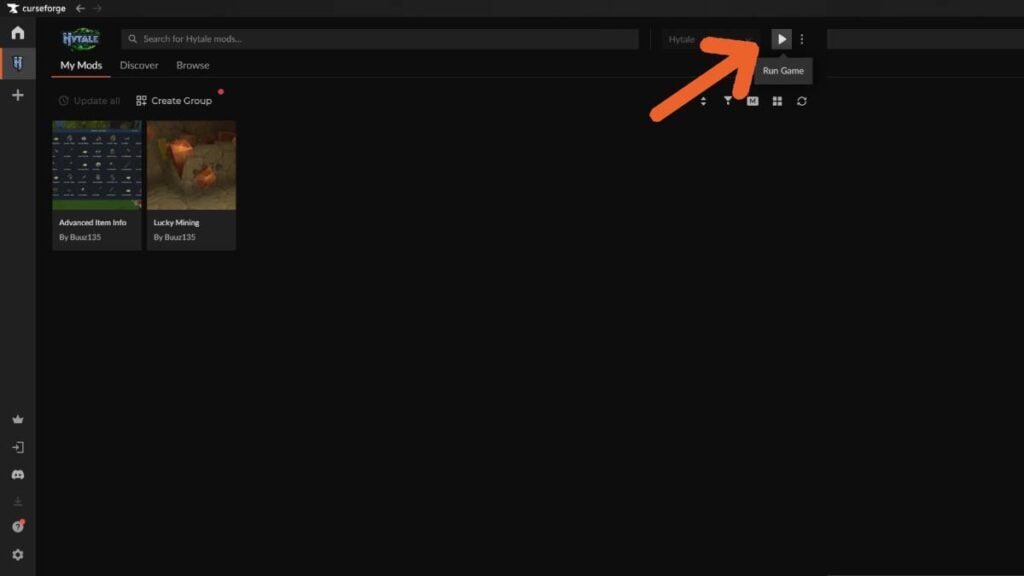
Hytale Install Mods
Image source: CurseForge via The Nerd Stash

6. Before you can play, you must enable the mods in your worlds. So, when you are in the main menu, select “Settings.”
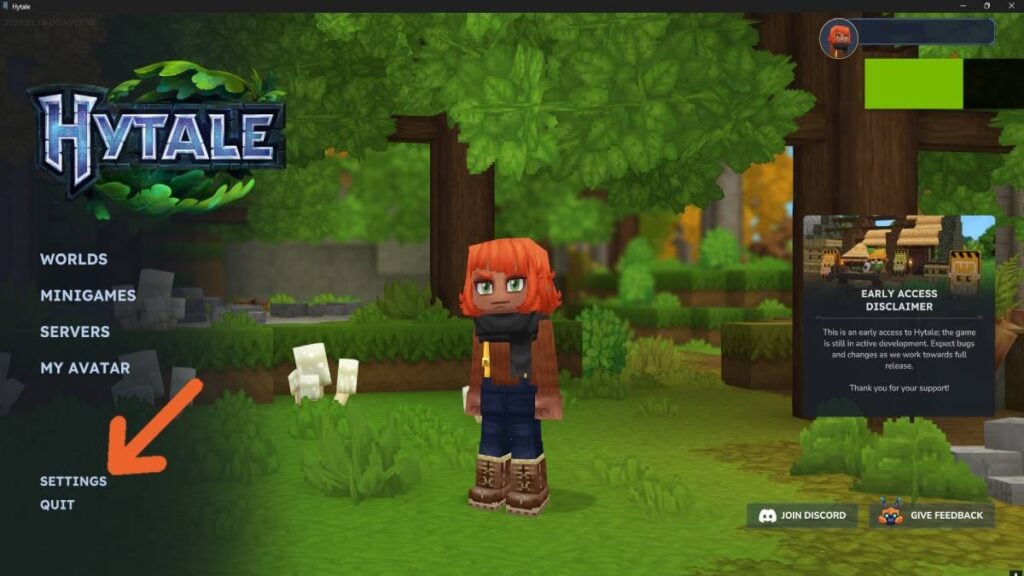
Hytale settings
Image source: Hypixel Studios via The Nerd Stash

7. In the “Settings” window, look for the first tab at the top, “Worlds.”
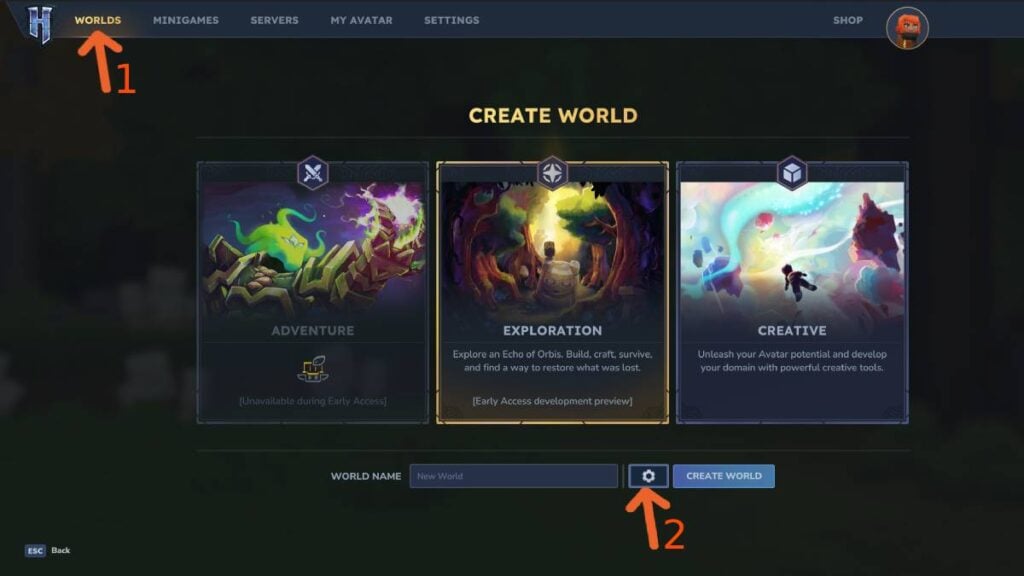
Hytale worlds
Image source: Hypixel Studios via The Nerd Stash

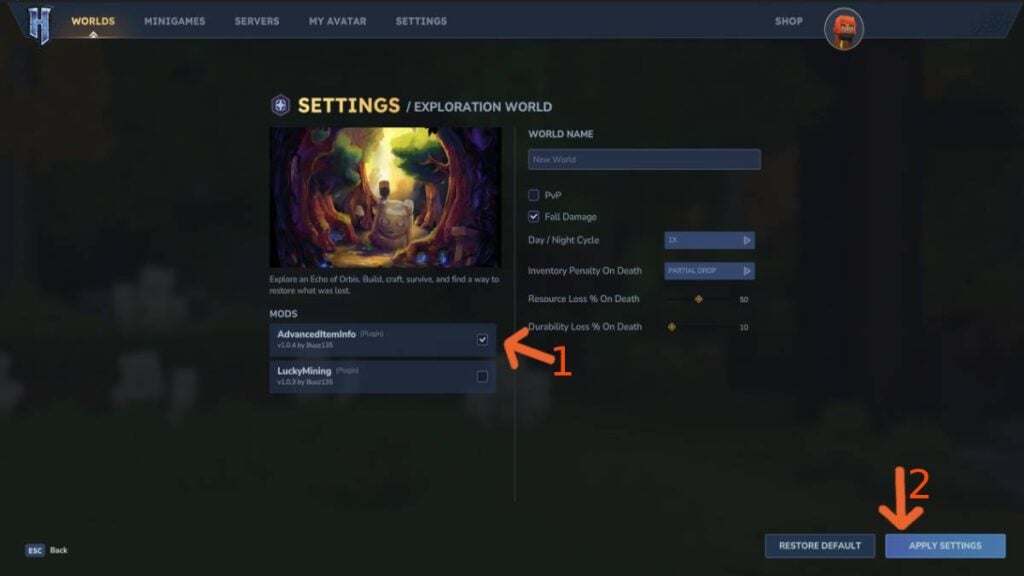
8. In “Worlds,” you will see some settings for your world, but most importantly, on the left side, you will see a list of mods that you have already installed. Just check the box for the mods you want to enable.
Hytale enable mods
Image source: Hypixel Studios via The Nerd Stash

9. Once you have finished enabling your mods, press “Apply Settings” in the lower right corner to save everything.
Is Hytale Free to Play? Editions and Available Platforms, Explained
Related: Is Hytale Free to Play? Editions and Available Platforms, Explained

With all these steps completed, you can now enjoy your mods in your world. However, when installing new mods, be sure to activate them using the same steps in this guide. Also, keep in mind that if you are setting up a multiplayer server to play with your friends, you will need to take your world offline, install the mods, and then reconnect. This will help you avoid any issues with installing and operating your mods.

Related Topics
Hypixel Studios Hytale
Share. Facebook Twitter LinkedIn Reddit Email
Giovanna De Ita
  • Website

Giovanna is a fan of every single game HoYoverse has launched. When she's not covering videogames, she writes her daily horoscopes and tarot readings for the astrology vertical in The Nerd Stash.

SUGGESTED READS

Helldivers Movie Casts Jason Momoa as Lead, Fans Immediately Want Him Dead: 'Then a Drop Pod Lands on Him?'
Game News

Helldivers Movie Casts Jason Momoa as Lead, Fans Immediately Want Him Dead: ‘Then a Drop Pod Lands on Him?’

Starship Troopers Ultimate Big War Demo
Game Previews

Starship Troopers: Ultimate Bug War Hands-On Impressions – Doing Our Part

Minecraft-Inspired Game on Steam Removed After Microsoft DMCA, AI Claim Suspected
Game News

Minecraft-Inspired Game on Steam Removed After Microsoft DMCA, AI Claim Suspected

Age of Wonrders 4 Rise from Ruin DLC
Game News

Age of Wonders 4 Announces Its Next Huge Expansion ‘Rise From Ruin’ With a New Culture and Several Tomes

ROMEO IS A DEAD MAN
9
Game Reviews

ROMEO IS A DEAD MAN Review – An Outstanding Medley of Combat and Chaos

Black Ops 7 and Battlefield 6 low player numbers on Steam
Game Features

The FPS Giants Get Run Down by Competition As Black Ops 7 and Battlefield 6 Lose Momentum

The Nerd Stash
Facebook X (Twitter) Instagram YouTube LinkedIn
  • About Us
  • Join Our Team
  • Meet the Team
  • Privacy Policy
  • DMCA Policy
  • Contact Us
  • Terms of Use
  • Sitemap
  • Editorial Guidelines
  • Advertising Policy
© 2026 The Nerd Stash. All Rights Reserved.

Type above and press Enter to search. Press Esc to cancel.