Close Menu
  • Gaming
    • Platforms
      • Nintendo
      • PC
      • PlayStation
      • Xbox
  • Entertainment
    • Movies
    • TV
    • Royals
  • Celebrity
    • Hollywood
  • Human Interest
  • Astrology
  • More
    • Anime
    • Reviews
Facebook X (Twitter) Instagram LinkedIn YouTube
  • About Us
  • Join Our Team
  • Meet the Team
  • Privacy Policy
  • DMCA Policy
  • Contact Us
  • Terms of Use
  • Sitemap
  • Editorial Guidelines
  • Advertising Policy
The Nerd Stash
  • Gaming
  • Celebrity
  • Hollywood
  • Human Interest
The Nerd Stash
Home»Gaming»How To Listen to Spotify and Get Your Jam on While Playing Roblox

How To Listen to Spotify and Get Your Jam on While Playing Roblox

One, two, three, four!

Patrick ArmstrongBy Patrick ArmstrongNovember 15, 20242 Mins Read
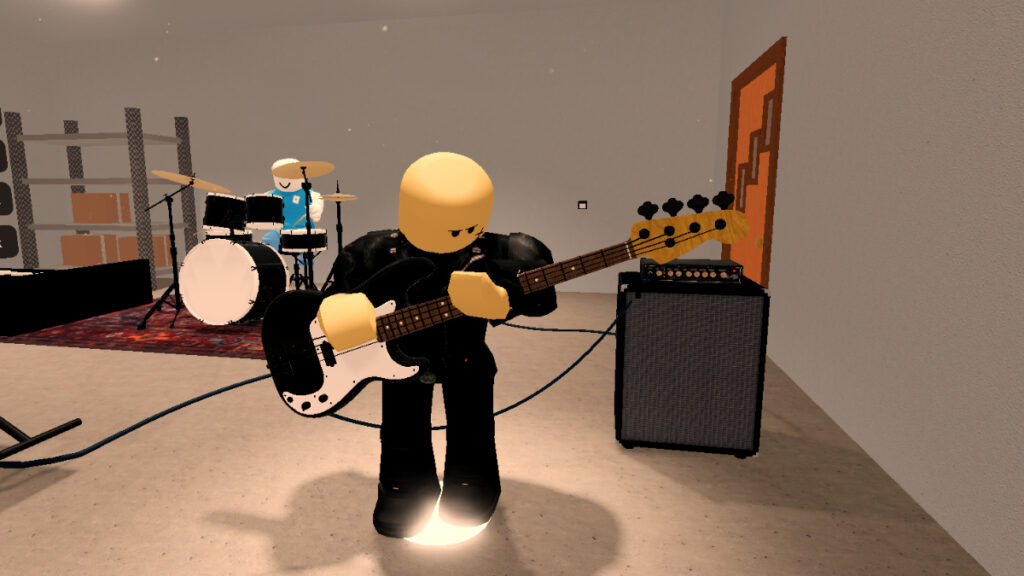
Musicians play together in GarageBand Roblox
Image Source: aj7tony via The Nerd Stash

A rollicking sea shanty plays while you sail the ocean blue. A sinister piano follows your footsteps as you sneak through an irradiated town. Music can make all the difference in a game, making even the blockiest worlds feel real. Although many Roblox experiences include excellent soundtracks of their own, some aren’t so captivating. Even soundtracks that are a treat for your ears can grow tiresome. When that happens, there’s no better solution than rocking your own music through Spotify while you play. Here’s how to listen to Spotify and embrace the beat while playing Roblox.

Roblox Spotify Listening Guide
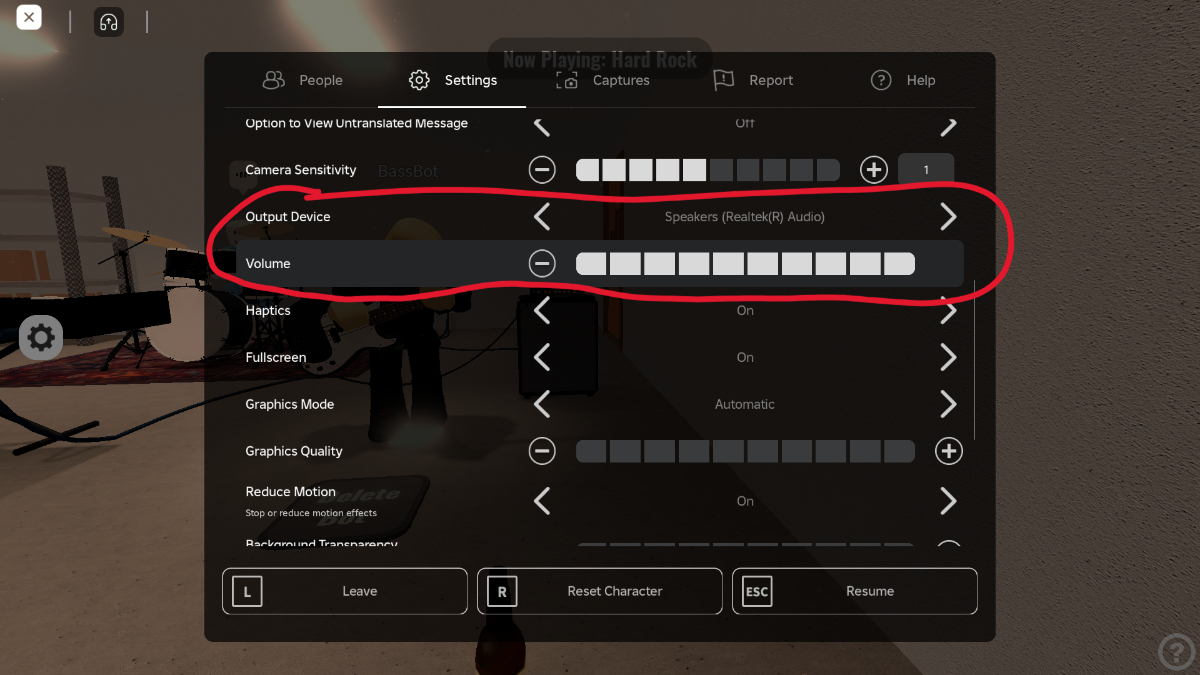
The audio options in the settings menu in Roblox
Image Source: aj7tony via The Nerd Stash

In general, listening to Spotify while playing Roblox is straightforward. That said, some players have reported problems getting the game audio and Spotify music to play together without issues, so your experience may vary. Finding the right audio balance might look a little different depending on your device and software, but the basics remain the same. Here’s what you need to do to take your first steps on the road to Music Town:

  1. Launch Spotify
  2. Select and play a song or playlist
  3. Launch Roblox and choose an experience to play
  4. Open “Settings” (the three-dot icon)
  5. Adjust the volume as necessary
  6. If needed, switch your outpost device
How to Check When Someone Was Last Online on Roblox
Related: How to Check When Someone Was Last Online on Roblox

This method works with all platforms, so you shouldn’t have any issues. Although most games will allow you to play game audio and music simultaneously, doing so often won’t sound great. You can solve this by simply disabling the in-game music or sound altogether. If you have the option of tweaking the music and SFX volume individually, you’ll often get the best results by disabling the former while leaving the latter enabled. That way your music isn’t fighting for the spotlight. With a custom playlist to keep your ears company, your next gaming marathon should be cozier than ever. Happy jamming, Robloxians!


Related Topics
Guide Roblox
Share. Facebook Twitter LinkedIn Reddit Email
Patrick Armstrong
  • Website

Artist and writer with a lifelong love of video games. Their favorite games include Dead by Daylight, Meet Your Maker, and Project Zomboid.

SUGGESTED READS

MindsEye Layoffs 2026
Gaming

Studio Behind GTA-like Game, MindsEye, Hit With More Layoffs, and Nobody is Surprised: ‘Shocked There’s Even a Janitor Working There’

Princess Peach Spin-Off Movie May Already Be in Development, Job Listing Suggests
Gaming

Princess Peach Spin-Off Movie May Already Be in Development, Job Listing Suggests

Xbox's New CEO Wants to Reconnect With the 'Community,' Yet Brings In More CoreAI Leaders
Gaming

Xbox’s New CEO Wants to Reconnect With the ‘Community,’ Yet Brings In More CoreAI Leaders

Diablo 4 Season 13 Tier List
Gaming

Class Tier List for Diablo 4 Season 13 (Best Classes for Endgame & Leveling)

Take-Two Boss Finally Explains Why GTA 6 Is Skipping PC at Launch: 'We'll See How It Works Out'
Gaming

Take-Two Boss Finally Explains Why GTA 6 Is Skipping PC at Launch: ‘We’ll See How It Works Out’

Rockstar Employee Review Claims 'Unrealistic' Crunch as GTA 6 Development Intensifies: 'Had to Work Till 3AM'
Gaming

Rockstar Employee Review Claims ‘Unrealistic’ Crunch as GTA 6 Development Intensifies: ‘Had to Work Till 3AM’

The Nerd Stash
Facebook X (Twitter) Instagram YouTube LinkedIn
  • About Us
  • Join Our Team
  • Meet the Team
  • Privacy Policy
  • DMCA Policy
  • Contact Us
  • Terms of Use
  • Sitemap
  • Editorial Guidelines
  • Advertising Policy
© 2026 The Nerd Stash. All Rights Reserved.

Type above and press Enter to search. Press Esc to cancel.