
Close Menu
  • Gaming
    • Platforms
      • Nintendo
      • PC
      • PlayStation
      • Xbox
  • Entertainment
    • Movies
    • TV
    • Royals
  • Celebrity
    • Hollywood
  • Human Interest
  • Astrology
  • More
    • Anime
    • Reviews
Facebook X (Twitter) Instagram LinkedIn YouTube
  • About Us
  • Join Our Team
  • Meet the Team
  • Privacy Policy
  • DMCA Policy
  • Contact Us
  • Terms of Use
  • Sitemap
  • Editorial Guidelines
  • Advertising Policy
The Nerd Stash
  • Gaming
  • Celebrity
  • Hollywood
  • Human Interest
The Nerd Stash
Home»Gaming»How to Show FPS in Diablo 4

How to Show FPS in Diablo 4

Despite the server issues, crashes, and almost every staple of a launch by Blizzard, players are enjoying the first beta of Diablo 4. Most players…

Julio La PineBy Julio La PineMarch 19, 20233 Mins Read
How to show FPS counter in Diablo 4
Image: Diablo 4
This article is over 3 years old and may contain outdated information.

Despite the server issues, crashes, and almost every staple of a launch by Blizzard, players are enjoying the first beta of Diablo 4. Most players are praising the gameplay, the aesthetics, and everything in the game. This bodes well, as the previous mobile title with a poor PC port got horrible reviews. Now, Diablo 4 seems to be on the right track to redeem the company, and we’re just in the first beta. However, with that in mind, some are also suffering from poor optimization in the game. This can be an issue as action-oriented games need to run smoothly for a better experience. If you want to check how good your game is running on PC, here we’ll tell you how to show FPS in Diablo 4.

How to show FPS in Diablo 4

There are two ways to show FPS in Diablo 4 on PC. These ways will change depending on the graphics card you have installed and the platform you’re playing on. Without further ado, let’s check how to do it:

Using the NVIDIA GeForce Experience app

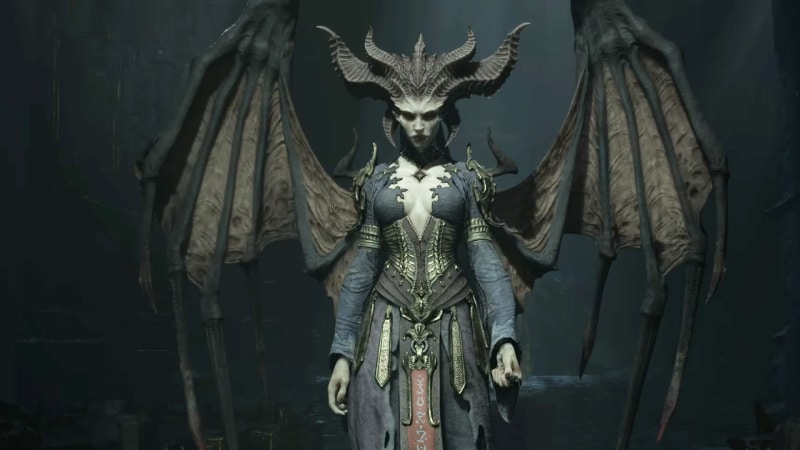
NVIDIA is one of the most common manufacturers out there when it comes to graphics cards. Most people tend to choose NVIDIA, and with the success of recent cards, we can see why. If you own an NVIDIA card and want to show FPS in Diablo 4, you need to head to the NVIDIA GeForce Experience app. Find the “In-Game Overlay” option and choose the “FPS” option under the Performance tab.
Diablo 4 FPS Counter
Image: Diablo 4

Related:

How to get Diablo 4 Limited Collector’s Box and what’s included

AMD Radeon Software

AMD isn’t falling behind in terms of gaming cards, either. As you know, recent next-gen consoles use this manufacturer’s graphics cards, and they’ve turned out quite well. While on PC, people prefer the first option we mentioned. AMD is great too. To enable your FPS counter, if you own an AMD card, you need to open the AMD Radeon Software and enable the In-Game overlay. Once you do it, you’ll be able to track your FPS.

As you can see, showing FPS in Diablo 4 is pretty easy, as these gaming cards already come with software you can download to monitor your gaming experience. We recommend that you get it as soon as you start gaming to see how smooth your experience is. If you’re suffering from low FPS, make sure to change your options and tweak some of them to make your Diablo 4 experience a lot smoother.


Related Topics
Diablo 4 Guide
Share. Facebook Twitter LinkedIn Reddit Email
Julio La Pine
  • Website

Been gaming since '99! I am a huge JRPG fan and my favorite franchise is Final Fantasy. I love writing about games and I hope I can do it for the rest of my days!

SUGGESTED READS

Hideo Kojima Teams Up With Prada for an AI Film, And Fans Aren't Happy: 'Beyond Incredibly Disappointing'
Gaming

Hideo Kojima Teams Up With Prada for an AI Film, And Fans Aren’t Happy: ‘Beyond Incredibly Disappointing’

The Witcher 3 Songs of the Past expansion
Gaming

A Witcher 3 Leak Just Forced CD Projekt Red to Announce a Brand-New Expansion: Songs of the Past

CDPR Announces The Witcher 3 'Special Anniversary Stream' Amid New Massive DLC Rumor
Gaming

CDPR Announces The Witcher 3 ‘Special Anniversary Stream’ Amid New Massive DLC Expansion Rumor

007 First Light All Challenges
Gaming

All Challenges in 007 First Light

How Long to Beat 007 First Light
Gaming

How Long to Beat 007 First Light (Full Chapters List)

007 First Lict Tactical Sim Mode
Gaming

How To Unlock Tactical Sim Mode in 007 First Light

The Nerd Stash
Facebook X (Twitter) Instagram YouTube LinkedIn
  • About Us
  • Join Our Team
  • Meet the Team
  • Privacy Policy
  • DMCA Policy
  • Contact Us
  • Terms of Use
  • Sitemap
  • Editorial Guidelines
  • Advertising Policy
© 2026 The Nerd Stash. All Rights Reserved.

Type above and press Enter to search. Press Esc to cancel.