Close Menu
  • Gaming
    • Game Guides
    • Codes
    • Game News
    • Game Previews
    • Game Reviews
    • Game Features
    • Game Lists
    • Platforms
      • Nintendo
      • PC
      • PlayStation
      • Xbox
      • Mobile
  • Entertainment
    • Movies
    • Movie Features
    • Movie Reviews
    • TV
    • Reality TV
    • Royals
  • Celebrity
    • Hollywood
  • Human Interest
  • Astrology
  • Videos
  • More
    • Anime
    • Lists
    • Podcasts
    • Reviews
Facebook X (Twitter) Instagram LinkedIn YouTube
  • About Us
  • Join Our Team
  • Meet the Team
  • Privacy Policy
  • DMCA Policy
  • Contact Us
  • Terms of Use
  • Sitemap
  • Editorial Guidelines
  • Advertising Policy
The Nerd Stash
  • Gaming
  • Celebrity
    • Hollywood
  • Human Interest
  • Videos
The Nerd Stash
Home»Game Guides»How to Switch Characters in Pikmin 4

How to Switch Characters in Pikmin 4

Among the many new features that Pikmin 4 has introduced, to switch characters and control our favorite pup Oatchi has to be the best. Facing enemies, increasing your Pikmin capacity,…

Alejandro JosanBy Alejandro JosanJuly 22, 20232 Mins Read
Pikmin 4 Switch Characters Oatchi Cover
Image Source: Nintendo
This article is over 2 years old and may contain outdated information.

Among the many new features that Pikmin 4 has introduced, to switch characters and control our favorite pup Oatchi has to be the best. Facing enemies, increasing your Pikmin capacity, and collecting treasure fall short of the power of Oatchi’s charge and overall cuteness. That said, we will get the chance to control Oatchi by himself, opening up the playing possibilities quite a decent amount. Prepare Oatchi for what is to come; here is how to switch characters in Pikmin 4.

How To Control Oatchi in Pikmin 4
Pikmin 4 Switch Characters Oatchi Swimming
Image Source: Nintendo

In order to switch characters and control Oatchi in Pikmin 4, you must do the following:

  1. Press and hold the Y button. You will see a wheel of options appear on the screen.
  2. Tilt the left analog stick downwards to highlight the Switch option.
  3. Press the Y button again to confirm your choice. You will be controlling Oatchi now. This differs from your character riding Oatchi, as you’ll move your companion separately.

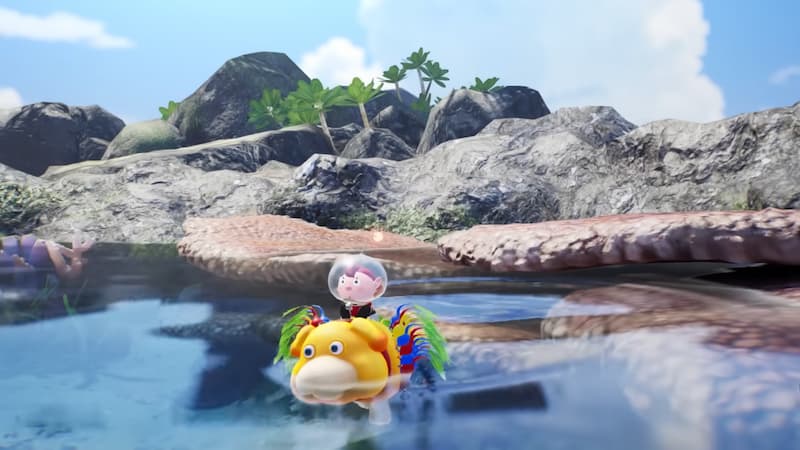
While Oatchi won’t be able to control Pikmin by himself in Pikmin 4, you can use his abilities accordingly. Swim across the water, jump over obstacles, and perform the infamous charged attack to get rid of enemies and the occasional breakable rock. The latter ability is very helpful in defeating enemies without risking the life of your Pikmin. You can whistle, allowing your character to jump on top of Oatchi and ride him.

If you wish to get back to controlling your characters, repeat the switch procedure:

  1. Press and hold Y
  2. Tilt the left analog stick down
  3. Press Y to confirm.

If you want to make things easier, you can even assign the switch action by accessing the Pikmin 4 options menu by pressing –. You have five custom shortcuts you can program to keep things as streamlined as possible.

If you want to give some commands to Oatchi instead, tilt your left analog stick to the left instead. Even Oatchi can command your character as well! Just make sure to take advantage of these abilities and be wise during your Pikmin adventures.

Related:

Pikmin 4: Should You Play the Previous Games First?

That’s how you switch characters and get to control Oatchi in Pikmin 4! Use this ability wisely, and remember to get back to your custom character to use both of your abilities to confront the challenges that lie ahead.

Pikmin 4 is available now on Nintendo Switch.

Related Topics
Guide Pikmin 4
Share. Facebook Twitter LinkedIn Reddit Email
Alejandro Josan
  • Website
  • X (Twitter)

A musician with a gamer's heart. From RPGs to FPS, with a couple of platformers in between, you will find Alejandro trying to find all collectibles in every game, and struggling with the occasional Water Temple.

SUGGESTED READS

Minecraft Accused of Mocking Lonely Kids, Sparking Mental Health Backlash: 'One of the Ickiest Things I've Seen'
Features

Minecraft Accused of Mocking Lonely Kids, Sparking Mental Health Backlash: ‘One of the Ickiest Things I’ve Seen’

Destiny 2 Renegades PS5 Review
8.5
Features

Destiny 2: Renegades Review – The Shooter Strikes Back

Clair Obscur: Expedition 33 Loses GOTY, Other Award from Indie Game Awards Over Generative AI: 'Some Weird Performative BS'
Game News

GOTY Stripped Over AI?: Clair Obscur: Expedition 33 Loses Awards at Indie Game Awards, ‘Some Weird Performative BS’

Sony Patents Real-time AI Game Censorship Tech That Could Even Make GTA 6 Kid-Friendly
Game News

Sony Patents Real-Time AI Game Censorship Tech That Could Even Make GTA 6 Kid-Friendly

Zenless Zone Zero Version 2.5 Announcement
Game News

Zenless Zone Zero Version 2.5 Is Ready To Wrap Up the Year With Two New Agents and a Free Outfit

PC Gamers Can't Catch a Break as Nvidia Plans 40% GeForce GPU Production Cuts, Report: 'Who Needs a PC Anyways'
Game News

PC Gamers Can’t Catch a Break as Nvidia Reportedly Plans 40% GeForce GPU Production Cuts: ‘Who Needs a PC Anyways’

Trending
Minecraft Accused of Mocking Lonely Kids, Sparking Mental Health Backlash: 'One of the Ickiest Things I've Seen'

Minecraft Accused of Mocking Lonely Kids, Sparking Mental Health Backlash: ‘One of the Ickiest Things I’ve Seen’

Destiny 2 Renegades PS5 Review
8.5

Destiny 2: Renegades Review – The Shooter Strikes Back

Clair Obscur: Expedition 33 Loses GOTY, Other Award from Indie Game Awards Over Generative AI: 'Some Weird Performative BS'

GOTY Stripped Over AI?: Clair Obscur: Expedition 33 Loses Awards at Indie Game Awards, ‘Some Weird Performative BS’

Sony Patents Real-time AI Game Censorship Tech That Could Even Make GTA 6 Kid-Friendly

Sony Patents Real-Time AI Game Censorship Tech That Could Even Make GTA 6 Kid-Friendly

The Nerd Stash
Facebook X (Twitter) Instagram YouTube LinkedIn
  • About Us
  • Join Our Team
  • Meet the Team
  • Privacy Policy
  • DMCA Policy
  • Contact Us
  • Terms of Use
  • Sitemap
  • Editorial Guidelines
  • Advertising Policy
© 2025 The Nerd Stash. All Rights Reserved.

Type above and press Enter to search. Press Esc to cancel.