



Steam, Valve‘s digital storefront, is PC’s number one gaming platform. As a result, even if just a small number of users are having problems, the issue will be quickly reported far and wide throughout the internet. Likewise, when most players suddenly can’t connect to Steam, it will make headlines on numerous gaming sites and social media. If you are experiencing a server or connection issue, here’s how you can check your Steam region’s network and server status.
Note: Steam uses many data centers worldwide, so you are linked to the one closest to your current location, and server status may vary depending on where you are. Additionally, widespread network outages could affect not only Steam’s accessibility but also other web services.
Is Steam Down? TL;DR Answer
(Updated July 13, 2026 – updated links and format)
Yes, Steam is currently down at the time of this update (7/13/2026). Here’s the official word from Valve:
Yes, we are detecting problems with Steam that began 34 minutes ago.
The last outage we detected for Steam occurred on Monday, July 13, 2026.
How to Check Steam Network Server Status
If you’d like to check for yourself, there are a few ways to check Steam’s network status, including whether its servers are currently up.
Steam & Game Stats – Official

- Link: store.steampowered.com/stats
Steam & Game Stats is the official Valve-owned page showcasing the DRM-slash-launcher-slash-store app’s server activity. Here, you can also see the Top 10 and Top 100 most played games by Steam users.
However, the data regarding server activity shown here is pretty minimal. All you can see is just the number of concurrent Steam users in the last 48 hours. While you can assume a big user dip is due to a server outage, keep in mind that Steam & Game Stat’s graphs show global user numbers; a dip also occurs when the majority of players worldwide stop running the app while minorities in different time zones are still active.
Steamstat.us – Third Party

- Link: steamstat.us | twitter.com/steamstatus
If the official server page’s data seems unsatisfactory, thankfully, people unrelated to Valve have made more reliable ways to check the Steam network and server status. One of the most reputable is Steamstat.us. It reveals the number of Steam users as well as CS: GO and Connection Manager (Steam Store) server availability per region. With that in mind, if you’re in the US and your friends over in Europe are having trouble connecting to Steam, you might not have the same issue as them.
This site is created and operated by Pavel Djundik, the creator of SteamDB. If you have a Twitter account, you can also follow SteamStatus’s Twitter for updates.
Steamstatus.io – Third Party
- Link: steamstatus.io
And the last one is Steamstatus.io. Aside from listing Steam server availability per region, it also has a Steam network live map which indicates the status of each regional network:
- Blue Dot: Stable network status, with some higher-than-usual but okay load. Speed and reachability should not be affected.
- Orange Dot: This happens when the network is under high load. Short outages are possible, but especially a decreased speed while loading the Community, Store, or other Steam services. A common occurrence during Steam Sales.
- Red Dot: The Steam network for that particular region may be completely down and inaccessible.
How To Fix Steamwebhelper Error Code
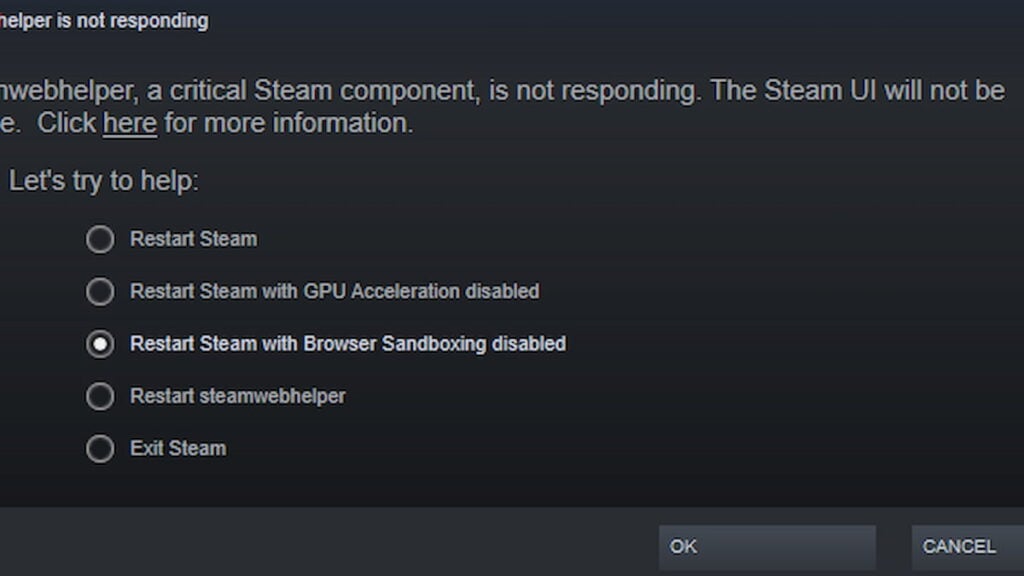
To try and fix Steamwebhelper being down, you are presented with several options. Try to Restart Steam. If that doesn’t work, try to restart Steam with Browser Sandboxing disabled. If that fails to fix the issue, you must simply wait, as the problem is on Steam’s backend, not your hardware or internet.
How to Troubleshoot Steam Server Connection Issue
If the Steam server of your region seems to be up and running, but you are experiencing connection trouble, Steam Support has listed several details that might help you:
Error Code 53 and Other Connection Issues
Some programs may interfere with Steam’s processes and prevent it from operating normally:
- Anti-virus software.
- Virtual Private Network (VPN).
- Anti-Spyware.
- Firewalls and security applications.
- Peer-to-Peer (P2P) clients and file sharing software.
- FTP and web server applications.
- IP filtering or blocking programs.
- Download accelerator and download manager programs.
- Steam also does not support connecting through a network DMZ (de-militarized zone). Try disabling the settings in your router.
Change your Download Region
Windows PC:
- Start Steam.
- Go to Steam > Settings > Downloads tab.
- Under Download region, select a different but relatively close region.
- Try launching or installing the game once more.
Mac:
- Start Steam.
- Click on Steam > Preferences > Downloads tab.
- Under Download region, select a different but relatively close region.
- Try launching or installing the game once more.
Repair Corrupted Steam Files
Windows PC:
- Exit Steam
- Navigate to your Steam installation directory.
- C:\Program Files (x86)\Steam\ is the default path.
- Delete everything in that directory except the following:
- steam.exe
- steamapps directory
- Restart Steam to test the issue.
Mac:
- Exit Steam.
- Navigate to Users/[username]/Library/Application Support/Steam.
- Delete everything in that directory except for the steamapps folder.
- You may lose mods or custom content with this method.
- Launch Steam from your Dock or Applications folder.