Close Menu
  • Gaming
    • Game Guides
    • Codes
    • Game News
    • Game Previews
    • Game Reviews
    • Game Features
    • Game Lists
    • Platforms
      • Nintendo
      • PC
      • PlayStation
      • Xbox
      • Mobile
  • Entertainment
    • Movies
    • Movie Features
    • Movie Reviews
    • TV
    • Reality TV
    • Royals
  • Celebrity
    • Hollywood
  • Human Interest
  • Astrology
  • Videos
  • More
    • Anime
    • Lists
    • Podcasts
    • Reviews
Facebook X (Twitter) Instagram LinkedIn YouTube
  • About Us
  • Join Our Team
  • Meet the Team
  • Privacy Policy
  • DMCA Policy
  • Contact Us
  • Terms of Use
  • Sitemap
  • Editorial Guidelines
  • Advertising Policy
The Nerd Stash
  • Gaming
  • Celebrity
    • Hollywood
  • Human Interest
  • Videos
The Nerd Stash
Home»Game Guides»Minecraft: How to Update on PC Bedrock

Minecraft: How to Update on PC Bedrock

Minecraft is a game that takes many forms, from the two main versions of Java and Bedrock to the many platforms you can play the…

Shawn RobinsonBy Shawn RobinsonAugust 10, 20222 Mins Read
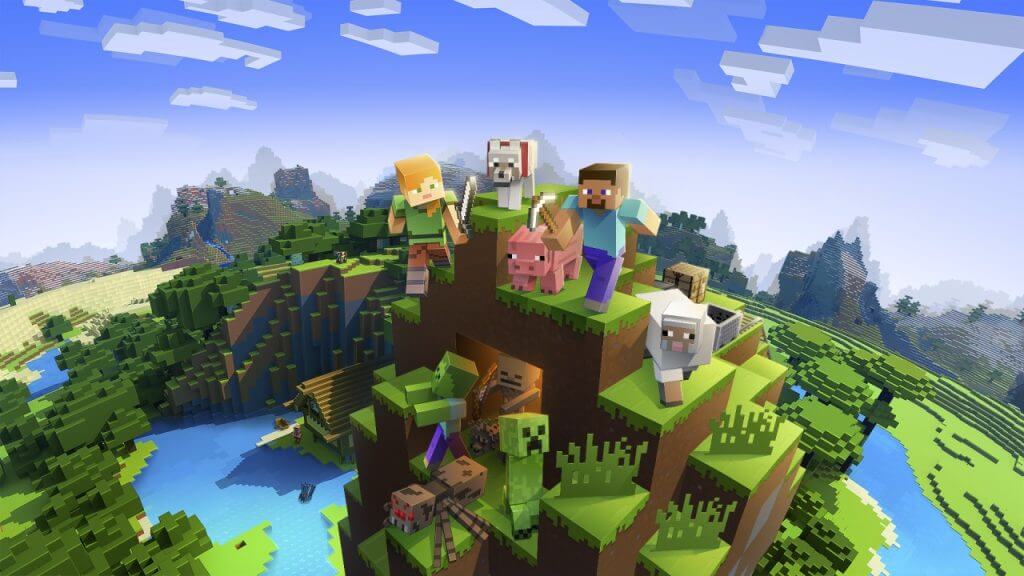
Minecraft title artwork with characters, Minecraft Patch Notes, Minecraft Update 1.19.20
This article is over 3 years old and may contain outdated information.

Minecraft is a game that takes many forms, from the two main versions of Java and Bedrock to the many platforms you can play the game on. While a wide range of players prefer Minecraft on Java, many others prefer the crossplay aspect of Minecraft on Bedrock. Before you can join your friends and many other players in that adventure though, you need to make sure you have the latest update installed. If you’re having trouble with how to do this, there’s no need to worry. In this guide, we’ll explain how to update your game for Minecraft on the PC version of Bedrock Edition.

How to Update Minecraft on PC Bedrock

Now, about 99% of the time the game should simply update on its own in the background with nothing more needed from your end. That 1% of the time though, due to the Microsoft Store not always being the most reliable storefront, will result in the update not going through. Sometimes a full PC restart can handle this, but there’s surprisingly an easier way. To force an update onto Bedrock, open up the Microsoft Store by typing its name into your Windows search bar. Once it’s opened, what you have to do will depend on your version of Windows. On Windows 10, you’ll need to click the three dots in the top left and click Downloads and Updates (or something along those lines). On Windows 11, you need to click Library in the bottom left.

Once at this menu, you may see Minecraft for Windows as an option for updating. If you don’t, click “Get updates” and you should see it pop up. If the download doesn’t start automatically, just click Update on it and it should update your game if the Windows Store is functioning properly. Once it’s done, your game is updated to the latest version and you should be able to play again! Have fun!

Related:

Minecraft: How to Get Turtle Shells
Related Topics
Guide Minecraft
Share. Facebook Twitter LinkedIn Reddit Email
Shawn Robinson
  • Website
  • X (Twitter)

Shawn is an avid 21-year old writer with two years in the games journalism industry. When not writing, you can often find him falling in love with singleplayer titles or yelling at multiplayer games he enjoys.

SUGGESTED READS

People of Note Release Date
Game News

Musical RPG, People of Note, Announces Its Release Date and Launches Public Demo

People of Note Demo Hands-on Impressions
Game Previews

People of Note Demo Hands-On Impressions – Embrace the Beat

Blender Bee Swarm Simulator
Game Guides

Where Is the Blender in Bee Swarm Simulator on Roblox? Answered

How to Get Blue Extract in Bee Swarm Simulator on Roblox
Game Guides

How to Get Blue Extract in Bee Swarm Simulator on Roblox

Norse Oath of Blood PC Review
7
Game Reviews

NORSE: Oath of Blood Review – Not Ready for Valhalla

Secret Lucky Block Steal a Brainrot
Game Guides

How To Easily Get Secret Lucky Blocks in Steal a Brainrot in Roblox

The Nerd Stash
Facebook X (Twitter) Instagram YouTube LinkedIn
  • About Us
  • Join Our Team
  • Meet the Team
  • Privacy Policy
  • DMCA Policy
  • Contact Us
  • Terms of Use
  • Sitemap
  • Editorial Guidelines
  • Advertising Policy
© 2026 The Nerd Stash. All Rights Reserved.

Type above and press Enter to search. Press Esc to cancel.