Close Menu
  • Gaming
    • Game Guides
    • Codes
    • Game News
    • Game Previews
    • Game Reviews
    • Game Features
    • Game Lists
    • Platforms
      • Nintendo
      • PC
      • PlayStation
      • Xbox
      • Mobile
  • Entertainment
    • Movies
    • Movie Features
    • Movie Reviews
    • TV
    • Reality TV
    • Royals
  • Celebrity
    • Hollywood
  • Human Interest
  • Astrology
  • More
    • Anime
    • Lists
    • Podcasts
    • Reviews
Facebook X (Twitter) Instagram LinkedIn YouTube
  • About Us
  • Join Our Team
  • Meet the Team
  • Privacy Policy
  • DMCA Policy
  • Contact Us
  • Terms of Use
  • Sitemap
  • Editorial Guidelines
  • Advertising Policy
The Nerd Stash
  • Gaming
  • Celebrity
  • Hollywood
  • Human Interest
The Nerd Stash
Home»Game Guides»How to Fix Error Code Guitar in Destiny 2

How to Fix Error Code Guitar in Destiny 2

The only Guitar nobody wants to hear.

Jordan MoyerAsanga WijeratneBy Jordan Moyer and Asanga WijeratneApril 9, 20243 Mins Read
How to Fix Error Code Guitar in Destiny 2
Image Source: Bungie via The Nerd Stash
This article is over 2 years old and may contain outdated information.

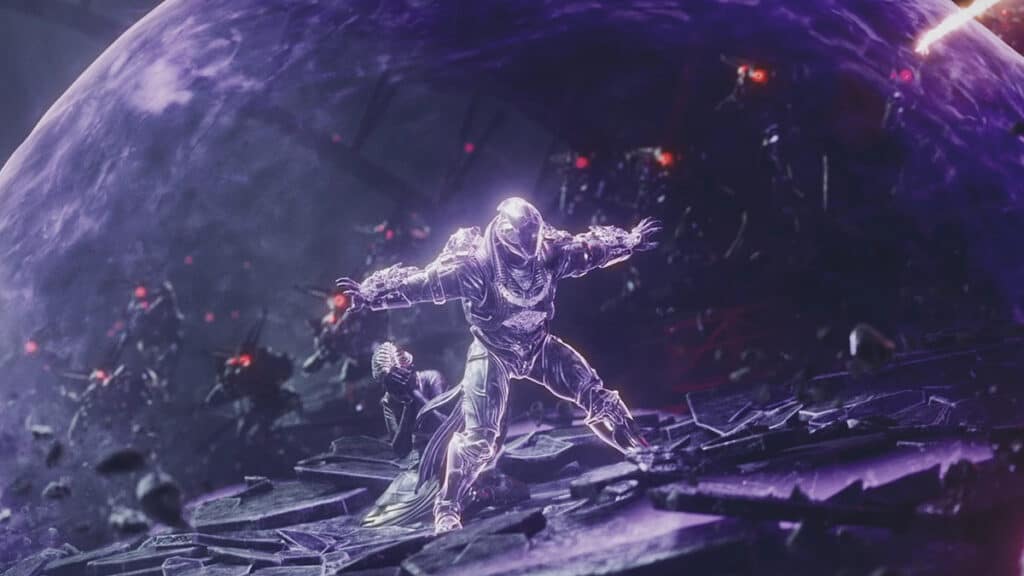
Oftentimes, error codes can be quite the pain in Destiny 2, especially if you’re facing errors like the Guitar error code. The Guitar error code has a habit of popping up when you least expect it and messing up any plans of completing the activity you’re currently working on. Recently, I’ve encountered the Guitar error code while attempting to play Onslaught, and only made it a few waves into the activity without the ability to complete it. Let’s take a look at how to fix Error Code Guitar in Destiny 2. 

What is  Error Code Guitar in Destiny 2?

Have you ever noticed that your screen freezes or gets stuck in a loop when playing Destiny 2? It turns out it could be Error Code Guitar. This bug occurs when too many in-game items are left on the ground, including Orbs of Power, Glimmer, Engrams, Ammo, and Destination Materials. This can happen because of the Console cache, Steam Launcher download caches, or Epic games Store Launcher web caches. In more recent events, players have had difficulty playing the Onslaught activity in Destiny 2, and end up being kicked from the game before they can complete it. 

Related:

Destiny 2: Update 7.3.6 Patch Notes – Into the Light

How to Fix  Error Code Guitar in Destiny 2?
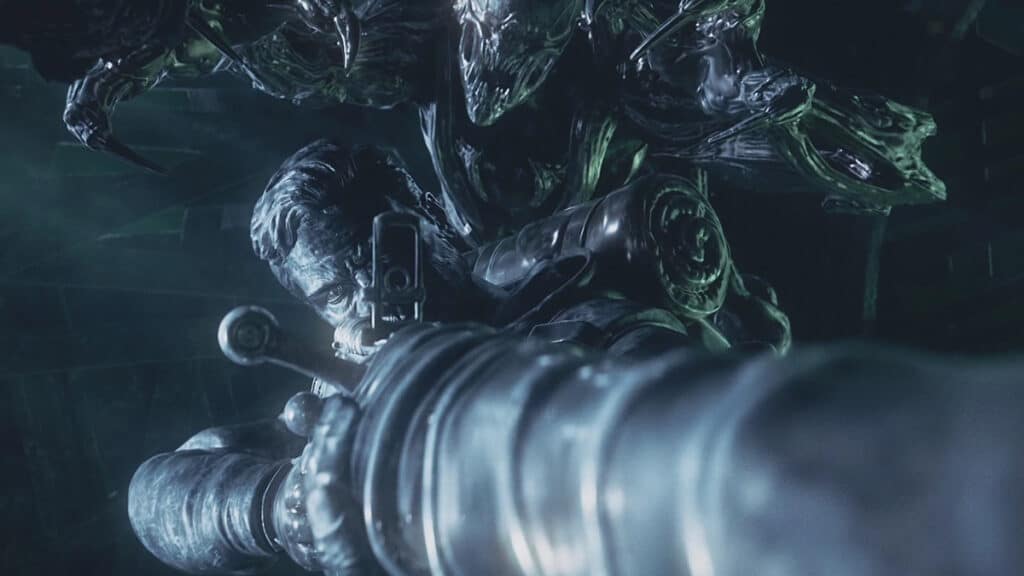
Error Code Guitar in Destiny 2
Image Source: Bungie via The Nerd Stash

The best way to fix Error Code Guitar is to Pick up all the items on the ground within the same activity. However, if you  still experience the issue, try the following steps:

  1. Clear the console Cache.
    • Power down the console and wait for around 5 minutes. Power it on again and launch the game.
  2. Clear the download caches of your Steam Launcher.
    • Go to the Settings tab in Steam Client; select the Download tab, and you will see the Clear Download Cache button there.
  3. Clear the web cache of Epic games Store Launcher.
    • Exit the Epic game launcher, open the file explorer window and Epic game folder. Go to the saved folder, and then delete the web cache folder. If there is a folder called webcache_4147, make sure to delete that as well. Restart the computer and relaunch the game.

If you’re still experiencing the issue, it’s recommended to navigate to the Bungie Help website for further assistance. Also, you can try standard error-fixing methods, such as restarting the game, ensuring that you have the latest version of Destiny 2 installed, and verifying game files.

Related:

How To Farm Trophies of Bravery in Destiny 2

Destiny 2 is available on PC, PlayStation, and Xbox platforms.

Related Topics
Destiny 2 Guide
Share. Facebook Twitter LinkedIn Reddit Email
Jordan Moyer, Asanga Wijeratne
  • Website
  • X (Twitter)

Jordan is an experienced fantasy writer who spends hours behind her laptop, and lost in the pages of a book. She strives to be a successful gaming blogger, and has no complaint about the hours of game time she used to increase her knowledge of all things “geek”. She primarily writes gaming articles and fantasy novels. Ark: Survival Evolved is a favorite, along with Diablo 3, Warframe and Minecraft lately, though you can’t forget the good old Magic the Gathering card game! Writing about games truly gives her joy as it gives her another perspective to look at games from, a reason to really look into the mechanics of the game.

Jordan Moyer, Asanga Wijeratne
  • Website
  • X (Twitter)

Jordan is an experienced fantasy writer who spends hours behind her laptop, and lost in the pages of a book. She strives to be a successful gaming blogger, and has no complaint about the hours of game time she used to increase her knowledge of all things “geek”. She primarily writes gaming articles and fantasy novels. Ark: Survival Evolved is a favorite, along with Diablo 3, Warframe and Minecraft lately, though you can’t forget the good old Magic the Gathering card game! Writing about games truly gives her joy as it gives her another perspective to look at games from, a reason to really look into the mechanics of the game.

SUGGESTED READS

Dragon's Dogma 2 DLC Rumors Explode Again After Massive 65GB SteamDB Updates
Game News

Dragon’s Dogma 2 DLC Rumors Explode Again After Massive 65GB SteamDB Updates

how to make gunpowder Windrose
Game Guides

How to Make Gunpowder in Windrose

Best Server Settings Windrose
Game Guides

Best Server Settings for Windrose

Skate Nike SB Limited-time Event
Game News

Skate. Kicks Off a Limited-time Event With Nike SB, and It’s Free For All

All Materials in Windrose
Game Guides

Windrose: All Materials (& How to Obtain Them)

Bloodborne Anime Announced, Sony Keeps It R-Rated to Stay 'True' to the Game
Game News

Bloodborne Anime Movie Announced, Sony Keeps It R-Rated to Stay ‘Very True’ to the Game

The Nerd Stash
Facebook X (Twitter) Instagram YouTube LinkedIn
  • About Us
  • Join Our Team
  • Meet the Team
  • Privacy Policy
  • DMCA Policy
  • Contact Us
  • Terms of Use
  • Sitemap
  • Editorial Guidelines
  • Advertising Policy
© 2026 The Nerd Stash. All Rights Reserved.

Type above and press Enter to search. Press Esc to cancel.