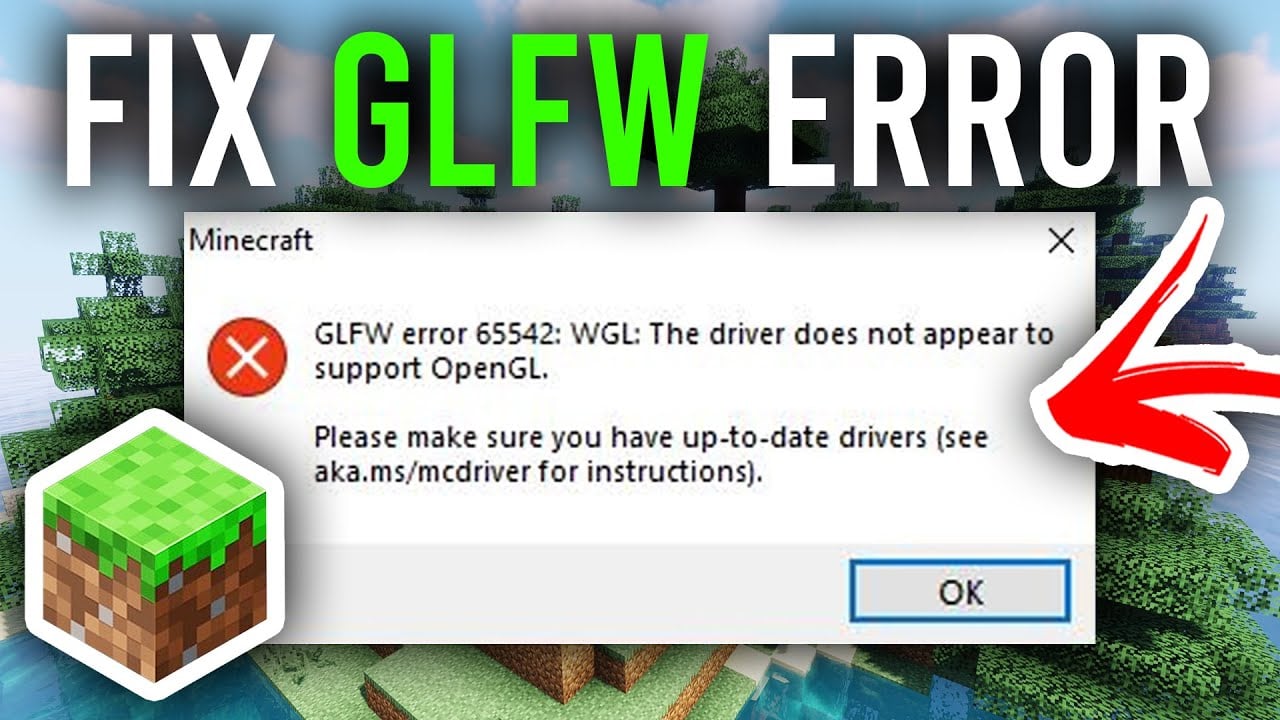
While the PC is considered the “master race” of gaming devices, it also comes with the most potential problems, even with games like Minecraft. One such problem is GLFW Error 65542, an issue that tells to Minecraft players that their drivers don’t support OpenGL. While some clever techies might know precisely what this pesky pop-up means, the average gamer likely doesn’t know and won’t care. After all, we’re here to play Minecraft, build our dream base, and beat the Ender Dragon, right? That said, there are a few solutions to resolve this error.
Solutions for the Minecraft GLFW Error 65542

Before going into detail, let’s go over our suggested solutions for fixing GLFW Error 65542 in Minecraft:
- Ensure your drivers are up to date.
- Download and replace your “opengl32.dll” file.
- Uninstall your drivers using DDU.
Ensuring All Drivers Are Up to Date

First and foremost, we strongly recommend you ensure all your drivers are up to date. This procedure involves checking if Windows has any pending updates and double-checking if your drivers in the Device Manager list are also fine. For your graphic drivers, it would be ideal if you downloaded and used their dedicated app, such as GeForce Experience. If this fundamental step doesn’t resolve Minecraft‘s GLFW Error 65542, let’s move on to Solution Number 2.
Replacing the “opengl32.dll” File

For this solution, you’ll need to visit and download from a website called DLL-files.com. The file you’re looking for is called “opengl32.dll;” we’ll provide a direct link here. Upon opening the page, you’ll notice several download options if you scroll down. You’ll want to download the latest version, but keep an eye on the “Architecture” as well.
To check what Architecture your system has, open your Windows search bar and type in “System Information” or “About your PC.” Check if your system is “x32” or “x64,” and download the correct opengl32 accordingly.
Now, follow these steps to replace your “opengl32.dll” to fix Minecraft‘s GLFW Error 65542:
- On your local disk, open Program Files.
- Navigate to a folder named Java.
- Select the folder inside and open “bin.”
- Check if opengl32.dll is in the “bin” folder.
- If so, extract your downloaded opengl32.dll from DLL-files and replace the file.
In some cases, your Java folder might be in your drive’s alternate Program Files folder, like Program Files (x86). In our case, we initially didn’t have Java on our system, and even after we installed it, we couldn’t find “opengl32.dll.” If you share this same issue, follow these steps to find it:
- From your local disk’s main drive list, go to Windows, not Program Files.
- Navigate to SysWOW64.
- This folder has a sea of files in it, but “opengl32.dll” should show up if you type it up in the search bar.
Uninstalling Drivers With DDU

If all else fails to resolve Minecraft‘s GLFW Error 65542, you might need to do a fresh reset with DDU. Download the latest installer from here and proceed to choose which drivers you’ll perform an uninstall for. Remember to restart your system in Safe Mode beforehand. Once you relaunch Windows normally, the following update should reinstall all your missing drivers.
If you’d like a video version of the “opengl32.dll” solution for those with no issues with navigating to the Java folder, check out the YouTuber GuideRealm: