Close Menu
  • Gaming
    • Game Guides
    • Codes
    • Game News
    • Game Previews
    • Game Reviews
    • Game Features
    • Game Lists
    • Platforms
      • Nintendo
      • PC
      • PlayStation
      • Xbox
      • Mobile
  • Entertainment
    • Movies
    • Movie Features
    • Movie Reviews
    • TV
    • Reality TV
    • Royals
  • Celebrity
    • Hollywood
  • Human Interest
  • Astrology
  • Videos
  • More
    • Anime
    • Lists
    • Podcasts
    • Reviews
Facebook X (Twitter) Instagram LinkedIn YouTube
  • About Us
  • Join Our Team
  • Meet the Team
  • Privacy Policy
  • DMCA Policy
  • Contact Us
  • Terms of Use
  • Sitemap
  • Editorial Guidelines
  • Advertising Policy
The Nerd Stash
  • Gaming
  • Celebrity
    • Hollywood
  • Human Interest
  • Videos
The Nerd Stash
Home»Game Guides»How to Turn Ray Tracing on and off in Hogwarts Legacy

How to Turn Ray Tracing on and off in Hogwarts Legacy

[Updated on September 14, 2024, to revise outdated formatting and improve readability.] You can turn ray tracing on and off in Hogwarts Legacy from the…

Asanga WijeratneBy Asanga WijeratneFebruary 8, 20232 Mins Read
Hogwarts Legacy Ray tracing
This article is over 3 years old and may contain outdated information.

[Updated on September 14, 2024, to revise outdated formatting and improve readability.]

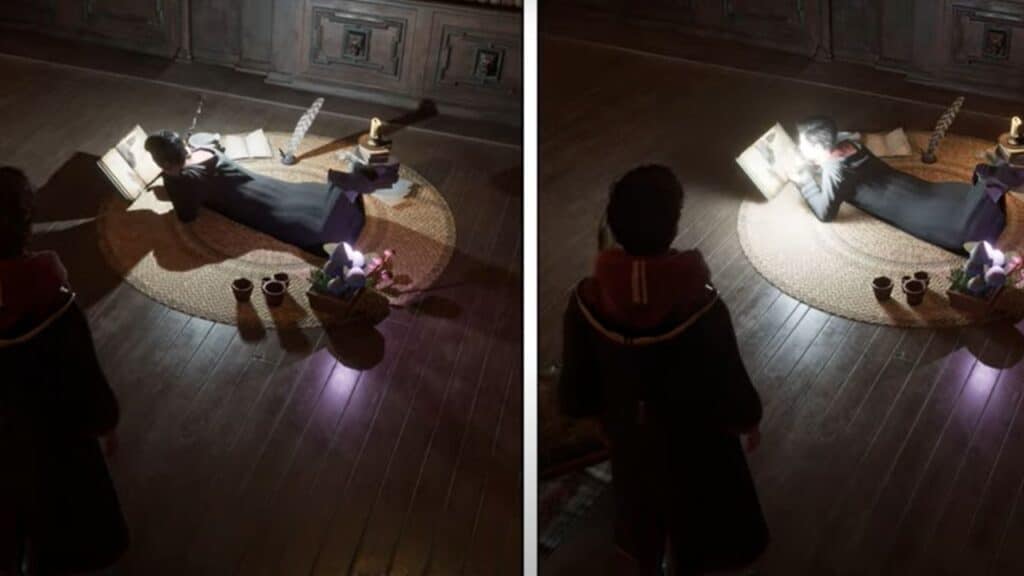
You can turn ray tracing on and off in Hogwarts Legacy from the Graphic Sections of the Settings. Also, there are three options under Ray Tracing that you can turn on or off. They are Ray Tracing Reflection, Ray Tracing Shadows, and Ray Tracing Ambient Occlusion. Also, you can select  Low, Medium, or High for the quality of Ray Tracing. Here are the steps you need to follow to turn ray tracing on and off.

  1. Pause the Game and Go to the setting by clicking the green tab at the bottom right corner of the screen.
  2. From the Setting, Go to Graphics, and adjust four Ray Tracing options according to your choice at the bottom of the menu.
  3. Once you have made your changes, click the “Apply Setting” button to confirm them and start playing with ray tracing on or off.

Related:

How To Contact Hogwarts Legacy Support or Report Bugs

Now, you know how to turn ray tracing on and off in Hogwarts Legacy. With these simple steps, you can enjoy the best of both worlds – immersive visuals with ray tracing enabled or more efficient performance with it turned off. So enjoy your spell-casting adventure and experience the beautiful wizarding world in all its glory. Have fun!


Related Topics
Guide Hogwarts Legacy
Share. Facebook Twitter LinkedIn Reddit Email
Asanga Wijeratne
  • Website

SUGGESTED READS

Blender Bee Swarm Simulator
Game Guides

Where Is the Blender in Bee Swarm Simulator on Roblox? Answered

How to Get Blue Extract in Bee Swarm Simulator on Roblox
Game Guides

How to Get Blue Extract in Bee Swarm Simulator on Roblox

Norse Oath of Blood PC Review
7
Game Reviews

NORSE: Oath of Blood Review – Not Ready for Valhalla

Secret Lucky Block Steal a Brainrot
Game Guides

How To Easily Get Secret Lucky Blocks in Steal a Brainrot in Roblox

Roblox Adopt Me! Players Scramble as Dire Wolf Arrives and Giant Panda Leaves: 'NOOO I Dont Have One'
Game News

Roblox Adopt Me! Players Scramble as Dire Wolf Arrives and Giant Panda Leaves: ‘NOOO I Dont Have One’

Battlefield 6 Season 2 Contaminated Map Preview
Game Previews

Battlefield 6 Season 2 Contaminated Map Preview – Masks Up

The Nerd Stash
Facebook X (Twitter) Instagram YouTube LinkedIn
  • About Us
  • Join Our Team
  • Meet the Team
  • Privacy Policy
  • DMCA Policy
  • Contact Us
  • Terms of Use
  • Sitemap
  • Editorial Guidelines
  • Advertising Policy
© 2026 The Nerd Stash. All Rights Reserved.

Type above and press Enter to search. Press Esc to cancel.