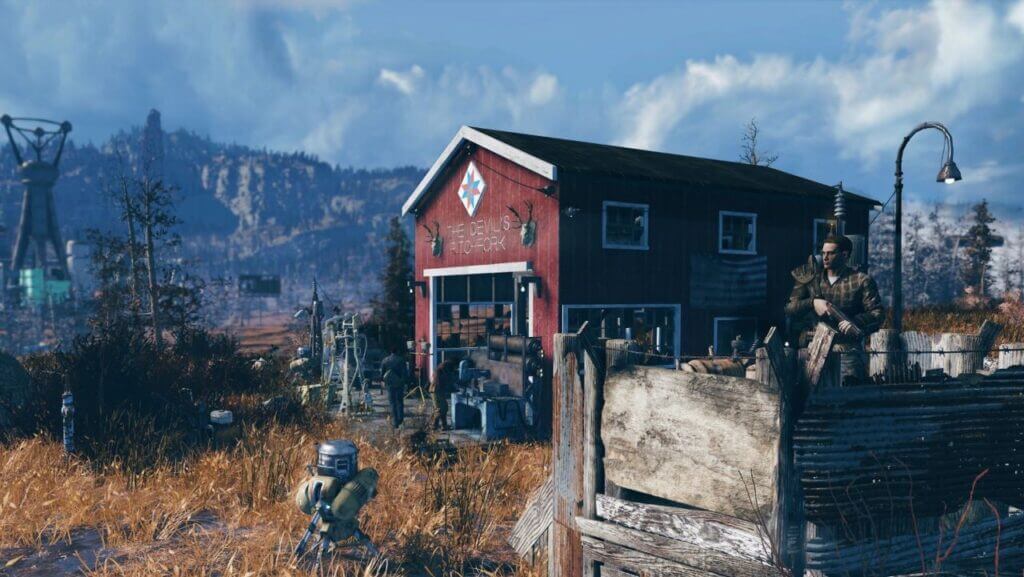
Have you moved to your camp in Fallout 76 already, or do you want help? The process of picking up and moving your camp in Fallout 76 is very easy. The player can build camp once they exit Vault 76. Fallout 76 is enjoyable when playing with friends. Exploring West Virginia’s post-apocalyptic wasteland with friends is an enjoyable and cool experience. However, the primary objective of exploring is to collect resources to upgrade your Fallout 76 camp. Unlike settlements in Fallout 4, your camp in Fallout 76 can be relocated, and it is essential to make use of this feature. But the question remains of how do you move your entire camp?
How to place your Camp in Fallout 76

Before moving your camp in Fallout 76, you need to know where to place it. To simplify the process of laying down your foundations, search for a level area of land. When in placement mode, you can set up your camp on any ground that appears blue. However, you’ll need to find another spot if the ground appears red.
When constructing items and structures for your camp, such as Foundations, rocks, small trees, and other small objects are automatically cleared. However, if you designate an obstacle for removal and then remove it, the obstruction will reappear over time or when you log back in.
If you encounter a message stating that objects are floating when attempting to place your camp, you should cancel the placement and dismantle the blueprint. This can be done by clicking it from the stored menu and pressing the button to Store the Blueprint. This will provide you with the option to delete the blueprint and store all component objects. This will separate each item from the blueprint and save them individually in your tab. You can then reinstall these items without depleting all of your supplies.
How to pick up and move your camp
Moving a C.A.M.P. to a different location in Fallout 76 is rather simple once it has been set up. Here are the simple steps on how to pick up and move your camp in Fallout 76 is very easy on PS4 and
How to pick up and moving your camp in PS4
Here are simple steps on how to pick up and move your camp on PS4.
- To open your Pip-Boy, press Circle.
- If you want to select the “Move C.A.M.P.” option, press L1.
- You can move your Tent to any desired location as long as it’s highlighted in green and you have sufficient Caps.
- To confirm the location of your C.A.M.P., press X.
How to pick up and moving your camp in
Here are simple steps on how to pick up and move your camp in Fallout 76 on
- To open your Pip-Boy, press B.
- If you want to select the “Move C.A.M.P.” option, press LB.
- You can move your Tent to any desired location as long as it’s highlighted in green and you have sufficient Caps.
- To confirm the location of your C.A.M.P., press A
Related:
Fallout 76: How to Place Survival Tent
After finishing this process, you should be able to see your small C.A.M.P. machine in front of you. It’s important to remember that in Fallout 76, your C.A.M.P. cannot be moved to just any location. It must be situated at a sufficient distance from obstacles and other constructed areas. Therefore, you will often need to place it a little further away from significant landmarks or sites in Fallout 76.