Close Menu
  • Gaming
    • Platforms
      • Nintendo
      • PC
      • PlayStation
      • Xbox
  • Entertainment
    • Movies
    • TV
    • Royals
  • Celebrity
    • Hollywood
  • Human Interest
  • Astrology
  • More
    • Reviews
Facebook X (Twitter) Instagram LinkedIn YouTube
  • About Us
  • Join Our Team
  • Meet the Team
  • Privacy Policy
  • DMCA Policy
  • Contact Us
  • Terms of Use
  • Sitemap
  • Editorial Guidelines
  • Advertising Policy
The Nerd Stash
  • Gaming
  • Celebrity
  • Hollywood
  • Human Interest
The Nerd Stash
Home»Gaming»How To Add & Invite Friends in The Finals

How To Add & Invite Friends in The Finals

It’s time to call a couple of friends.

Artur NovichenkoBy Artur NovichenkoOctober 31, 20233 Mins Read
How To Add Friends The Finals
Image Source: Embark Studios via YouTube Ranjith Kumar
This article is over 2 years old and may contain outdated information.

Multiplayer competitive gaming has long been integral in the gaming industry, offering players everything from the popular Fortnite to the lesser-known My Hero Ultra Rumble. However, any game tends to get boring, and The Finals is a great opportunity to try something new. Offering familiar gameplay in a new way, this game allows you to play against random players by teaming up with three friends. Although the process of adding and inviting friends in The Finals is not much different from other games, there are some nuances that you should be aware of.

The Finals: All Steps To Invite Friends

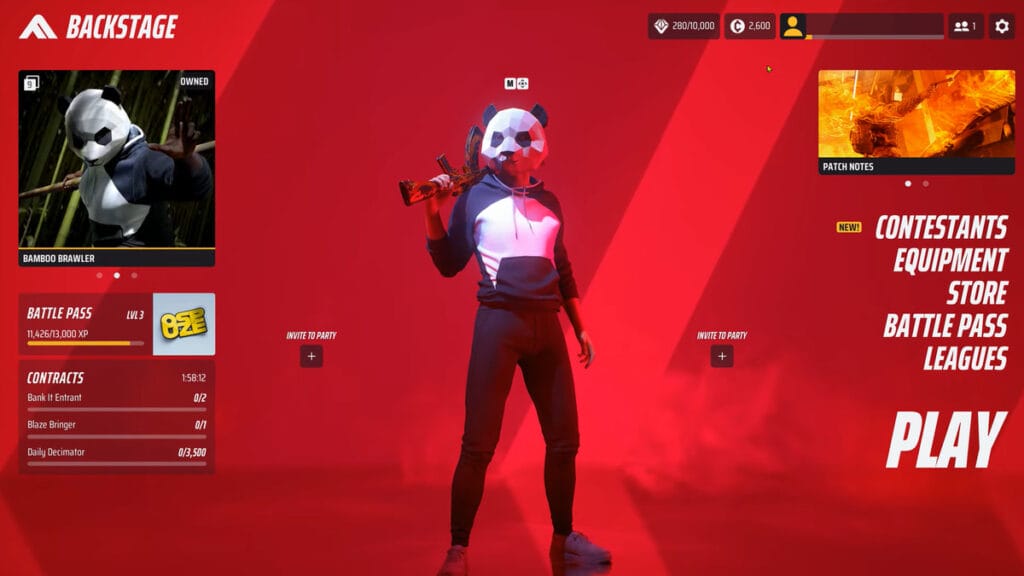
Friends The Finals
Image Source: Embark Studios via YouTube Ranjith Kumar

First of all, it is worth noting that you will not be able to invite friends to play with them with the standard game settings. So you will have to make some preliminary settings to activate Crossplay:

  • Launch the game and click the gear icon in the upper right corner to go to the Settings Menu.
  • Go to the Gameplay tab and select Network.
  • Finally, go to Crossplay and turn it on.
  • Your friends must activate the same settings.

How To Find Embark ID

The next step is that you or your friends should find out your unique Embark ID, and here’s how to do it:

  • First, you can know the Embark ID by logging into the official Embark website using your account details.
  • Secondly, you can go to the Social tab by clicking on the icon in the upper right corner. You’ll find your Embark ID to the right of Social at the top of the screen.

How To Add Friends

How To Invite Friends The Finals
Image Source: Embark Studios via YouTube Ranjith Kumar

Well, now that all the preparations are complete, all that remains is to invite friends and add players to the general lobby in The Finals:

  • Go to the Social menu and select the Friends tab.
  • Click on the yellow Add Friend button.
  • Enter your friend’s Embark ID and submit your request.
  • Your friend needs to go to the Social menu and accept your invitation.

If you immediately want to go to the general lobby and play a couple of matches, you only need to go to Social and click “+” to the right of your friend’s nickname. At the same time, the player will receive a notification at the top of the screen and can accept or reject it. Immediately after this, you will be able to go to the match. It is obvious, but it is worth noting that you will not be able to add an offline player to the general lobby.

To summarize, here’s what you need to do to play with friends:

  • Activate Crossplay.
  • Find out your friend’s unique Embark ID.
  • Invite the player as a friend through the Social tab.
  • Add a player to the general lobby and enjoy playing together.
The Finals How to play with your friends (How to add and join friends guide)

Related:

The Finals Beta: Sign Up, Release Date, Platforms!

The Finals is now in Open Beta and will be released on PS5, Xbox Series X|S, and PC.

Related Topics
Guide The Finals
Share. Facebook Twitter LinkedIn Reddit Email
Artur Novichenko
  • Website

Artur is a copywriter and SEO specialist, as well as a small business owner. In his free time, he loves to play computer games and is glad that he was able to connect his professional career with his hobby.

SUGGESTED READS

PlayStation Fighting Controller Backlash
Gaming

PlayStation’s Return to Social Media is Met With Backlash and Angry Consumers: ‘I Was Hoping It Was a Digital Controller’

Black Flag Resynced
Gaming

Assassin’s Creed Black Flag Remake Delivers Brutal Skull & Bones Comparison Before Launch

PlayStation Reportedly Didn't Warn Asian Partners, Local Branches Before Physical Disc Shut Down Announcement: 'They Didn't Know Either'
Gaming

PlayStation Reportedly Didn’t Warn Asian Partners, Local Branches Before Physical Disc Shut Down Announcement: ‘They Didn’t Know Either’

XBOX Sells Off Four Studios, Cuts 3,000 Jobs, as Marvel's Blade Reportedly Goes Over Budget
Gaming

Xbox Sells Off Four Studios and Cuts 3,000 Jobs as Marvel’s Blade Reportedly Goes Over Budget

PSN Region Ban Claims Another Victim as Marvel Tokon is Blocked in 132 Countries
Gaming

PSN Region Ban Claims Another Victim as Marvel Tokon is Blocked in 132 Countries

PlayStation PS Plus subscription cancel
Gaming

Angry PlayStation Users Threaten to Cancel PS Plus After Sony Cancels Physical Media: ‘They’re Already on Thin Ice’

The Nerd Stash
Facebook X (Twitter) Instagram YouTube LinkedIn
  • About Us
  • Join Our Team
  • Meet the Team
  • Privacy Policy
  • DMCA Policy
  • Contact Us
  • Terms of Use
  • Sitemap
  • Editorial Guidelines
  • Advertising Policy
© 2026 The Nerd Stash. All Rights Reserved.

Type above and press Enter to search. Press Esc to cancel.