Close Menu
  • Gaming
    • Platforms
      • Nintendo
      • PC
      • PlayStation
      • Xbox
  • Entertainment
    • Movies
    • TV
    • Royals
  • Celebrity
    • Hollywood
  • Human Interest
  • Astrology
  • More
    • Reviews
Facebook X (Twitter) Instagram LinkedIn YouTube
  • About Us
  • Join Our Team
  • Meet the Team
  • Privacy Policy
  • DMCA Policy
  • Contact Us
  • Terms of Use
  • Sitemap
  • Editorial Guidelines
  • Advertising Policy
The Nerd Stash
  • Gaming
  • Celebrity
  • Hollywood
  • Human Interest
The Nerd Stash
Home»Gaming»How To Make a Crew in GTA 5 Online

How To Make a Crew in GTA 5 Online

Come one, come all.

Julio La PineBy Julio La PineMarch 6, 20242 Mins Read
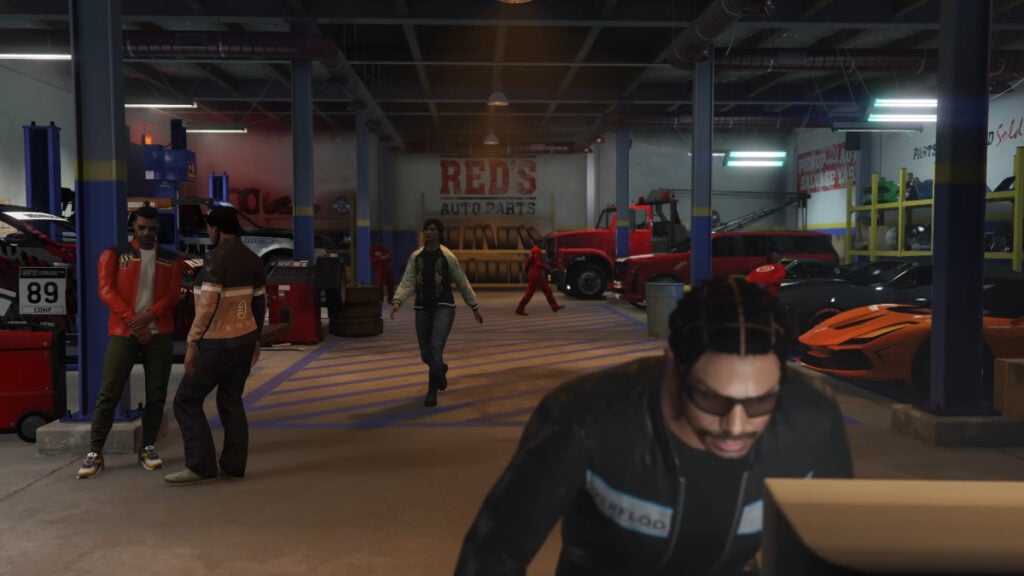
GTA Online Chop Shop
Image Source: Rockstar Games
This article is over 2 years old and may contain outdated information.

Like it or not, a criminal’s life in Los Santos is easier and more profitable with more people. However, we understand that public lobbies can be dangerous for gamers trying to deliver their allegedly legal products all over town. If you want a bit of protection, learning how to make a crew in GTA 5 Online might be ideal for you. It’s a way to invite your closest friends, join closed sessions with them, and have trustworthy people firing rockets next to you.

Creating a Crew in GTA 5 Online
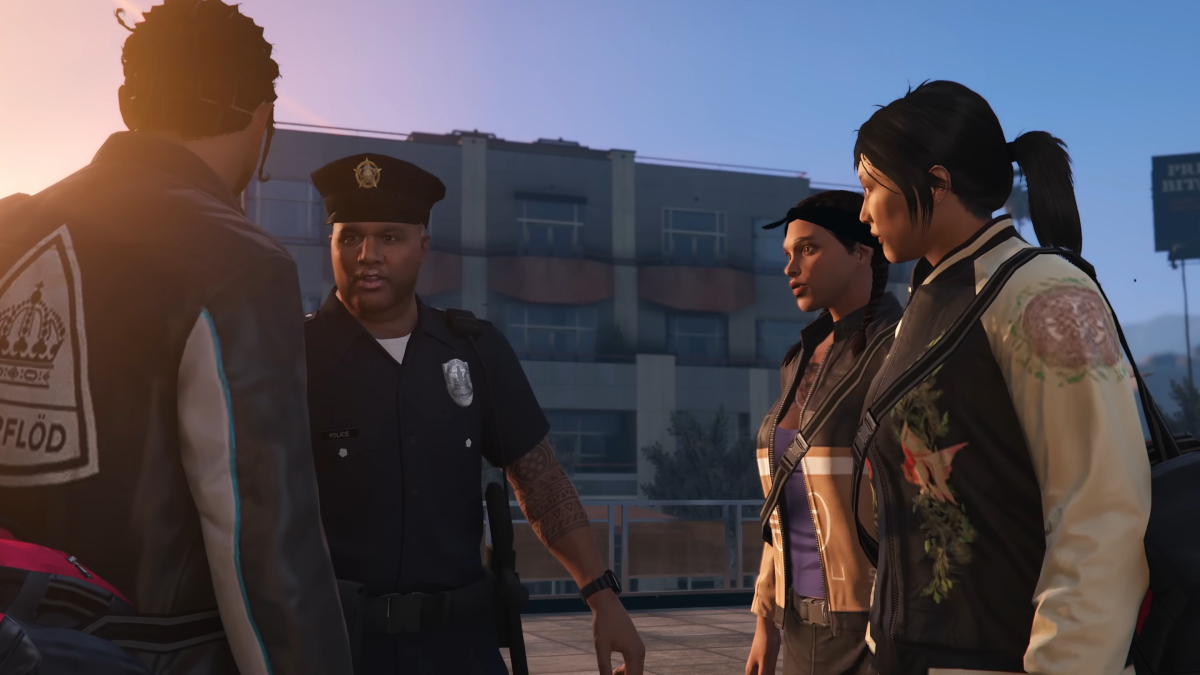
GTA 5 Online Create Crew
Image Source: Rockstar Games

Before we delve into the steps you must follow, you should know you can only create a Crew on Rockstar’s Social Club website. This means you must log out of the game and do a bit of internet surfing to create your GTA 5 Online crew. That being said, the steps are quite easy and shouldn’t take a lot of your time. Here are the steps you must follow:

  • Head to Rockstar Game’s Social Club website. You can do so by following this link.
  • Next, once inside, create your account or log in and select “Games.” Pick GTA Online from the menu.
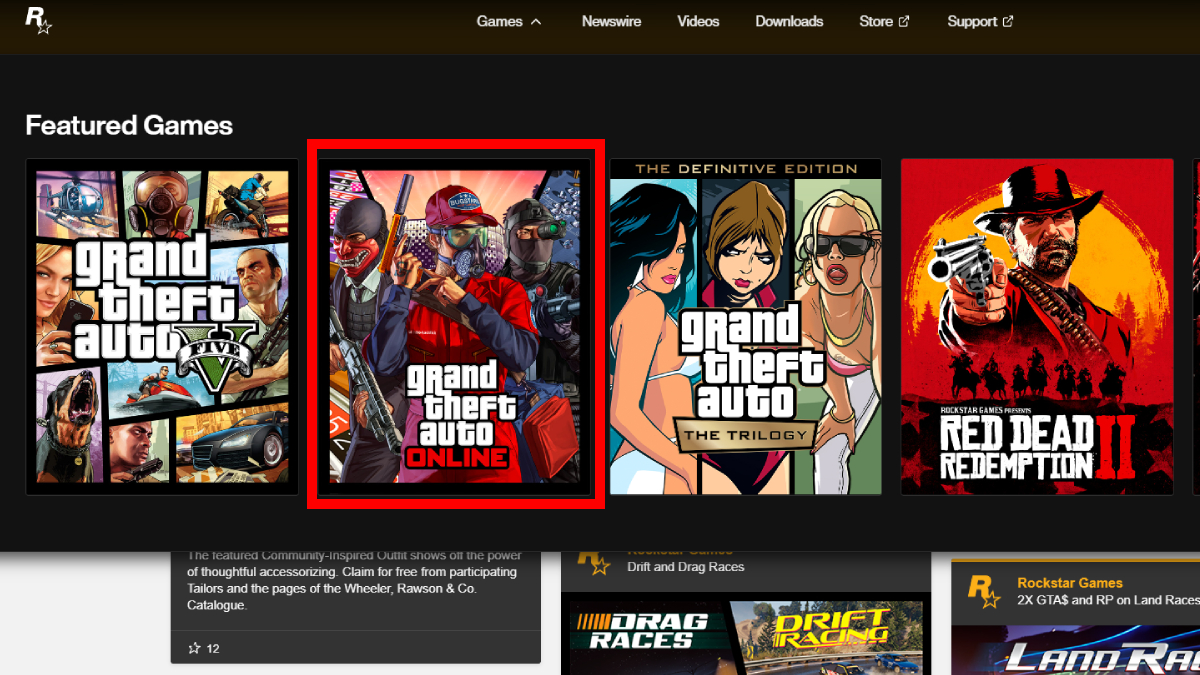
Social Club website
Image Source: Rockstar Games
  • After loading the new page, head to the “Community” tab, scroll down to “Crews,” and select “Create Crew.”
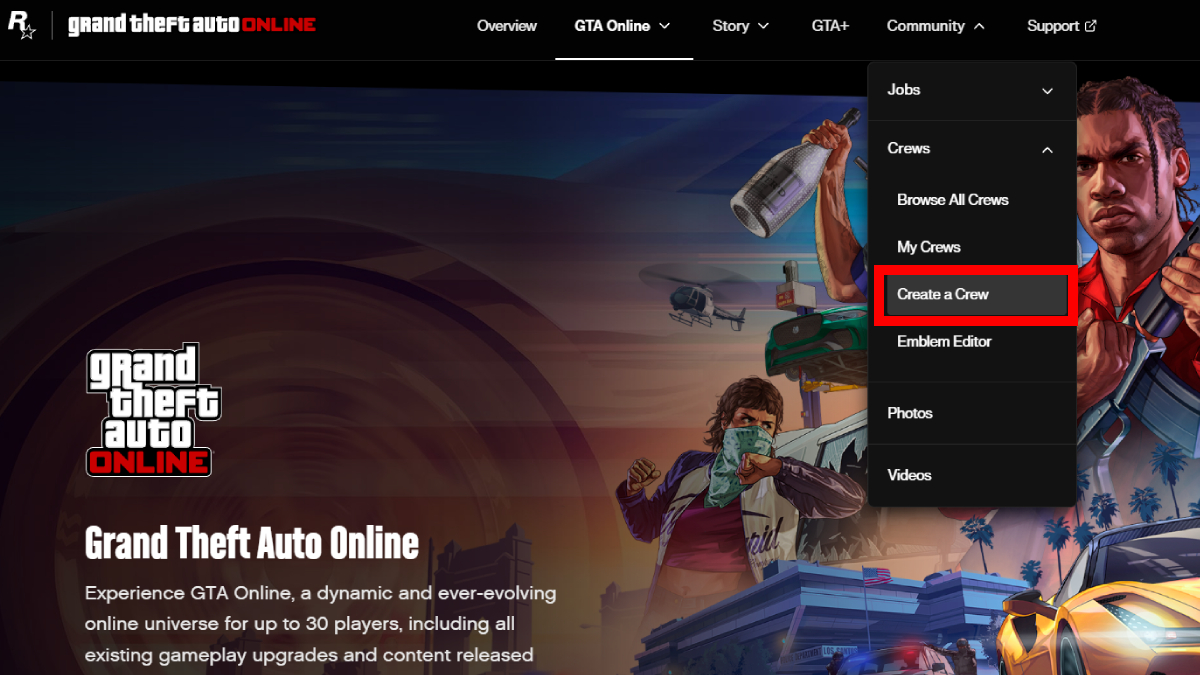
Rockstar Games website
Image Source: Rockstar Games
  • This will send you to a new page where you can start configuring your new crew.
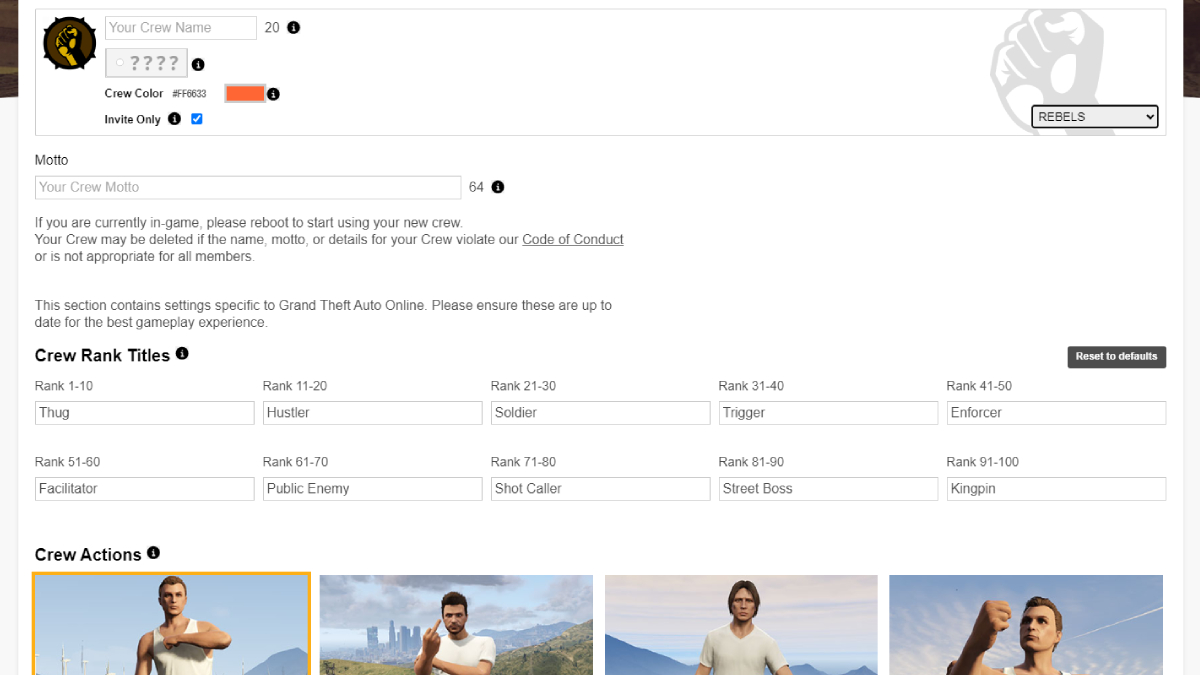
Social Club Crew
Image Source: Rockstar Games
  • You must fill in the blanks of your crew’s name, tag, rank titles, and even your crew’s action. These options allow you to customize your new group’s personality and look.

Finally, once created, you can invite people to your crew from the website or by going to the game, opening their profile, and inviting them from there.

Related:

How To Get a Cargobob in GTA Online

While it might not seem like the most useful feature in the game, having a crew in GTA 5 Online is fantastic. So, don’t hesitate to create one. You can join sessions with people you know and play without griefers, who sadly, are prominent in this game. So, grab your best friends and start climbing the ranks as the best crew in Los Santos.


Related Topics
GTA Online Guide
Share. Facebook Twitter LinkedIn Reddit Email
Julio La Pine
  • Website

News/Guide Writer for The Nerd Stash. When not working, you'll find him playing Final Fantasy 14, any good JRPG, and modding Project Zomboid.

SUGGESTED READS

Zenless Zone Zero Version 3.1 Anniversary
Gaming

Zenless Zone Zero Celebrates Its 2-Year Milestone With Free S-Rank Agents and a Crossover Announcement

All Black Marketeer Locations in Palworld
Gaming

All Black Marketeer Locations in Palworld

Gaming

A New Wolverine Trailer Playing in Front of the Odyssey is Getting Obliterated by PlayStation Fans: ‘Can’t wait for my PHYSICAL COPY’

Pal Awakening Guide - Palworld
Gaming

Complete Palworld Pal Awakening Guide

How to get Radiant Gems In Palworld 1.0
Gaming

How to get Radiant Gems In Palworld 1.0

gamescom dev 2026 Adds Subnautica 2 Creative Director as Keynote Speaker, Reveals New Awards
Gaming

gamescom dev 2026 Adds Subnautica 2 Creative Director as Keynote Speaker, Reveals New Awards

The Nerd Stash
Facebook X (Twitter) Instagram YouTube LinkedIn
  • About Us
  • Join Our Team
  • Meet the Team
  • Privacy Policy
  • DMCA Policy
  • Contact Us
  • Terms of Use
  • Sitemap
  • Editorial Guidelines
  • Advertising Policy
© 2026 The Nerd Stash. All Rights Reserved.

Type above and press Enter to search. Press Esc to cancel.