Close Menu
  • Gaming
    • Game Guides
    • Codes
    • Game News
    • Game Previews
    • Game Reviews
    • Game Features
    • Game Lists
    • Platforms
      • Nintendo
      • PC
      • PlayStation
      • Xbox
      • Mobile
  • Entertainment
    • Movies
    • Movie Features
    • Movie Reviews
    • TV
    • Reality TV
    • Royals
  • Celebrity
    • Hollywood
  • Human Interest
  • Astrology
  • Videos
  • More
    • Anime
    • Lists
    • Podcasts
    • Reviews
Facebook X (Twitter) Instagram LinkedIn YouTube
  • About Us
  • Join Our Team
  • Meet the Team
  • Privacy Policy
  • DMCA Policy
  • Contact Us
  • Terms of Use
  • Sitemap
  • Editorial Guidelines
  • Advertising Policy
The Nerd Stash
  • Gaming
  • Celebrity
    • Hollywood
  • Human Interest
  • Videos
The Nerd Stash
Home»Game Guides»How To Fix Matchmaking Error in Fortnite

How To Fix Matchmaking Error in Fortnite

Simply change your region and you will be back to the game.

Asanga WijeratneBy Asanga WijeratneMarch 9, 20242 Mins Read
How to Fix Matchmaking Error in Fortnite
Image Source: Epic Games
This article is over 2 years old and may contain outdated information.

The Matchmaking error in Fortnite is not new and often occurs when the servers are busy. When you get this error, you will be in the lobby for Matchmaking for some time, and then you will get an error message with the numbers #1, #2, or #3. Even though these three differently numbered errors are associated with Matchmaking, the solutions for these errors are the same. So, let’s look at possible fixes for the Fortnite Matchmaking error.

Fixing Matchmaking Error in Fortnite

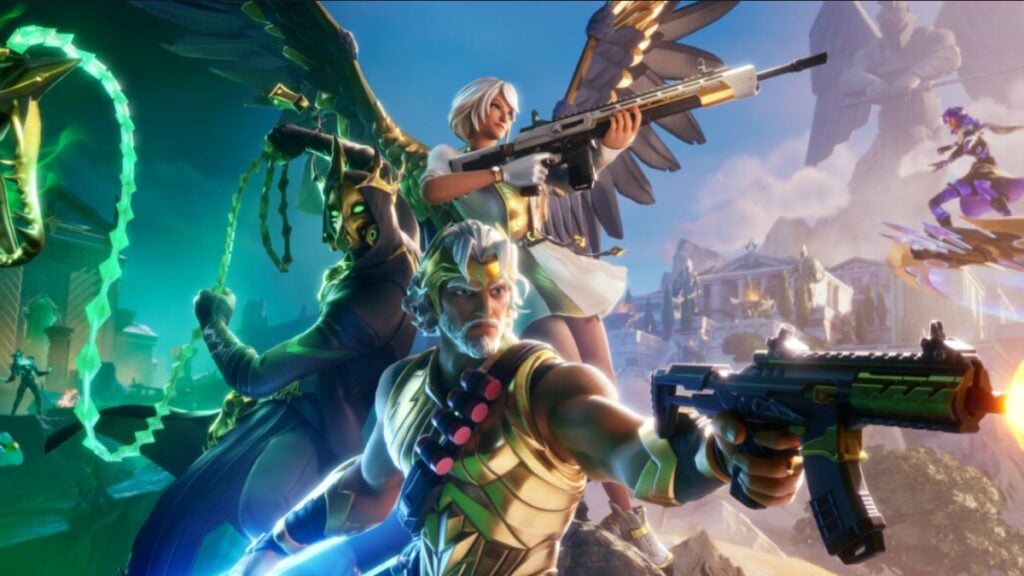
Image Source: Epic Games via The Nerd Stash

Changing your Matchmaking region is the best method to fix the Matchmaking error. This error is often associated with server outages or downtime, and your current Matchmaking region will likely be saturated with many players. Follow the steps below to change your Matchmaking region. But before that, make sure the game servers are up and running.

  1. Log in to Fortnite.
  2. Press the player icon in the upper right corner of the screen.
  3. Go to Settings and click on the Gear icon at the top. The Matchmaking Region option is on the top of the bar.
  4. If the Matchmaking region is in a different Region, change it to Auto. Change it to a different region if it is set to Auto mode.
  5. Check the Matchmaking error in Fortnite is fixed.

Related:

All Weekly Quests (& How To Complete Them) in Fortnite Chapter 5 Season 2 (Week 0)

It is best to change the region to a different time zone from where you are currently. For example, if you are in the US time zone, change the area to Asia or the Middle East. The servers in those regions probably have less traffic when you play the game.

Of course, other methods, such as verifying game files, checking your internet connection, or reinstalling the game, also might work. But if you still get the Matchmaking error in Fortnite after changing the region, wait for some time. If I get this error, I always wait for some time if the above method fails, and it always works for me.

Related Topics
Fortnite Guide
Share. Facebook Twitter LinkedIn Reddit Email
Asanga Wijeratne
  • Website

SUGGESTED READS

Crimson Desert PC Review
9.5
Features

Crimson Desert Review – It’s Real, All of it

Death Stranding 2 PC Launch Adds Fuel to DLSS 5 AI Slop Backlash: 'It Is a Disgrace'
Game News

Death Stranding 2 PC Launch Adds Fuel to DLSS 5 AI Slop Backlash: ‘It Is a Disgrace’

Starfield Free Lanes & Terran Armada DLC
Game Previews

Starfield Free Lanes & Terran Armada Hands-Off Preview – Revitalizing This Spacefaring Adventure

Resident Evil 9 DLSS5
Game Features

DLSS 5 Isn’t the Future of Graphics; It’s a Filter Over Them

What is Honey Candy in Adopt Me? How to Get It and What It's For
Game Guides

What is Honey Candy in Adopt Me on Roblox? How to Get It and What It’s For

Honkai Star Rail Version 4.1
Game News

The Phantasmoon Games Continue in Honkai: Star Rail Version 4.1

The Nerd Stash
Facebook X (Twitter) Instagram YouTube LinkedIn
  • About Us
  • Join Our Team
  • Meet the Team
  • Privacy Policy
  • DMCA Policy
  • Contact Us
  • Terms of Use
  • Sitemap
  • Editorial Guidelines
  • Advertising Policy
© 2026 The Nerd Stash. All Rights Reserved.

Type above and press Enter to search. Press Esc to cancel.