Close Menu
  • Gaming
    • Game Guides
    • Codes
    • Game News
    • Game Previews
    • Game Reviews
    • Game Features
    • Game Lists
    • Platforms
      • Nintendo
      • PC
      • PlayStation
      • Xbox
      • Mobile
  • Entertainment
    • Movies
    • Movie Features
    • Movie Reviews
    • TV
    • Reality TV
    • Royals
  • Celebrity
    • Hollywood
  • Human Interest
  • Astrology
  • Videos
  • More
    • Anime
    • Lists
    • Podcasts
    • Reviews
Facebook X (Twitter) Instagram LinkedIn YouTube
  • About Us
  • Join Our Team
  • Meet the Team
  • Privacy Policy
  • DMCA Policy
  • Contact Us
  • Terms of Use
  • Sitemap
  • Editorial Guidelines
  • Advertising Policy
The Nerd Stash
  • Gaming
  • Celebrity
    • Hollywood
  • Human Interest
  • Videos
The Nerd Stash
Home»Game Guides»How to Save in Dragon’s Dogma 2

How to Save in Dragon’s Dogma 2

Ready for the next time you load in?

Nat CollazoBy Nat CollazoMarch 22, 20243 Mins Read
How to Save in Dragon's Dogma 2
Image Source: Capcom via The Nerd Stash
This article is over 1 years old and may contain outdated information.

The opening of Dragon’s Dogma 2 tells you that the game will autosave as you travel in the overworld. However, do you really want to rely on that when fighting goblins or escaping from harpies? It would be a nightmare if I closed the game out only to realize that none of my progress was saved. Fortunately, there’s more than one way to ensure that everything you do in-game is recorded before backing out.

Where Can You Save in Dragon’s Dogma 2?
How to Save in Dragon's Dogma 2
Image Source: Capcom via The Nerd Stash

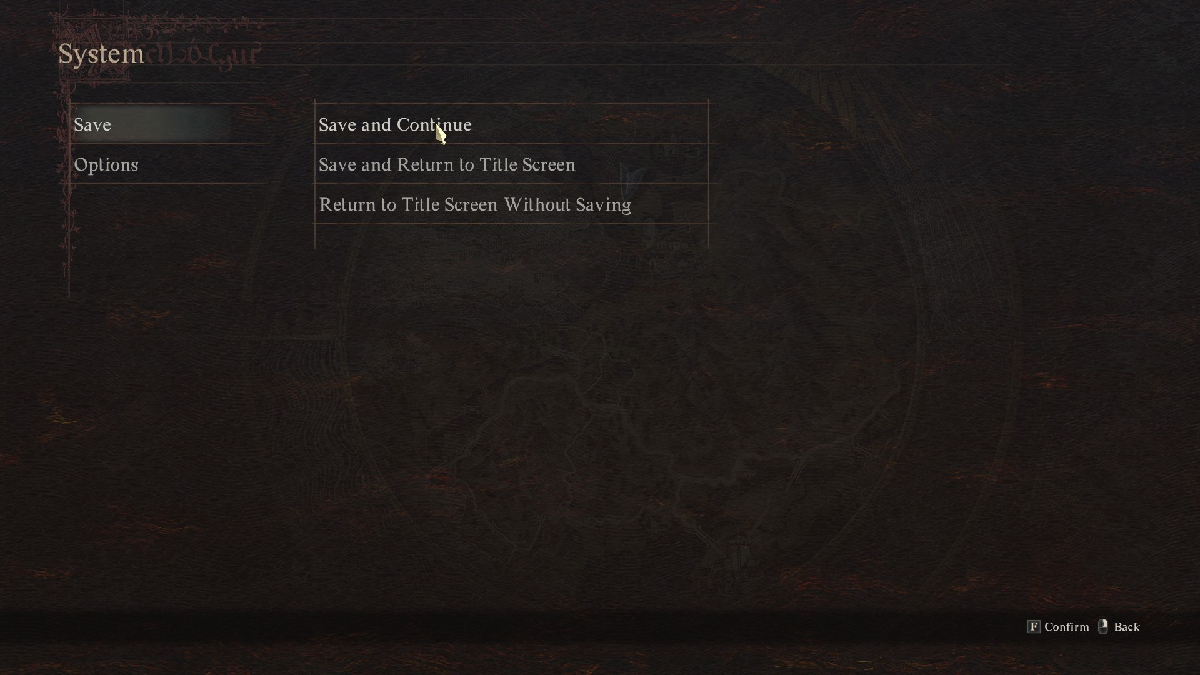
There are three ways for you to save your game in Dragon’s Dogma 2.

  1. Open the Pause menu and select the System option. Here, you can choose to Save and Continue or Save and Return to Title Screen.
  2. Autosaving will happen as you travel the overworld, fight monsters, and complete quests.
  3. Saving at an Inn will create a different save block in the game specifically for Inn saves. When you save your game regularly or autosave, those saves are simply known as your Last Save. When you go to reload a save, you have the choice to load your last save via the autosave or manual save or loading from the last Inn save.

How To Load Your Save

You can load two different saves in Dragon’s Dogma 2.

  1. Load from Last Save
  2. Load from Last Inn Rest

The first option will continue from where you left off the last time you manually saved or saved via the autosave feature. When you load from your last Inn rest, then you will instead load your character from the last Inn that you slept at. Considering this, I recommend taking a nap at every Inn that you come across. It’ll make loading in from where you were last a lot easier. Unfortunately, you need to be ready to fork over some dough before you can hope to stay at an Inn.

How to Delete Save Data

Dragon’s Dogma 2 only has one save file and it’s constantly being rewritten throughout the game. To delete your saved data, check out my guide on how to do just that. It’s a lot easier than the game makes it out to be.

Save File Location on PC

For those unaware, your save file location for Dragon’s Dogma 2 on PC is:

C:\Program Files (x86)\Steam\userdata\

Related:

Dragon’s Dogma 2 Starter Guide

Dragon’s Dogma 2 is available to play on PC, PlayStation, and Xbox.
Related Topics
Dragon's Dogma 2 Guide
Share. Facebook Twitter LinkedIn Reddit Email
Nat Collazo
  • Website
  • X (Twitter)
  • Instagram

I am a game journalist and guide writer with ten years of experience as well as the CEO/ Founder of Frowns Marketing, a marketing company that caters to indie games, tabletop games, and board games to help developers get more wishlists, backers, and players!

SUGGESTED READS

Minecraft Accused of Mocking Lonely Kids, Sparking Mental Health Backlash: 'One of the Ickiest Things I've Seen'
Features

Minecraft Accused of Mocking Lonely Kids, Sparking Mental Health Backlash: ‘One of the Ickiest Things I’ve Seen’

Destiny 2 Renegades PS5 Review
8.5
Features

Destiny 2: Renegades Review – The Shooter Strikes Back

Clair Obscur: Expedition 33 Loses GOTY, Other Award from Indie Game Awards Over Generative AI: 'Some Weird Performative BS'
Game News

GOTY Stripped Over AI?: Clair Obscur: Expedition 33 Loses Awards at Indie Game Awards, ‘Some Weird Performative BS’

Sony Patents Real-time AI Game Censorship Tech That Could Even Make GTA 6 Kid-Friendly
Game News

Sony Patents Real-Time AI Game Censorship Tech That Could Even Make GTA 6 Kid-Friendly

Zenless Zone Zero Version 2.5 Announcement
Game News

Zenless Zone Zero Version 2.5 Is Ready To Wrap Up the Year With Two New Agents and a Free Outfit

PC Gamers Can't Catch a Break as Nvidia Plans 40% GeForce GPU Production Cuts, Report: 'Who Needs a PC Anyways'
Game News

PC Gamers Can’t Catch a Break as Nvidia Reportedly Plans 40% GeForce GPU Production Cuts: ‘Who Needs a PC Anyways’

Trending
Minecraft Accused of Mocking Lonely Kids, Sparking Mental Health Backlash: 'One of the Ickiest Things I've Seen'

Minecraft Accused of Mocking Lonely Kids, Sparking Mental Health Backlash: ‘One of the Ickiest Things I’ve Seen’

Destiny 2 Renegades PS5 Review
8.5

Destiny 2: Renegades Review – The Shooter Strikes Back

Clair Obscur: Expedition 33 Loses GOTY, Other Award from Indie Game Awards Over Generative AI: 'Some Weird Performative BS'

GOTY Stripped Over AI?: Clair Obscur: Expedition 33 Loses Awards at Indie Game Awards, ‘Some Weird Performative BS’

Sony Patents Real-time AI Game Censorship Tech That Could Even Make GTA 6 Kid-Friendly

Sony Patents Real-Time AI Game Censorship Tech That Could Even Make GTA 6 Kid-Friendly

The Nerd Stash
Facebook X (Twitter) Instagram YouTube LinkedIn
  • About Us
  • Join Our Team
  • Meet the Team
  • Privacy Policy
  • DMCA Policy
  • Contact Us
  • Terms of Use
  • Sitemap
  • Editorial Guidelines
  • Advertising Policy
© 2025 The Nerd Stash. All Rights Reserved.

Type above and press Enter to search. Press Esc to cancel.