
Close Menu
  • Gaming
    • Game Guides
    • Codes
    • Game News
    • Game Previews
    • Game Reviews
    • Game Features
    • Game Lists
    • Platforms
      • Nintendo
      • PC
      • PlayStation
      • Xbox
      • Mobile
  • Entertainment
    • Movies
    • Movie Features
    • Movie Reviews
    • TV
    • Reality TV
    • Royals
  • Celebrity
    • Hollywood
  • Human Interest
  • Astrology
  • Videos
  • More
    • Anime
    • Lists
    • Podcasts
    • Reviews
Facebook X (Twitter) Instagram LinkedIn YouTube
  • About Us
  • Join Our Team
  • Meet the Team
  • Privacy Policy
  • DMCA Policy
  • Contact Us
  • Terms of Use
  • Sitemap
  • Editorial Guidelines
  • Advertising Policy
The Nerd Stash
  • Gaming
  • Celebrity
    • Hollywood
  • Human Interest
  • Videos
The Nerd Stash
Home»Game Guides»How To Stop Fallout 4 From Updating (Disable Auto-Update)

How To Stop Fallout 4 From Updating (Disable Auto-Update)

Please, don’t break my game.

Julio La PineBy Julio La PineApril 24, 20242 Mins Read
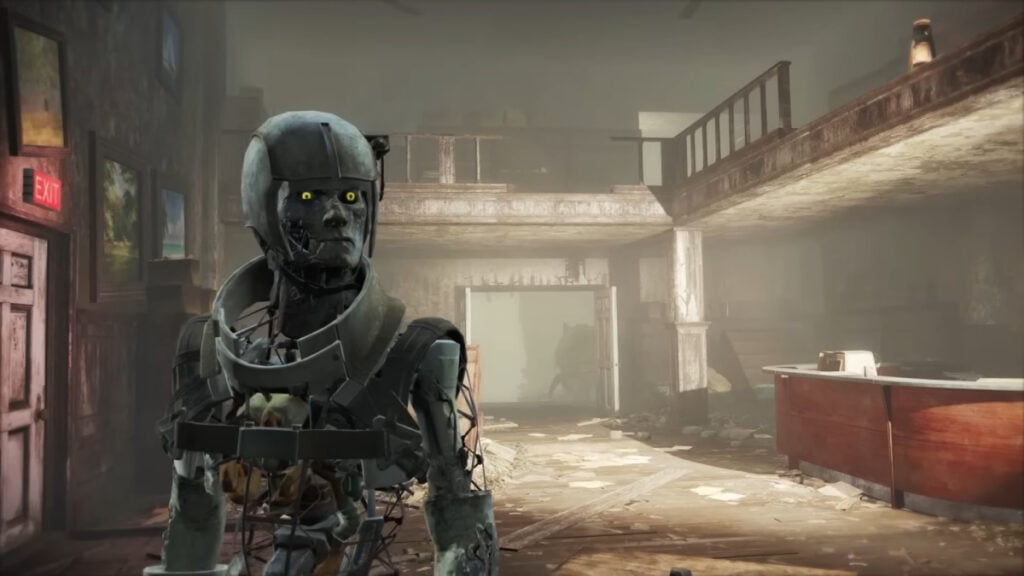
Fallout 4 Stop Updates
Image Source: Bethesda
This article is over 1 years old and may contain outdated information.

If there’s one thing that modders fear more than copyright infringement, it is major updates. If you didn’t know, any time a game gets a major patch, all mods break, causing commotion for players and creators. With the next-gen update on the nuclear horizon, knowing how to stop Fallout 4 from updating will save your game. One thing to remember is that this only works for PC users on Steam who can disable auto-updates for Fallout 4. Those on other platforms should prepare for the imminent fallout (pardon the pun).

How To Disable Fallout 4 Auto-Updates on Steam

Remember, this solution only works for Steam users. Console and Game Pass players should bid farewell to their mods or wait a few months for them to get a proper patch. In any case, here is how you can stop Fallout 4 from updating automatically.

Fallout 4 Steam Updates
Image Source: Steam/Valve
  1. Like in the image above, you must head to your Steam library, select Fallout 4, right-click on it, choose properties, and head to the Updates tab. The only thing you need here is the App ID, which is the same for every Fallout 4 copy. The number is 377160.
  2. Once you write that number down, head to the Installed Files tab and click on Browse.
  3. This will take you to the game’s location, usually under C:\Program Files (x86)\Steam\steamapps\common\Fallout 4.
  4. What you’ll want to do is go a few folders back until you reach C:\Program Files (x86)\Steam\steamapps.
  5. Inside, you’ll see a bunch of .acf files outside of folders. You must look for this one: appmanifest_377160.acf.
  6. As you can see, that file has the App ID number we wrote down earlier, which is the one belonging to Fallout 4.
  7. All you must do now is right-click on the file, choose properties, and at the bottom check the Read-only box. With this, you will disable all Fallout 4 auto-updates.

Related:

All Power Armor Locations in Fallout 4

If you ever want to update Fallout 4 again, you can follow the same steps and just untick the Read-only box. Doing so will allow the game to receive its normal patches. However, for those using big mod collections, we recommend stopping patches altogether to prevent breaking your save game. Also, if you’d like a more visual guide for this, we recommend this video by Apoqsi, who goes through the same process to disable auto-updates on Steam.


Related Topics
Fallout 4 Guide
Share. Facebook Twitter LinkedIn Reddit Email
Julio La Pine
  • Website

Been gaming since '99! I am a huge JRPG fan and my favorite franchise is Final Fantasy. I love writing about games and I hope I can do it for the rest of my days!

SUGGESTED READS

Minecraft Accused of Mocking Lonely Kids, Sparking Mental Health Backlash: 'One of the Ickiest Things I've Seen'
Features

Minecraft Accused of Mocking Lonely Kids, Sparking Mental Health Backlash: ‘One of the Ickiest Things I’ve Seen’

Destiny 2 Renegades PS5 Review
8.5
Features

Destiny 2: Renegades Review – The Shooter Strikes Back

Clair Obscur: Expedition 33 Loses GOTY, Other Award from Indie Game Awards Over Generative AI: 'Some Weird Performative BS'
Game News

GOTY Stripped Over AI?: Clair Obscur: Expedition 33 Loses Awards at Indie Game Awards, ‘Some Weird Performative BS’

Sony Patents Real-time AI Game Censorship Tech That Could Even Make GTA 6 Kid-Friendly
Game News

Sony Patents Real-Time AI Game Censorship Tech That Could Even Make GTA 6 Kid-Friendly

Zenless Zone Zero Version 2.5 Announcement
Game News

Zenless Zone Zero Version 2.5 Is Ready To Wrap Up the Year With Two New Agents and a Free Outfit

PC Gamers Can't Catch a Break as Nvidia Plans 40% GeForce GPU Production Cuts, Report: 'Who Needs a PC Anyways'
Game News

PC Gamers Can’t Catch a Break as Nvidia Reportedly Plans 40% GeForce GPU Production Cuts: ‘Who Needs a PC Anyways’

Trending
Minecraft Accused of Mocking Lonely Kids, Sparking Mental Health Backlash: 'One of the Ickiest Things I've Seen'

Minecraft Accused of Mocking Lonely Kids, Sparking Mental Health Backlash: ‘One of the Ickiest Things I’ve Seen’

Destiny 2 Renegades PS5 Review
8.5

Destiny 2: Renegades Review – The Shooter Strikes Back

Clair Obscur: Expedition 33 Loses GOTY, Other Award from Indie Game Awards Over Generative AI: 'Some Weird Performative BS'

GOTY Stripped Over AI?: Clair Obscur: Expedition 33 Loses Awards at Indie Game Awards, ‘Some Weird Performative BS’

Sony Patents Real-time AI Game Censorship Tech That Could Even Make GTA 6 Kid-Friendly

Sony Patents Real-Time AI Game Censorship Tech That Could Even Make GTA 6 Kid-Friendly

The Nerd Stash
Facebook X (Twitter) Instagram YouTube LinkedIn
  • About Us
  • Join Our Team
  • Meet the Team
  • Privacy Policy
  • DMCA Policy
  • Contact Us
  • Terms of Use
  • Sitemap
  • Editorial Guidelines
  • Advertising Policy
© 2025 The Nerd Stash. All Rights Reserved.

Type above and press Enter to search. Press Esc to cancel.