
Close Menu
  • Gaming
    • Platforms
      • Nintendo
      • PC
      • PlayStation
      • Xbox
  • Entertainment
    • Movies
    • TV
    • Royals
  • Celebrity
    • Hollywood
  • Human Interest
  • Astrology
  • More
    • Reviews
Facebook X (Twitter) Instagram LinkedIn YouTube
  • About Us
  • Join Our Team
  • Meet the Team
  • Privacy Policy
  • DMCA Policy
  • Contact Us
  • Terms of Use
  • Sitemap
  • Editorial Guidelines
  • Advertising Policy
The Nerd Stash
  • Gaming
  • Celebrity
  • Hollywood
  • Human Interest
The Nerd Stash
Home»Gaming»How to Enable Cheats in Minecraft and Play Around in God Mode

How to Enable Cheats in Minecraft and Play Around in God Mode

Dig deeper into Minecraft with cheats

Sidharta F. RasidiBy Sidharta F. RasidiNovember 25, 20243 Mins Read
How to Enable Cheats in Minecraft and Play Around in God Mode
Image source: Mojang
This article is over 1 years old and may contain outdated information.

Minecraft’s sandbox world is a playground for digital creativity. As long as you have the know-how and patience, you can build anything to your heart’s content. But sometimes you want to push the game’s limits, short of installing mods, by enabling cheats. Thankfully, the steps to enable cheats in Minecraft are really simple. Here’s our guide to unlocking this godlike power in order to unleash your imagination to its fullest.

How to Enable Cheats in Minecraft
How to Enable Cheats in Minecraft
Image source: Mojang via The Nerd Stash

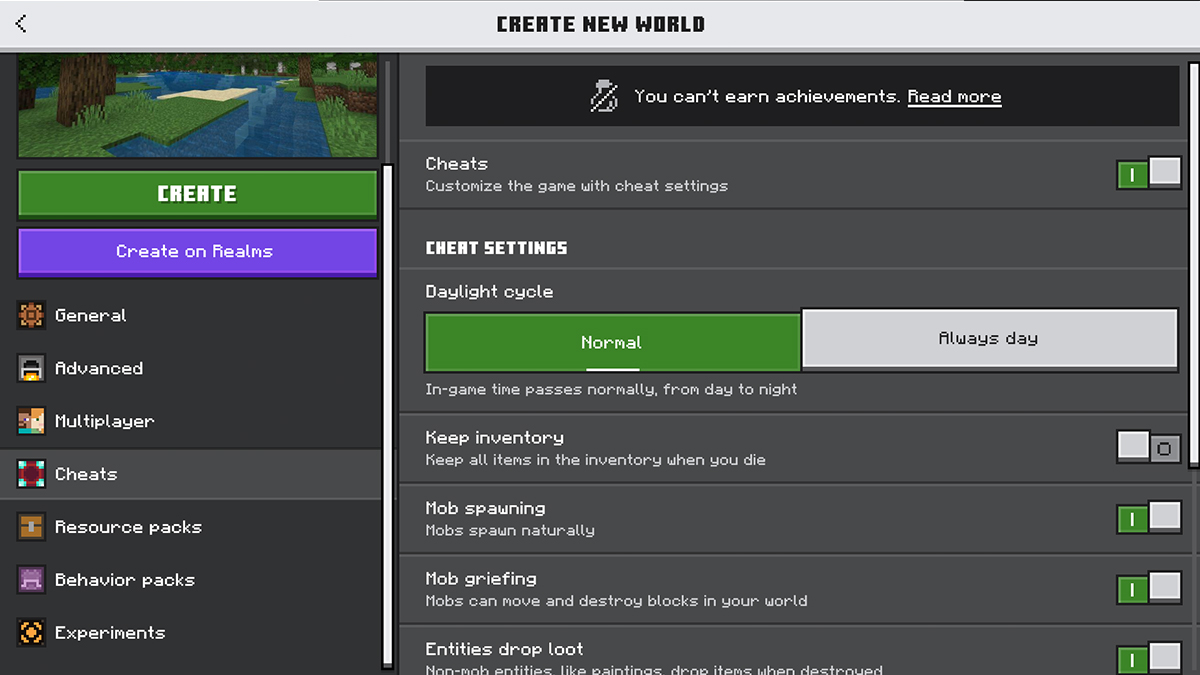
Cheats need to be enabled when creating a new World, whether you’re playing on Bedrock or Java Edition:

  1. Launch Minecraft and click Create New World.
  2. Bedrock: In the World options menu, open the ‘Cheats’ menu on the left sidebar. Then toggle Allow Cheats to ‘On.’
  3. Java: In the World options menu, click the Allow Cheats toggle to ‘On.’
  4. Customize other settings as needed, then hit Create New World.

But you don’t have to worry if you forget to set stuff up. If you’re already in an existing Bedrock World, first open the ‘World menu from the ‘Settings’ option. Then scroll down until you see the Activate Cheats option, and toggle it to on. Java players can enable cheats through LAN settings. Open the pause menu and click ‘Open to LAN’ then toggle ‘Allow Cheats’ to ‘On’ and click ‘Start LAN World.’
How Do You Keep Items After You Die in Minecraft?
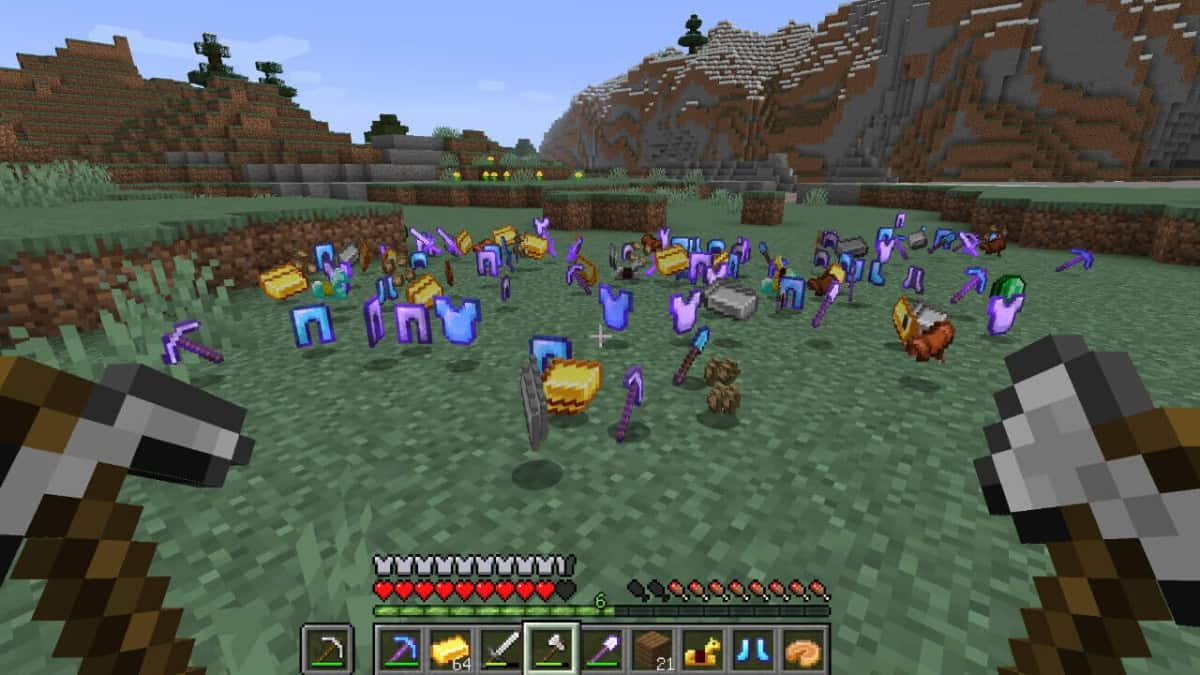
Related: How Do You Keep Items After You Die in Minecraft?

Remember that playing Minecraft Bedrock Edition with cheats enabled will disable the ability to unlock Achievements!

Essential Cheat Commands Like God Mode
Essential Cheat Commands Like God Mode
Image source: Mojang via The Nerd Stash

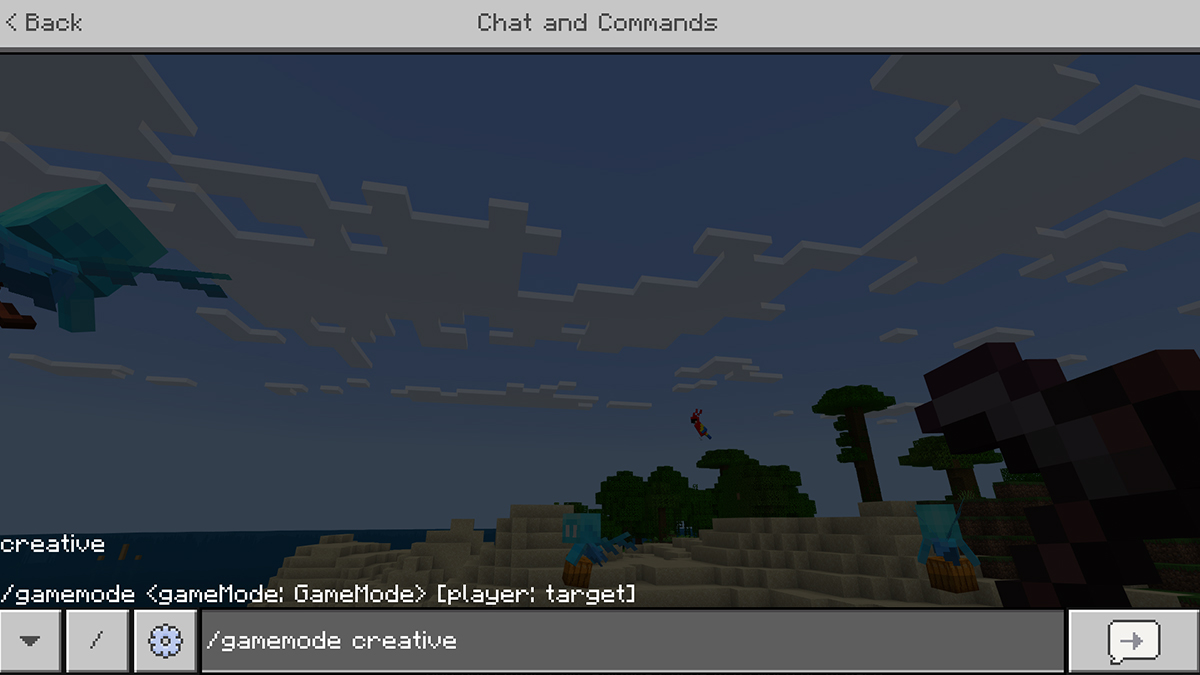
Once cheats are enabled in your Minecraft World, you can use powerful cheat commands through the chat. Press T or / to open the chat and start entering commands.

There are dozens of cheats that you can activate through this option, but we’ll pick the best ones below:

  • Activate God Mode: Type ‘/gamemode creative’ to enter Creative Mode. You’ll gain unlimited blocks, the ability to fly, and invincibility.
  • Activate Spectator Mode: Use ‘/gamemode spectator’ to make taking beautiful screenshots a breeze.
  • Teleport to a specific location: Instant teleportation can be done with ‘/tp [player] [x] [y] [z]’.
  • Survival perks: Prefer Survival Mode with cheats? Type ‘/effect give @p resistance 99999 255’ to minimize damage. Or you can use ‘/effect give @p health_boost 99999 255’ for extra hearts.
  • Summon mobs: To summon ‘/summon [mob_name]’. For example, typing /summon ender_dragon will make an Ender Dragon appear.
How to Turn on Keep Inventory in Minecraft (Java)
Related: How to Turn on Keep Inventory in Minecraft (Java)

When you’re done exploring, remember that cheats stay active for the session. Don’t forget that you can use the ‘/?’ command to call all available cheats at your disposal since Java and Bedrock have different ones. Have fun bending the blocks to your will!


Related Topics
Guide Minecraft
Share. Facebook Twitter LinkedIn Reddit Email
Sidharta F. Rasidi
  • Website

Since middle school, Sidharta has used his video game blog as a handy excuse to avoid studying. After graduating with a degree in Management Information Systems from Bina Nusantara University, he spent years honing his skills as a games journalist, working as an editor for a local gaming site and freelancing elsewhere. Nowadays, when he’s not busy crafting outrageous plots for his serialized comic, Sidharta covers niche games on his personal blog, StoPlayinGame.com. His favorite game series includes Monster Hunter, Earth Defense Force, THE iDOLM@STER, Road Trip Adventure, and KOEI Tecmo's Warriors.

SUGGESTED READS

GTA 6's $100 Preorder Is Outselling the $80 Edition Amid Fans' Backlash, Confirms Take-Two: 'We Want People to be Thrilled'
Gaming

GTA 6’s $100 Preorder Is Outselling the $80 Edition Amid Fans’ Backlash, Confirms Take-Two: ‘We Want People to be Thrilled’

Job Simulator Human Relations
Gaming

FarBridge Is Expanding The Job Simulator Universe With Job Simulator: Human Relations

Star Wars Zero Company PC Preview
Gaming

Star Wars: Zero Company Preview – Missing 90 Percent Shots Turned Us to the Dark Side

Genshin Impact 7.0 Preview
Gaming

Genshin Impact Version 7.0 Preview – One More Adventure

Halo Campaign Evolved PS5 Review
7.5
Gaming

Halo: Campaign Evolved Review – An Underwhelming Return

FNAF Fans Will Soon Be Able to Visit a Real-Life Freddy Fazbear's Pizza
Gaming

FNAF Fans Will Soon Be Able to Visit a Real-Life Freddy Fazbear’s Pizza

The Nerd Stash
Facebook X (Twitter) Instagram YouTube LinkedIn
  • About Us
  • Join Our Team
  • Meet the Team
  • Privacy Policy
  • DMCA Policy
  • Contact Us
  • Terms of Use
  • Sitemap
  • Editorial Guidelines
  • Advertising Policy
© 2026 The Nerd Stash. All Rights Reserved.

Type above and press Enter to search. Press Esc to cancel.