Close Menu
  • Gaming
    • Platforms
      • Nintendo
      • PC
      • PlayStation
      • Xbox
  • Entertainment
    • Movies
    • TV
    • Royals
  • Celebrity
    • Hollywood
  • Human Interest
  • Astrology
  • More
    • Anime
    • Reviews
Facebook X (Twitter) Instagram LinkedIn YouTube
  • About Us
  • Join Our Team
  • Meet the Team
  • Privacy Policy
  • DMCA Policy
  • Contact Us
  • Terms of Use
  • Sitemap
  • Editorial Guidelines
  • Advertising Policy
The Nerd Stash
  • Gaming
  • Celebrity
  • Hollywood
  • Human Interest
The Nerd Stash
Home»Gaming»How To Fix the Black Screen On Launch Error in Towers of Aghasba

How To Fix the Black Screen On Launch Error in Towers of Aghasba

The first hoop to jump

Giovanna De ItaBy Giovanna De ItaNovember 19, 20243 Mins Read
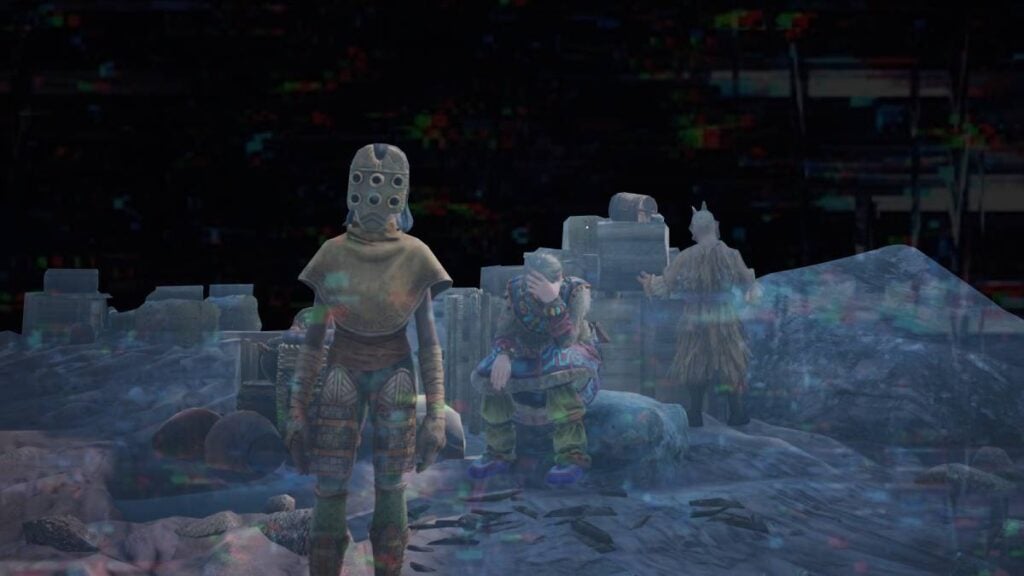
Towers of Aghasba Black Screen Error
Image Source: Dreamlit inc. via The Nerd Stash

While Towers of Aghasba brings many interesting gimmicks to the survival/crafting formula, it is important to remember that it launched in early access with a few technical issues. One of the most common ones is stopping players from playing the game at all, crashing instantly before reaching the main menu. Fortunately, fixing the black screen error in Towers of Aghasba is quite easy and doesn’t require a lot of technological knowledge.

How To Fix the Black Screen Error on PC

We’ll start with PC, which has been uncommon but still happens to many players. The issue occurs after reaching the opening screen and seeing the “Press Any Key to Continue” message. Once players do this, the game tends to freeze and crash. Since the problem is related to the game’s graphical API, players just need to add something to the launch options on Steam.
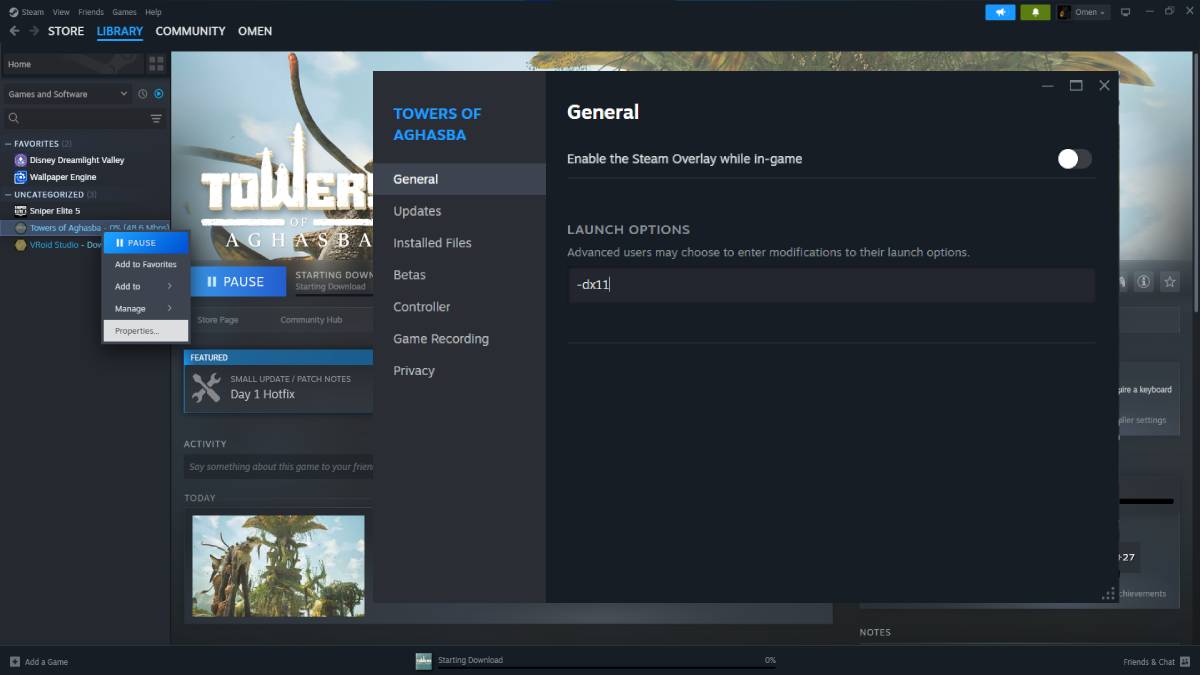
Towers of Aghasba Black Screen PC
Image Source: Valve via The Nerd Stash
  1. Head to your Steam library and right-click on Towers of Aghasba.
  2. Select “Properties” and look for the “Launch Options” section.
  3. Type “-dx11” without the quotation marks.
  4. Close the screen and launch the game.

It is important to note that this seems to be affecting players with AMD GPUs at the moment. We tried it on a PC with an RTX 3060, and the only thing this command did was remove some textures, which wasn’t ideal. So, for Nvidia GPUs, do not use the launch command. However, if you have an AMD GPU, input this command before playing.

How To Fix the Black Screen Error on Towers of Aghasba in PS5 and PS5 Pro

Sadly, PS5 players are also experiencing this issue, but the solution is even simpler than that. Shortly after the game’s early access launch, the developers launched a quick fix, and many players reported that uninstalling the game completely and reinstalling it again fixed it. This has worked for most players so far, so apparently, there’s no need to do anything extra. If you’re still experiencing this error, you’ll have to wait for a new update.

Game Not Launching at All or Disconnecting While Playing on PC

As a bonus fix, we also noticed there’s another issue that doesn’t let the players launch the game at all. This one is actually tied to Epic Online Services. To circumvent this, you must do the following:
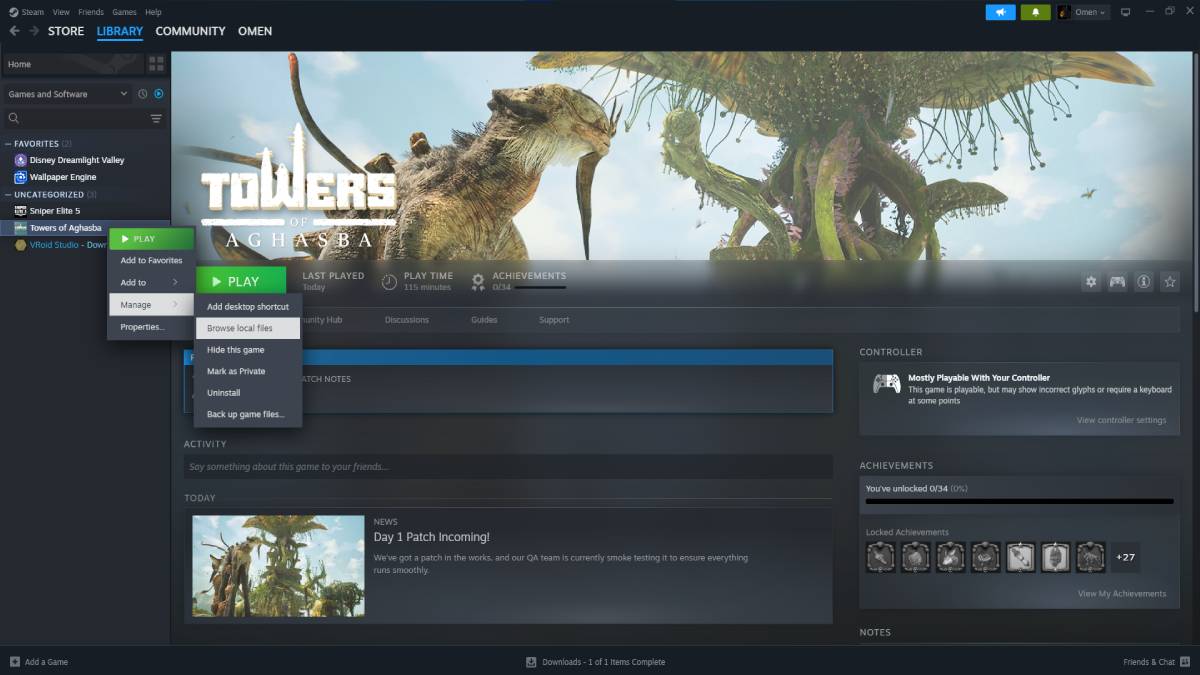
Towers of Aghasba Disconnecting
Image Source: Valve via The Nerd Stash
  1. Right-click on Towers of Aghasba in your Steam Library.
  2. Go to the “Manage” option and select “Browse Local Files”.
  3. Launch the game through the “Towers.exe” icon inside the folder.
    • For this, you can add a desktop shortcut to make the process faster.
How to Fix Authentication Servers Are Down Error in Minecraft
Related: How to Fix Authentication Servers Are Down Error in Minecraft

With the game being fresh out of the oven, many other issues might arise. Fortunately, these ones are quite simple to solve, so as long as you follow these steps, you should be ready to go. As always, remember that this game is in early access, so there are bound to be a few more problems down the line while the devs work on stabilizing the version for its official release.

Related Topics
Guide
Share. Facebook Twitter LinkedIn Reddit Email
Giovanna De Ita
  • Website

Giovanna is a fan of every single game HoYoverse has launched. When she's not covering videogames, she writes her daily horoscopes and tarot readings for the astrology vertical in The Nerd Stash.

SUGGESTED READS

MindsEye Layoffs 2026
Gaming

Studio Behind GTA-like Game, MindsEye, Hit With More Layoffs, and Nobody is Surprised: ‘Shocked There’s Even a Janitor Working There’

Princess Peach Spin-Off Movie May Already Be in Development, Job Listing Suggests
Gaming

Princess Peach Spin-Off Movie May Already Be in Development, Job Listing Suggests

Xbox's New CEO Wants to Reconnect With the 'Community,' Yet Brings In More CoreAI Leaders
Gaming

Xbox’s New CEO Wants to Reconnect With the ‘Community,’ Yet Brings In More CoreAI Leaders

Diablo 4 Season 13 Tier List
Gaming

Class Tier List for Diablo 4 Season 13 (Best Classes for Endgame & Leveling)

Take-Two Boss Finally Explains Why GTA 6 Is Skipping PC at Launch: 'We'll See How It Works Out'
Gaming

Take-Two Boss Finally Explains Why GTA 6 Is Skipping PC at Launch: ‘We’ll See How It Works Out’

Rockstar Employee Review Claims 'Unrealistic' Crunch as GTA 6 Development Intensifies: 'Had to Work Till 3AM'
Gaming

Rockstar Employee Review Claims ‘Unrealistic’ Crunch as GTA 6 Development Intensifies: ‘Had to Work Till 3AM’

The Nerd Stash
Facebook X (Twitter) Instagram YouTube LinkedIn
  • About Us
  • Join Our Team
  • Meet the Team
  • Privacy Policy
  • DMCA Policy
  • Contact Us
  • Terms of Use
  • Sitemap
  • Editorial Guidelines
  • Advertising Policy
© 2026 The Nerd Stash. All Rights Reserved.

Type above and press Enter to search. Press Esc to cancel.