Close Menu
  • Gaming
    • Platforms
      • Nintendo
      • PC
      • PlayStation
      • Xbox
  • Entertainment
    • Movies
    • TV
    • Royals
  • Celebrity
    • Hollywood
  • Human Interest
  • Astrology
  • More
    • Anime
    • Reviews
Facebook X (Twitter) Instagram LinkedIn YouTube
  • About Us
  • Join Our Team
  • Meet the Team
  • Privacy Policy
  • DMCA Policy
  • Contact Us
  • Terms of Use
  • Sitemap
  • Editorial Guidelines
  • Advertising Policy
The Nerd Stash
  • Gaming
  • Celebrity
  • Hollywood
  • Human Interest
The Nerd Stash
Home»Gaming»How To Improve Performance in Pacific Drive

How To Improve Performance in Pacific Drive

Gotta go fast!

Julio La PineBy Julio La PineFebruary 21, 20243 Mins Read
Pacific Drive Improve PC Performance
Image Source: Kepler Interactive via The Nerd Stash
This article is over 2 years old and may contain outdated information.

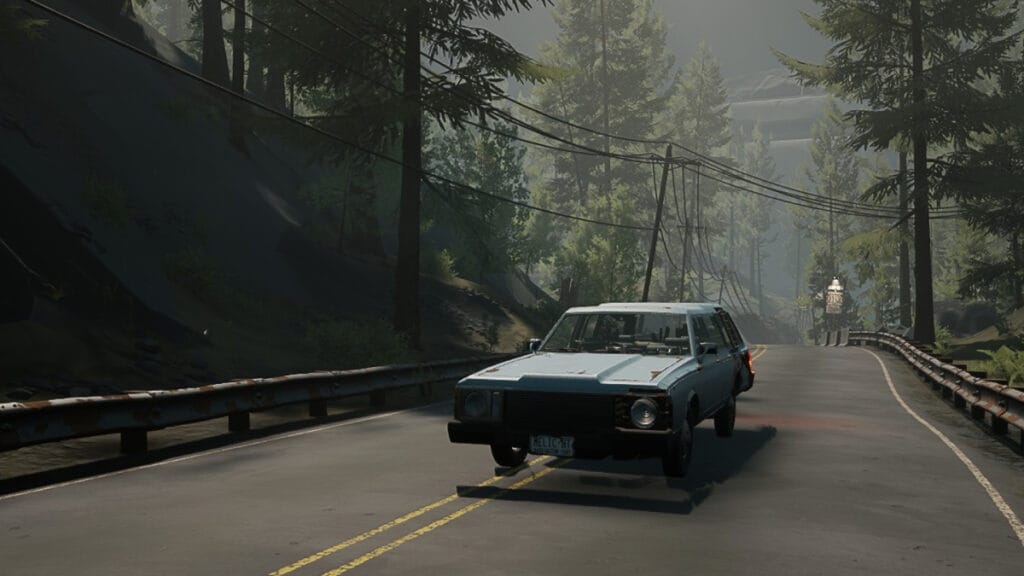
It might not seem like it, but Pacific Drive is a demanding game regarding graphics and CPU usage, which means many PC gamers might want to look for ways to improve the game’s performance. Yes, it might not be the most realistic looking, but one road trip to any of the procedurally generated areas will show you how full of detail every area is. Sadly, this comes at a high cost, and even some high-end rigs will struggle to keep the framerate up while traversing through the Olympic Exclusion Zone.

Improving PC Performance in Pacific Drive

Graphic Settings
Image Source: Kepler Interactive via The Nerd Stash

By now, everyone should know the minimum and recommended system requirements for the game, but if not, you can visit the official game’s page on Steam to check it out. While playing the game, we noticed that, even if our specs were beyond the recommended ones, the game failed to hit a stable 60 fps framerate, so here are the settings we recommend for your game:

  • Brightness: Doesn’t affect performance. Modify it to your heart’s content.
  • Motion Blur: Edit depending on your liking; it doesn’t affect performance.
  • Windowed Mode: For better results, switch it to Fullscreen.
  • Screen Percentage: If you’re struggling a lot with the game, turn it down to 80.
  • Vertical Sync: Preferably on.
  • Anti-Aliasing Method: FXAA. It isn’t the best method, as it can look blurry, but it provides a performance boost.
  • DLSS: Performance or Ultra Performance, depending on how many frames you’re getting.
  • DLSS Sharpening: If you’re using Ultra Performance, set this to 1.0.
  • View Distance: Medium.
  • Shadows: Medium.
  • Anti-aliasing: High.
  • Textures: Medium.
  • Effects: Medium.
  • Post Processing: Medium or Low.
  • Foliage: Low.
  • Shaders: Medium.
  • Headlights Cast Shadows: On.
  • Mirror Shadow Quality: Medium.
  • Mirror Fog Rendering: Off.
  • Mirror Grass Rendering: Off.
  • Mirror Distant Shadows: Off.
  • Mirror Resolution Scale: Medium.
  • Mirror Detail Distance: High.
  • Mirror Draw Distance: High.
  • Cascade Shadow Distance Scale: Medium.
  • Screen Space Shadows: Off.

Related:

Pacific Drive Hands-On Preview: A Driver’s Life for Me

After tinkering for a while, we saw this setup is ideal for those with low specs or who want to hit a stable framerate by compromising graphical fidelity. Thankfully, for us, setting everything to medium was enough to improve PC performance on Pacific Drive, but you might have to play with some settings to find the right balance. If anything else fails, you can always turn down your resolution to improve your framerate by a lot, but it won’t look too great. Ultimately, every game gets updates to improve its performance, so we hope Pacific Drive isn’t an exception.


Related Topics
Guide Pacific Drive
Share. Facebook Twitter LinkedIn Reddit Email
Julio La Pine
  • Website

Been gaming since '99! I am a huge JRPG fan and my favorite franchise is Final Fantasy. I love writing about games and I hope I can do it for the rest of my days!

SUGGESTED READS

World of Tanks HEAT Closed Beta Preview
Features

World of Tanks HEAT Hands-On Preview – Faster, Flashier, and Just as Tactical

Where to Find the Secret Fall Shop in Roblox Adopt Me
Gaming

Where to Find the Secret Fall Shop in Roblox Adopt Me

Diablo 4 Lord of Hatred Review
10
Features

Diablo 4: Lord of Hatred Review – Breaking the Cycle

Shuhei Yoshida Says He Was Fired From Playstation Studios for Saying 'No' to Jim Ryan: 'He Asked For Ridiculous Things'
Gaming

Shuhei Yoshida Says He Was Fired From Playstation Studios for Saying ‘No’ to Jim Ryan: ‘He Asked For Ridiculous Things’

Splinter Cell Remake Shows Signs of Life Despite Recent Layoffs at Ubisoft Toronto
Gaming

Splinter Cell Remake Shows Signs of Life Despite Recent Layoffs at Ubisoft Toronto

Fastest Ways to Get a Purrowl in Roblox Adopt Me
Gaming

Fastest Ways to Get a Purrowl & Trade Value in Roblox Adopt Me

The Nerd Stash
Facebook X (Twitter) Instagram YouTube LinkedIn
  • About Us
  • Join Our Team
  • Meet the Team
  • Privacy Policy
  • DMCA Policy
  • Contact Us
  • Terms of Use
  • Sitemap
  • Editorial Guidelines
  • Advertising Policy
© 2026 The Nerd Stash. All Rights Reserved.

Type above and press Enter to search. Press Esc to cancel.