
Before you can jump into Vice City and start causing mayhem, there’s one thing you have to take care of. Your PS5 needs to have the latest required system software update installed to be able to run Grand Theft Auto 6. Here’s how to make sure you’re running the latest GTA 6 patch and your console is fully updated.
Steps to Install Important PS5 System Update
GTA 6 requires you to install the latest system software update version 26.07-14.23.00 on your PS5. The firmware update should be around 1.3 GB and applies to PS5, PS5 Slim, and PS5 Pro. By default, your console should download the update once connected to the internet either via WiFi or an Ethernet cable.
This will be important not just for GTA 6 but also for any games released afterward. Here’s how to manually grab the console update:
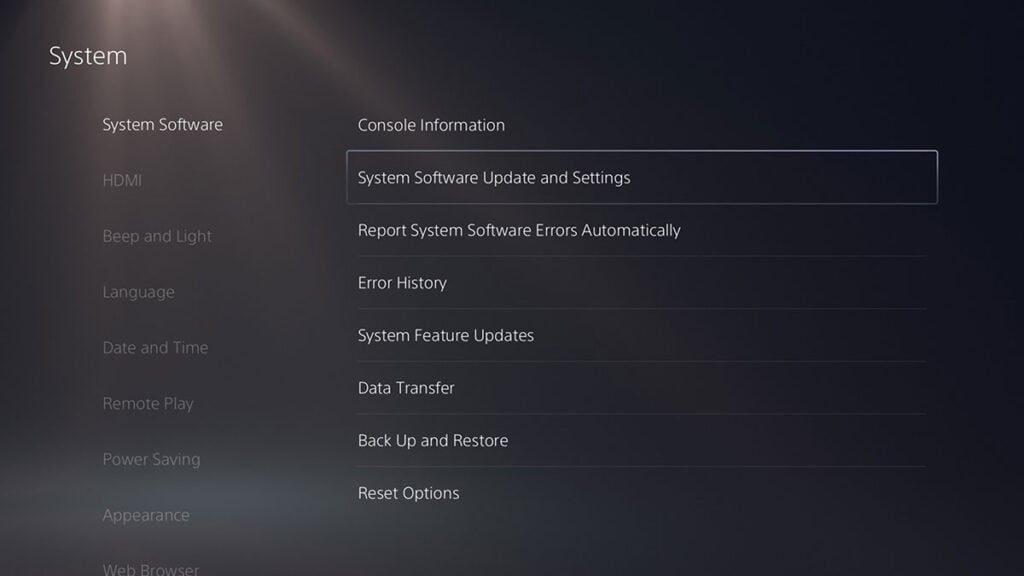
- Turn on your PS5 and open the Settings menu with the gear icon.
- Select System > System Software.
- Open the System Software Update and Settings option.
- Select the Update System Software option > Update Using Internet.
- Download and install it.
- Wait for your PS5 to finish installing it and restart.
- In case you want to confirm the installation, head to Settings > System > System Software > Console Information. Check whether your system software version is 26.07-14.23.00.
You might also want to check if the Download Update Files Automatically and Install Update Files Automatically options are enabled. That way, your console can handle future system updates without you having to check manually.
How To Check for GTA 6 Game Updates on PS5
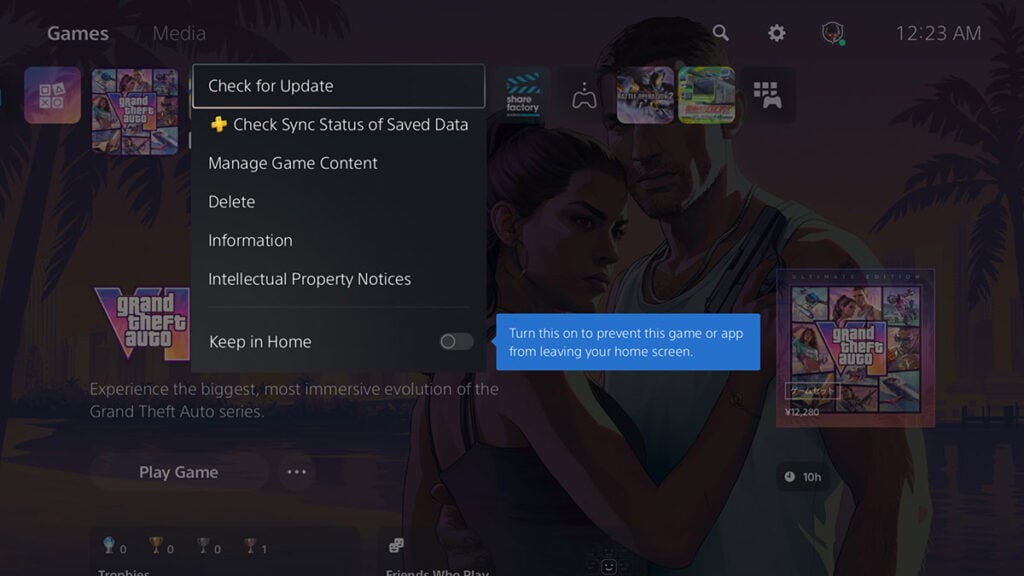
Unfortunately, updating your console doesn’t exactly mean GTA 6 itself is ready to go. You’ll also want to guarantee that the latest game patch has also been installed. Simply follow these steps to do it:
- Highlight the GTA 6 game menu on your PS5 home screen or Game Library.
- Press the Start or Options button on your DualSense controller.
- Select the Check for Update option.
- Download and install any available patches.

If the download gets stuck, press the PS button, open Downloads/Uploads, select the failed update, and choose View Error Info > Try Again. If that still doesn’t work, there’s also a way to install PS5 system software using a USB drive. You can download the PS5UPDATE.pup patch file on the official support site and copy it to a thumbstick.
Last but not least, don’t forget about storage. GTA 6‘s preload asked for 212 GB and the installed size is listed as 210.5 GB, so make sure you have enough free space before downloading. Ideally, you’ll want to leave some additional room for automatic downloads of future patches and updates as well.