
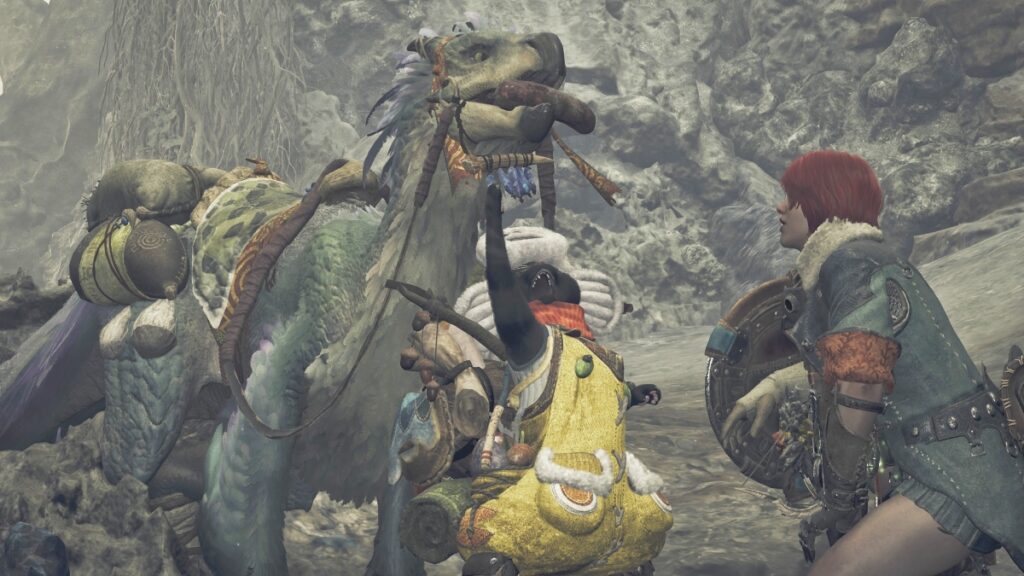
While many love how fast exploration is with a Seikret, others don’t like how “janky” its movement feels in Monster Hunter Wilds, especially when in auto-pilot. Fortunately, MH Wilds has many options that aren’t limited to your character only. With a bit of searching and tweaking, you can make your Seikret go to wherever you want, and even fix its movements if there’s something you don’t like about it.
Turning Off Auto-pilot for your Seikret in Monster Hunter Wilds
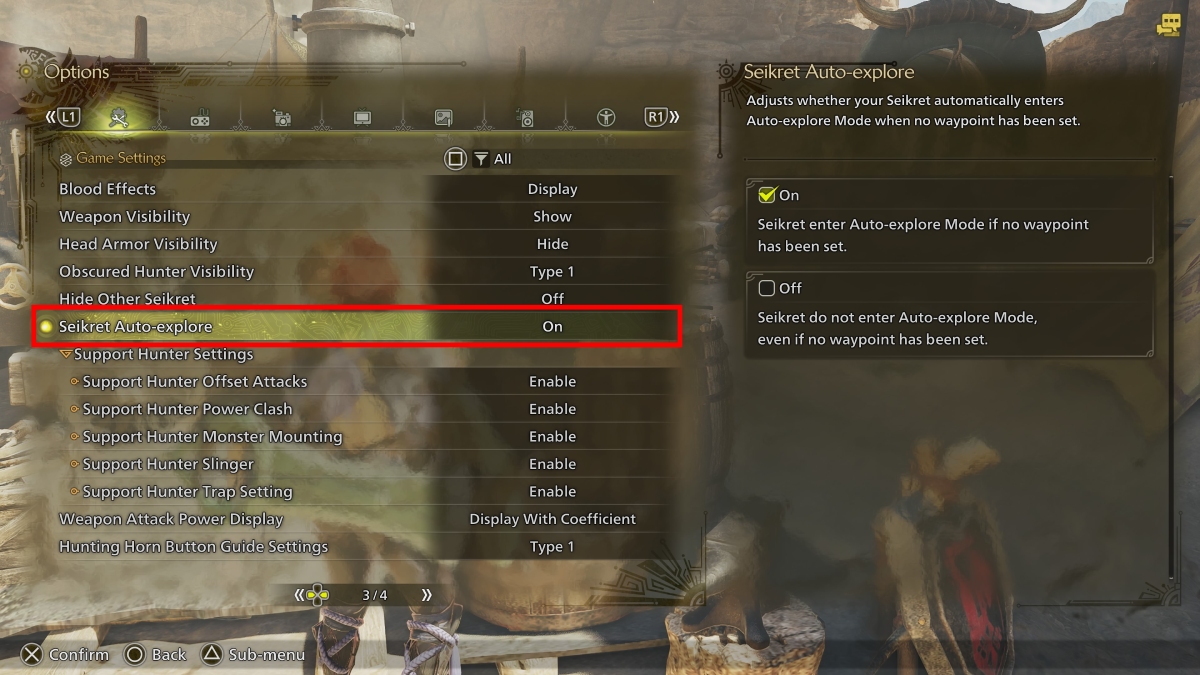
If you don’t mind your Seikret’s movement, but are not a big fan of auto-pilot, you can head to the game settings of Monster Hunter Wilds, and turn it off. To do so, do the following:
- Open your options menu.
- Head to “Game Settings.”
- Scroll until you reach the third page.
- Turn off “Seikret Auto-explore.”
Doing so will let you have full control of your Seikret when exploring. However, if you still don’t like how it moves, there are a few other options you can play with.
Call Seikret Controls
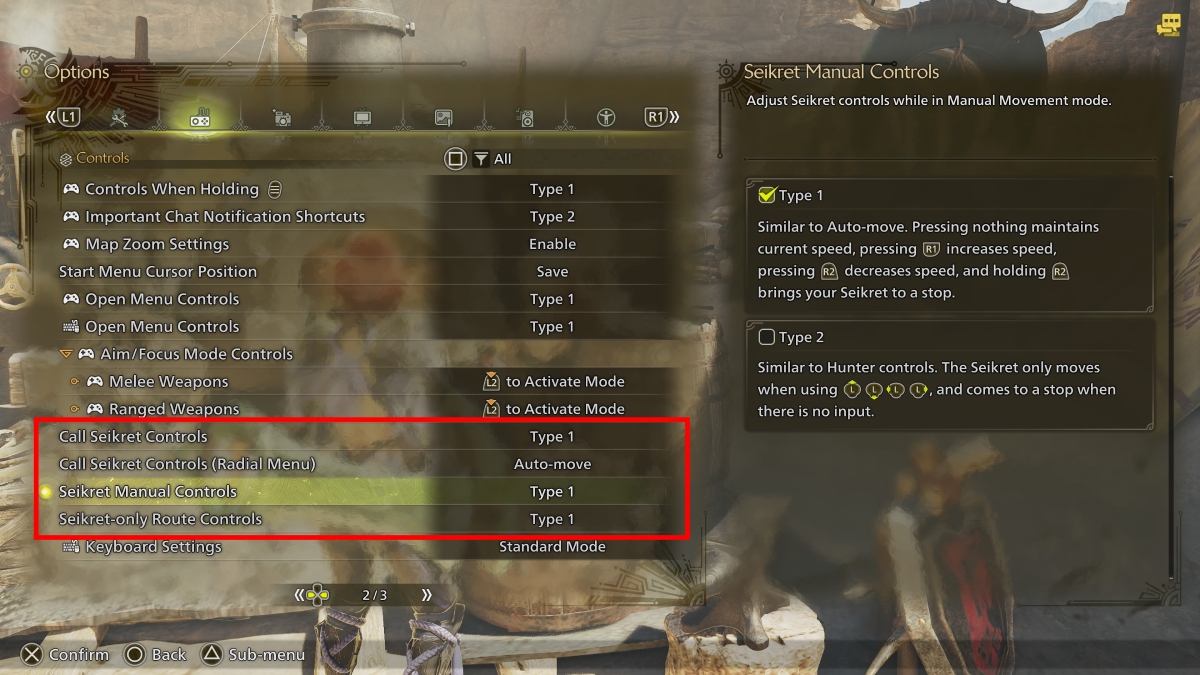
If you’re not a fan of how calling your Seikret works, you can change a few options. To do so, follow these steps:
- Head to your options menu.
- Select the “Controls” tab.
- Scroll to the second page to find the Call Seikret Controls and Seikret Manual Controls.
The options here allow you to change your Seikret’s behaviour when calling it, as well as how it behaves when moving.
The Call Seikret Controls can be changed to the following:
- Type 1: Call Seikret With (D-Pad button) or a Custom Radial Menu Shortcut.
- Type 2: In addition to Type 1 controls, holding B/Circle with your weapon sheathed calls your Seikret in Auto-move mode.
- Type 3: In addition to Type 1 controls, holding B/CIrcle with your weapon sheathed calls your Seikret in Manual Movement Mode.
If you’re not a fan of the auto-pilot, Type 3 controls are the best option.
In addition to the above options, you can also change your Seikret’s movement behaviour. These are the options you can play with:
- Seikret Manual Controls
- Type 1: Similar to Auto-move. Pressing nothing maintains current speed, pressing R1/RB increases speed, pressing R2/RT decreases speed, and holding R2/RT brings your Seikret to a stop.
- Type 2: Similar to Hunter controls. Your Seikret only moves when moving your Left Stick and stops when there’s no input.
For those not fond of auto-pilot, the best option is Type 2 controls.

Ultimately, you can play around with all controls to find the best option for you. If you’re doing that, we recommend waiting until you’re outside of a hunt to experiment with your Seikret. Otherwise, the hunt might become even more chaotic, as you try to figure out how to steer your companion.