Close Menu
  • Gaming
    • Platforms
      • Nintendo
      • PC
      • PlayStation
      • Xbox
  • Entertainment
    • Movies
    • TV
    • Royals
  • Celebrity
    • Hollywood
  • Human Interest
  • Astrology
  • More
    • Anime
    • Reviews
Facebook X (Twitter) Instagram LinkedIn YouTube
  • About Us
  • Join Our Team
  • Meet the Team
  • Privacy Policy
  • DMCA Policy
  • Contact Us
  • Terms of Use
  • Sitemap
  • Editorial Guidelines
  • Advertising Policy
The Nerd Stash
  • Gaming
  • Celebrity
  • Hollywood
  • Human Interest
The Nerd Stash
Home»Gaming»How To Turn On Auto-Run In Fortnite

How To Turn On Auto-Run In Fortnite

Auto-run is your new best friend, but don’t let it sprint you into trouble!

Asanga WijeratneBy Asanga WijeratneDecember 6, 20232 Mins Read
How To Turn On Auto Run In Fortnite
Image Source: Epic Games via The Nerd Stash
This article is over 2 years old and may contain outdated information.

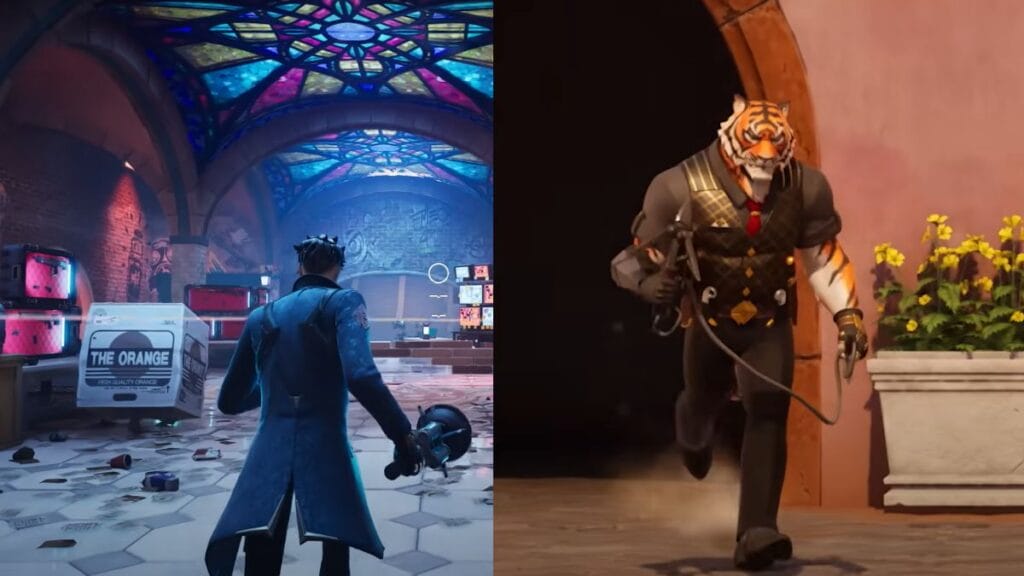
Auto-Run in Fortnite is a simple yet impactful movement feature that lets your character sprint continuously across Fortnite’s map, leaving your hands free for strategic planning and quick reactions. While it may seem easy to turn on Auto-Run, some players may have trouble finding the setting or even knowing it exists. You might have missed this feature among many settings in the game. So, let’s walk through the steps to turn on Auto-Run in Fortnite.
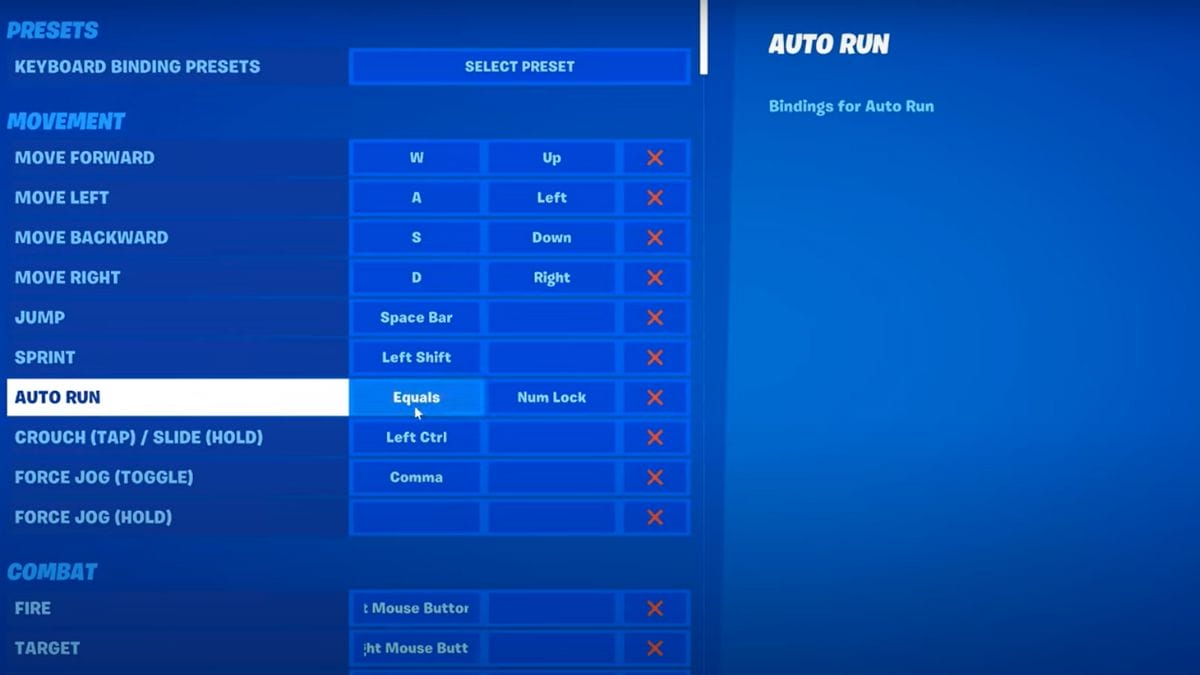
Image Source: Epic Games via YourSixGaming Screenshot

You can turn on the Auto-Run feature in Fortnite from Key Binds in Settings. Below are the steps you need to follow.

  1.  First, log in to the Fortnite.
  2. Once you are in the game lobby, open the settings menu.
  3. Select “Settings” from there and navigate to the “Key Board Settings” tab.
  4. Select Auto Run under the Movement and activate the Key Binds. Generally, Fortnite Auto-Run is assigned to the “=” key.

For console players, this feature is automatically assigned to the left button. When you double-click the button or press “=”on the keyboard, you can turn on the Auto-Run Feature in Fortnite. When you Auto Run, you can see the running symbol to the right of the health bar. Remember, by default, this feature is activated. So, you do not have to worry about enabling unless you have changed the settings.

Auto-Run Feature is not a new one. Most console players, including mine, did not use this feature much. Of course, sometimes it wasn’t enjoyable since a double-click accidentally activated the Auto-Run Feature in Fortnite. So, some of you might have turned it off in previous Chapters to have smooth gameplay.

But, after Chapter 5 was launched, new movement changes made the running much slower. So, the Auto-Run feature can be helpful on this new Island. But keep your finger on the running button to avoid sneaky enemy attacks.


Related Topics
Fortnite Guide
Share. Facebook Twitter LinkedIn Reddit Email
Asanga Wijeratne
  • Website

SUGGESTED READS

Diablo 4 Season 13 Tier List
Gaming

Class Tier List for Diablo 4 Season 13 (Best Classes for Endgame & Leveling)

Take-Two Boss Finally Explains Why GTA 6 Is Skipping PC at Launch: 'We'll See How It Works Out'
Gaming

Take-Two Boss Finally Explains Why GTA 6 Is Skipping PC at Launch: ‘We’ll See How It Works Out’

Rockstar Employee Review Claims 'Unrealistic' Crunch as GTA 6 Development Intensifies: 'Had to Work Till 3AM'
Gaming

Rockstar Employee Review Claims ‘Unrealistic’ Crunch as GTA 6 Development Intensifies: ‘Had to Work Till 3AM’

All Rewards from Admin Abuse Eggs & Box in Roblox Adopt Me
Gaming

All Rewards from Admin Abuse Eggs & Box in Roblox Adopt Me

Gaming

World Heroes Perfect Reminds Me of the Golden Age of Fighting Games

Fatal Fury City of the Wolves Mr Karate Reveal
Gaming

Fatal Fury: City of the Wolves Unveils Its Next Season 2 Fighter, and It’s a Classic

The Nerd Stash
Facebook X (Twitter) Instagram YouTube LinkedIn
  • About Us
  • Join Our Team
  • Meet the Team
  • Privacy Policy
  • DMCA Policy
  • Contact Us
  • Terms of Use
  • Sitemap
  • Editorial Guidelines
  • Advertising Policy
© 2026 The Nerd Stash. All Rights Reserved.

Type above and press Enter to search. Press Esc to cancel.