Close Menu
  • Gaming
    • Platforms
      • Nintendo
      • PC
      • PlayStation
      • Xbox
  • Entertainment
    • Movies
    • TV
    • Royals
  • Celebrity
    • Hollywood
  • Human Interest
  • Astrology
  • More
    • Anime
    • Reviews
Facebook X (Twitter) Instagram LinkedIn YouTube
  • About Us
  • Join Our Team
  • Meet the Team
  • Privacy Policy
  • DMCA Policy
  • Contact Us
  • Terms of Use
  • Sitemap
  • Editorial Guidelines
  • Advertising Policy
The Nerd Stash
  • Gaming
  • Celebrity
  • Hollywood
  • Human Interest
The Nerd Stash
Home»Gaming»How to Uninstall Valorant & Riot Vanguard

How to Uninstall Valorant & Riot Vanguard

Are you trying to uninstall Valorant but for some reason, the uninstall wizard doesn’t show up and you can’t do it? Usually, uninstalling a program…

Sidharta F. RasidiBy Sidharta F. RasidiJune 27, 20233 Mins Read
How to Uninstall Valorant
Image source: Riot Games
This article is over 2 years old and may contain outdated information.

Are you trying to uninstall Valorant but for some reason, the uninstall wizard doesn’t show up and you can’t do it? Usually, uninstalling a program or an application on a Windows PC is a hassle-free task. But sometimes there is an exception to the rule. For example, you might be having trouble when attempting to uninstall Riot Games‘ competitive FPS, Valorant manually or through the Riot client. If you can’t uninstall the game for whatever reason, then read below for a guide on how to uninstall Valorant.

Valorant: How to Uninstall the Game
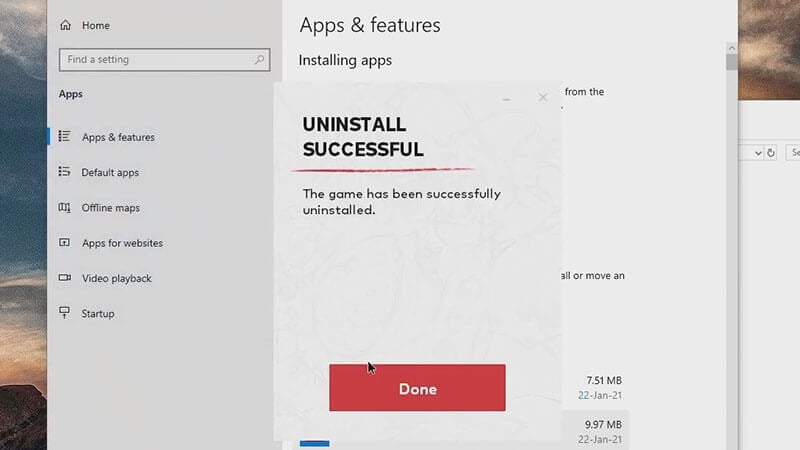
Uninstalling Valorant and Riot Client
Image source: Clan Iwan screenshot

Technically speaking, the uninstallation process should be as simple as any other program. In some cases, though, you might need to manually uninstall the Riot Vanguard anti-cheat application first. Again, it shouldn’t really be necessary but some users are finding that it solves whatever issue prevents a clean uninstallation.

It’s worth noting that there isn’t a Vanguard uninstallation application in the Valorant folder. Instead, you can do so by using Windows’ Uninstall a Program feature in the Control Panel. Once you have opened the Uninstall or Change Program menu, search for the Riot Vanguard application. Click on it and then select Uninstall.

After you have finished uninstalling Riot Vanguard, now you can uninstall Valorant properly. Again, open the Uninstall or Change Program menu. In the window, look for Valorant. Click on it and then select Uninstall. Afterward, you might want to uninstall the Riot client too if you no longer need the launcher.

To recap, if you can’t uninstall Valorant, here are the proper steps to uninstall the game:

  1. Open the System Tray from the Taskbar.
  2. Right-click on the Riot Vanguard icon.
  3. Click on the Exit Vanguard option to stop the anti-cheat from running in the background.
  4. Open the Start menu or press the Windows key + S shortcut.
  5. Open the Control Panel.
  6. Below the Programs, there is the Uninstall program option. Click it.
  7. Look for the Riot Vanguard application in the Programs and Features menu. Choose Uninstall.
  8. Once you have uninstalled Riot Vanguard, look for Valorant in the Programs and Features menu. Choose Uninstall.

Valorant: How to Uninstall on Riot Client
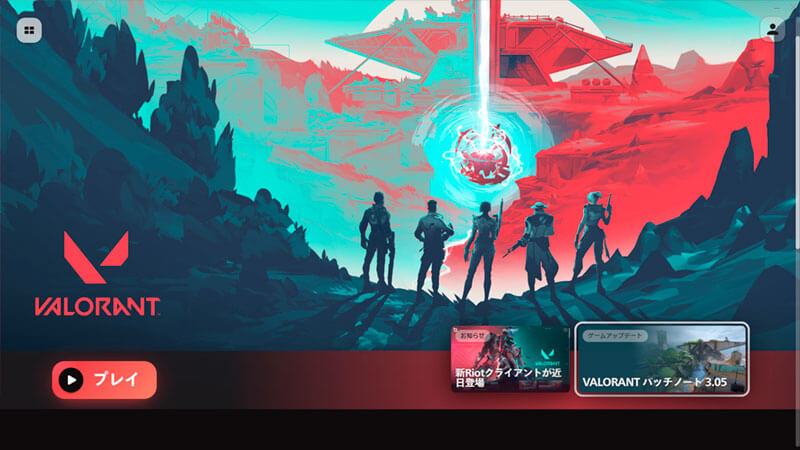
Uninstalling Valorant and Riot Client
Image source: Valorantnews.jp

To uninstall the game with Riot client, you also have to disable the Vanguard anti-cheat first:

  1. Open the System Tray from the Taskbar.
  2. Right-click on the Riot Vanguard icon.
  3. Click on the Exit Vanguard option to stop the anti-cheat from running in the background.
  4. Open the Riot client.
  5. Click on the Valorant icon on the left side of the client’s window.
  6. Click the gear icon at the top-right corner.
  7. In the Settings menu, click on the Uninstall option.

Valorant is available exclusively on PC.

Related Topics
Guide Valorant
Share. Facebook Twitter LinkedIn Reddit Email
Sidharta F. Rasidi
  • Website

An ordinary Indonesian who enjoys playing and talking about video games. His favorite games are Monster Hunter: World, Space Invader Extreme 2, THE iDOLM@STER SP, Road Trip Adventure, Halo series, and KOEI Tecmo's Warriors series.

SUGGESTED READS

MindsEye Layoffs 2026
Gaming

Studio Behind GTA-like Game, MindsEye, Hit With More Layoffs, and Nobody is Surprised: ‘Shocked There’s Even a Janitor Working There’

Princess Peach Spin-Off Movie May Already Be in Development, Job Listing Suggests
Gaming

Princess Peach Spin-Off Movie May Already Be in Development, Job Listing Suggests

Xbox's New CEO Wants to Reconnect With the 'Community,' Yet Brings In More CoreAI Leaders
Gaming

Xbox’s New CEO Wants to Reconnect With the ‘Community,’ Yet Brings In More CoreAI Leaders

Diablo 4 Season 13 Tier List
Gaming

Class Tier List for Diablo 4 Season 13 (Best Classes for Endgame & Leveling)

Take-Two Boss Finally Explains Why GTA 6 Is Skipping PC at Launch: 'We'll See How It Works Out'
Gaming

Take-Two Boss Finally Explains Why GTA 6 Is Skipping PC at Launch: ‘We’ll See How It Works Out’

Rockstar Employee Review Claims 'Unrealistic' Crunch as GTA 6 Development Intensifies: 'Had to Work Till 3AM'
Gaming

Rockstar Employee Review Claims ‘Unrealistic’ Crunch as GTA 6 Development Intensifies: ‘Had to Work Till 3AM’

The Nerd Stash
Facebook X (Twitter) Instagram YouTube LinkedIn
  • About Us
  • Join Our Team
  • Meet the Team
  • Privacy Policy
  • DMCA Policy
  • Contact Us
  • Terms of Use
  • Sitemap
  • Editorial Guidelines
  • Advertising Policy
© 2026 The Nerd Stash. All Rights Reserved.

Type above and press Enter to search. Press Esc to cancel.