Close Menu
  • Gaming
    • Platforms
      • Nintendo
      • PC
      • PlayStation
      • Xbox
  • Entertainment
    • Movies
    • TV
    • Royals
  • Celebrity
    • Hollywood
  • Human Interest
  • Astrology
  • More
    • Anime
    • Reviews
Facebook X (Twitter) Instagram LinkedIn YouTube
  • About Us
  • Join Our Team
  • Meet the Team
  • Privacy Policy
  • DMCA Policy
  • Contact Us
  • Terms of Use
  • Sitemap
  • Editorial Guidelines
  • Advertising Policy
The Nerd Stash
  • Gaming
  • Celebrity
  • Hollywood
  • Human Interest
The Nerd Stash
Home»Gaming»How To Update (Or Uninstall) Smapi for Stardew Valley Modding

How To Update (Or Uninstall) Smapi for Stardew Valley Modding

It’s Modding time.

Masoud KazemiBy Masoud KazemiMarch 22, 20243 Mins Read
How to Update Smapi for Stardew Valley
Image source: ConcernedApe
This article is over 2 years old and may contain outdated information.

Smapi is the modding tool released for Stardew Valley. With this application, players can install and use different mods in the game. With the release of the 1.6 update, players must update the modding tool as well. So, here’s how to update, install, and uninstall Smapi for Stardew Valley.

How To Update Smapi for Stardew Valley?
Installing Smapi
Image Source: The Nerd Stash

The only way to update Smapi for Stardew Valley is to install the latest version of the application again. So, if you have already used the application, visit Smapi’s official website, download, and install the latest version. Don’t worry if you haven’t installed it before, we’ve got you covered.

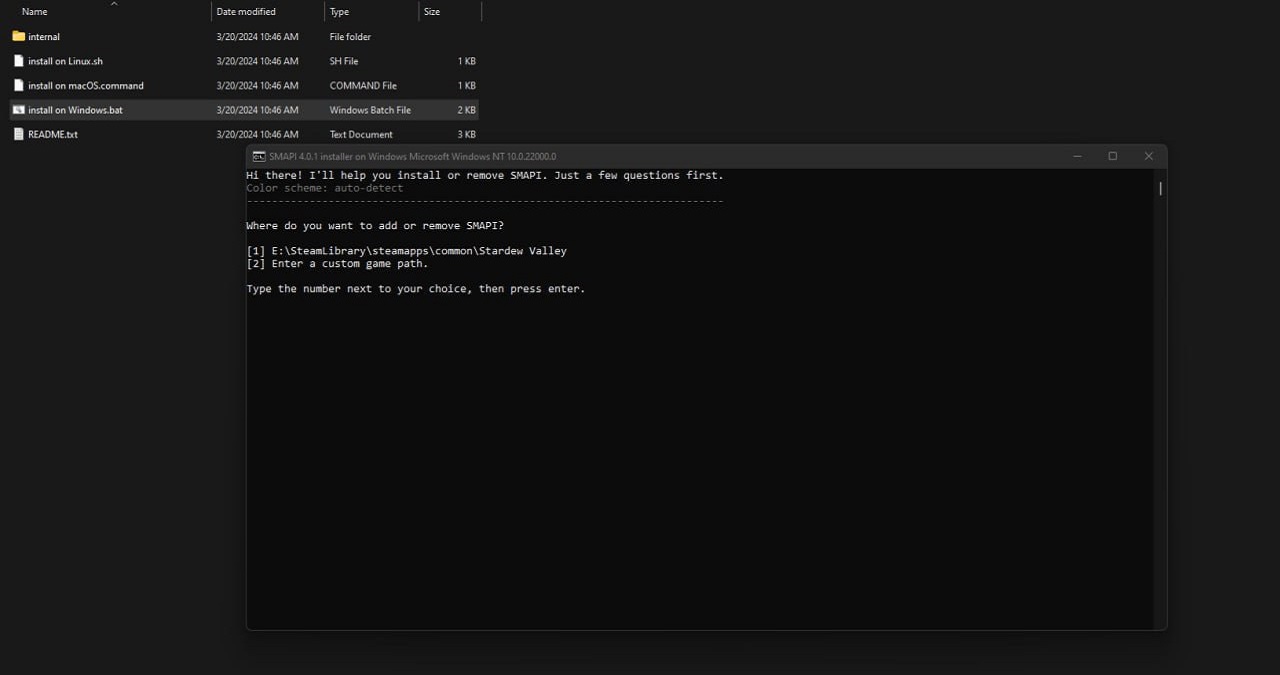
Once you’ve downloaded the application, extract the files anywhere you want. In the Smapi installer folder, open the installation file based on your OS. The installation will give you two options: installing the modding tool by default or entering a custom entry. Firstly, we’ll go over installing the modding tool for Steam users, and then the customized version.
Related:

What Does Green Rain Do in Stardew Valley 1.6? Explained
How to Update Smapi for Stardew Valley
Image Source: The Nerd Stash

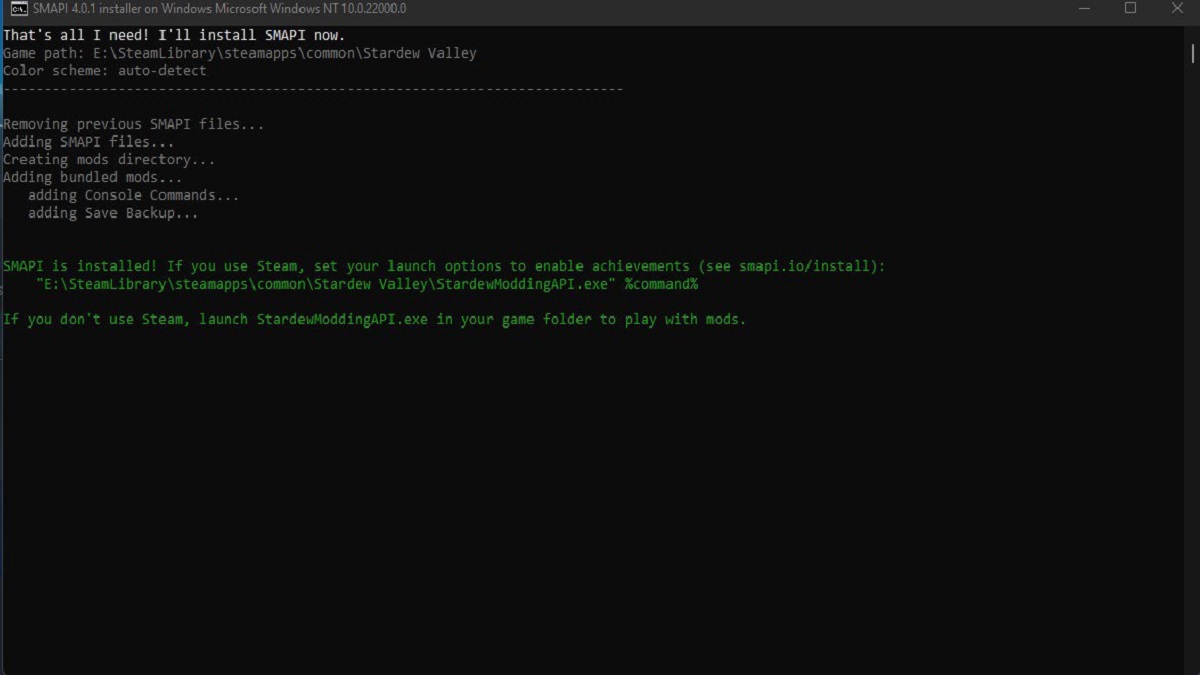
After you press “1” and hit enter, the prompt will ask whether you want to install or uninstall Smapi. Press “1” and enter again to start the installation. Once it is done, a line written in green font will appear. Copy the direction written in the second line and open Steam.

From your library, right-click on Stardew Valley and select Properties. Paste the directory under the Launch Option and close the window. Now, each time you launch the game, it will also open the modding tool with it. If you want to uninstall the tool, open the installation file again and select the Uninstall option.

Stardew Valley Launch Option
Image Source: The Nerd Stash

If you installed Stardew Valley somewhere else, here is how to install the tool. Press and enter “2” in the installation program and then write the directory where Stardew Valley files are. Then, each time you run the game, the modding tool will launch with it.

You can download any mods you want from NexusMods. To install them, copy the mod files into the Mod folder of Stardew Valley files. Now, to summarize the installation process:

  • Download Smapi from its official website and run the installation file based on your OS.
  • Press 1 for Steam installation and 2 for custom installation.
  • After installing the tool for Steam is complete, copy the directory written in green font.
  • Go to Stardew Valley‘s properties in Steam and paste the directory in the Launch Option field.

Stardew Valley 1.6 is now available for PC, PS4, PS5, Xbox One, Xbox Series X|S, Nintendo Switch, iOS, and Android devices.

Related Topics
Guide Stardew Valley
Share. Facebook Twitter LinkedIn Reddit Email
Masoud Kazemi
  • Website
  • X (Twitter)

I don't care about the real world. I cared only about the world of fiction. -Woody Allen

SUGGESTED READS

Diablo 4 Season 13 Tier List
Gaming

Class Tier List for Diablo 4 Season 13 (Best Classes for Endgame & Leveling)

Take-Two Boss Finally Explains Why GTA 6 Is Skipping PC at Launch: 'We'll See How It Works Out'
Gaming

Take-Two Boss Finally Explains Why GTA 6 Is Skipping PC at Launch: ‘We’ll See How It Works Out’

Rockstar Employee Review Claims 'Unrealistic' Crunch as GTA 6 Development Intensifies: 'Had to Work Till 3AM'
Gaming

Rockstar Employee Review Claims ‘Unrealistic’ Crunch as GTA 6 Development Intensifies: ‘Had to Work Till 3AM’

All Rewards from Admin Abuse Eggs & Box in Roblox Adopt Me
Gaming

All Rewards from Admin Abuse Eggs & Box in Roblox Adopt Me

Gaming

World Heroes Perfect Reminds Me of the Golden Age of Fighting Games

Fatal Fury City of the Wolves Mr Karate Reveal
Gaming

Fatal Fury: City of the Wolves Unveils Its Next Season 2 Fighter, and It’s a Classic

The Nerd Stash
Facebook X (Twitter) Instagram YouTube LinkedIn
  • About Us
  • Join Our Team
  • Meet the Team
  • Privacy Policy
  • DMCA Policy
  • Contact Us
  • Terms of Use
  • Sitemap
  • Editorial Guidelines
  • Advertising Policy
© 2026 The Nerd Stash. All Rights Reserved.

Type above and press Enter to search. Press Esc to cancel.