Close Menu
  • Gaming
    • Platforms
      • Nintendo
      • PC
      • PlayStation
      • Xbox
  • Entertainment
    • Movies
    • TV
    • Royals
  • Celebrity
    • Hollywood
  • Human Interest
  • Astrology
  • More
    • Anime
    • Reviews
Facebook X (Twitter) Instagram LinkedIn YouTube
  • About Us
  • Join Our Team
  • Meet the Team
  • Privacy Policy
  • DMCA Policy
  • Contact Us
  • Terms of Use
  • Sitemap
  • Editorial Guidelines
  • Advertising Policy
The Nerd Stash
  • Gaming
  • Celebrity
  • Hollywood
  • Human Interest
The Nerd Stash
Home»Gaming»Roblox: How to Trade in A Universal Time

Roblox: How to Trade in A Universal Time

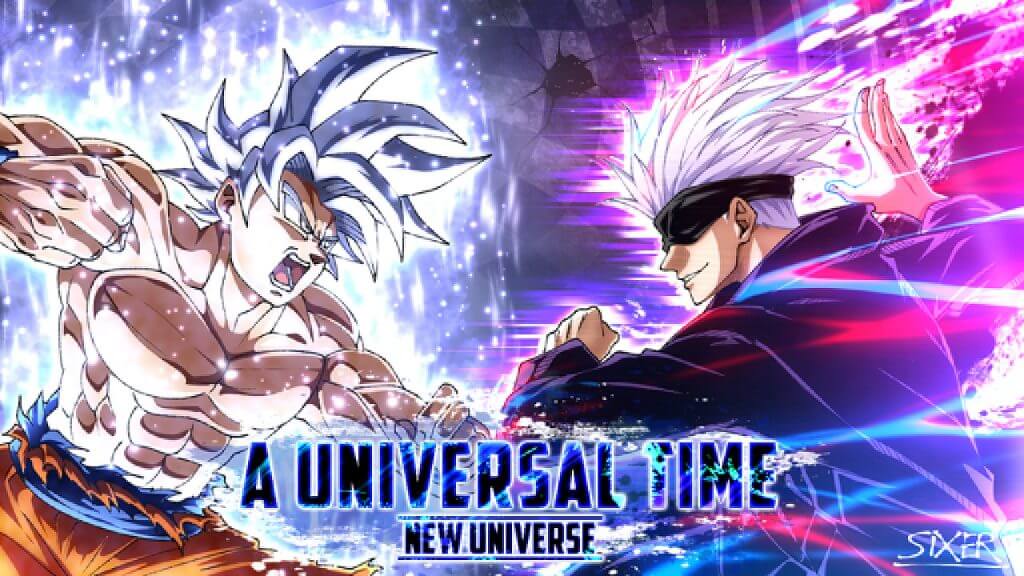
A Universal Time (AUT) is a popular Roblox game inspired by numerous games and shows. In particular, many know the game for its similarities to…

Madison BensonBy Madison BensonAugust 31, 20212 Mins Read
roblox a universal time keyart
This article is over 4 years old and may contain outdated information.

A Universal Time (AUT) is a popular Roblox game inspired by numerous games and shows. In particular, many know the game for its similarities to the popular anime Jojo’s Bizzare Adventure. In AUT, you can gather money and items to become strong enough to fight other players. A very important method of retrieving items to become stronger is to trade with other players. You can trade stands and items, but it may be confusing at first to figure out how to. By the end of this guide, you will learn how to trade with others in A Universal Time in Roblox.

How to Trade in Roblox’s A Universal Time

roblox a universal time trade

To trade with other players in AUT, there are several in-game commands you can use. The two main commands for trading include the following:

  • !trade [playername]
  • !itemtrade [playername]

The trade command will send a trade request to a player of your choosing. Replace the player name tag with whoever you would like to trade with. You will need the “Trading/Vs” option in your game settings enabled to be able to trade with others. You will trade whichever stand you have equipped. A pop-up window will appear if the other player accepts your request. Make sure you choose the right stand before confirming your trade!

Related:

5 Insanely OP Gloves That Break Roblox Slap Battles (& How to Get them)

The itemtrade command will send an item trade request to another player. Like the trade command, you will need the “Trading/Vs” option in your settings turned on. Additionally, you will trade whichever item you have equipped. You should also make sure you have the right item equipped before finishing your trade.

If you do not wish to finish the trade, you have the option to decline the trade. Otherwise, select “accept”, and you will complete the trade. Be sure to avoid accepting trades with players who may be trying to make an unfair deal with you!


Related Topics
Guide Roblox
Share. Facebook Twitter LinkedIn Reddit Email
Madison Benson

Madison is a Canadian freelance writer with a love for video games. Proud owner of three dogs and two rabbits.

SUGGESTED READS

Path of Exiles 2 Build Planner Guide
Gaming

How To Use the Build Planner in Path of Exile 2

Adopt Me Kicks Off Summer With Journey to Summer Camp Update, Here's All The New Week 1 Pets & Rewards
Gaming

Roblox Adopt Me Launches Journey to Summer Camp Update, Here’s All the Week 1 Pets & Rewards

LEGO Batman Legacy of the Dark Knight PC Review
9
Gaming

LEGO Batman: Legacy of the Dark Knight Review – A Hero Rises

Call of Duty: Modern Warfare 4 Launching This October on Next-Gen Consoles & Switch 2, But Not Game Pass
Gaming

Call of Duty: Modern Warfare 4 Launching This October on Next-Gen Consoles & Switch 2, But Not Game Pass

Hideo Kojima Teams Up With Prada for an AI Film, And Fans Aren't Happy: 'Beyond Incredibly Disappointing'
Gaming

Hideo Kojima Teams Up With Prada for an AI Film, And Fans Aren’t Happy: ‘Beyond Incredibly Disappointing’

The Witcher 3 Songs of the Past expansion
Gaming

A Witcher 3 Leak Just Forced CD Projekt Red to Announce a Brand-New Expansion: Songs of the Past

The Nerd Stash
Facebook X (Twitter) Instagram YouTube LinkedIn
  • About Us
  • Join Our Team
  • Meet the Team
  • Privacy Policy
  • DMCA Policy
  • Contact Us
  • Terms of Use
  • Sitemap
  • Editorial Guidelines
  • Advertising Policy
© 2026 The Nerd Stash. All Rights Reserved.

Type above and press Enter to search. Press Esc to cancel.