Close Menu
  • Gaming
    • Platforms
      • Nintendo
      • PC
      • PlayStation
      • Xbox
  • Entertainment
    • Movies
    • TV
    • Royals
  • Celebrity
    • Hollywood
  • Human Interest
  • Astrology
  • More
    • Anime
    • Reviews
Facebook X (Twitter) Instagram LinkedIn YouTube
  • About Us
  • Join Our Team
  • Meet the Team
  • Privacy Policy
  • DMCA Policy
  • Contact Us
  • Terms of Use
  • Sitemap
  • Editorial Guidelines
  • Advertising Policy
The Nerd Stash
  • Gaming
  • Celebrity
  • Hollywood
  • Human Interest
The Nerd Stash
Home»Features»How to Add Custom Content to Sims 4

How to Add Custom Content to Sims 4

The Sims 4 is a game with a lot of content, and every year it keeps getting bigger. While there are some rumors already about…

Giovanna De ItaBy Giovanna De ItaMarch 16, 20232 Mins Read
Sims 4 How to Add Custom Content
Image: Sims 4
This article is over 3 years old and may contain outdated information.

The Sims 4 is a game with a lot of content, and every year it keeps getting bigger. While there are some rumors already about the next entry, some people still play The Sims 4 due to all the expansion packs that it has. However, there are some players that prefer some custom content or mods for The Sims 4. This type of content can change the game drastically and add many things to make you replay this game even more. Well, without further ado, here we’ll tell you how to add custom content or mods to The Sims 4.

How to add custom content to The Sims 4

Before we delve into the steps you need to follow, let’s talk about the types of custom content that you can find for The Sims 4. There are three predominant types out there and those are custom content, Lots and Sims, and Script Mods. All of them bring different things to the game so let’s see how to add all these custom content to The Sims 4:

  • Custom Content:
    • Go to your Documents folder and find The Sims 4
    • Head to the mods folder and drop the mods you’ve downloaded inside
  • Lots and Sims:
    • Inside The Sims 4 folder find the “Tray” folder
    • Drag and drop your Lots and Sims files inside
  • Script Mods:
    • Locate the mods folder inside The Sims 4 directory
    • Place your Script Mods inside it
Add in Sims 4 Custom Content
Image: Sims 4

Related:

How to Back Up Saves in The Sims 4

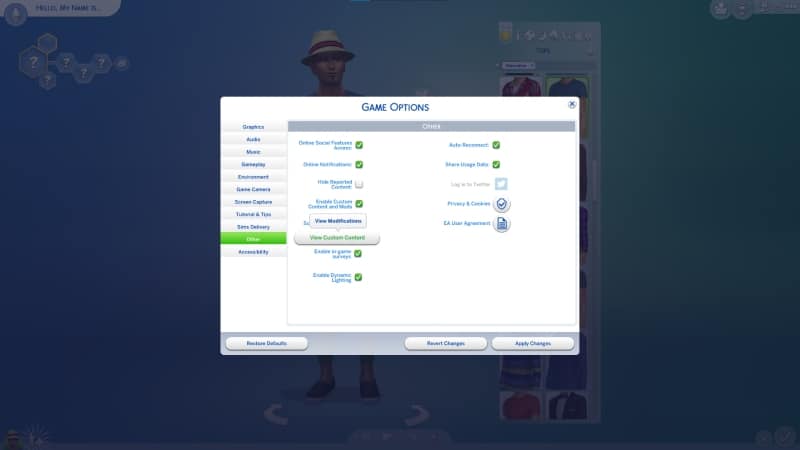
All of these mods do not require a formal installation. All you need to do is drag them to the respective folder and that’s it. To activate them in the game, all you have to do is head to “game options” locate the “Other” option, select “View custom content”, and verify your mods are there. And that’s it, that’s all you need to know about how to add custom content or mods to The Sims 4. Contrary to other games, installing mods here is quite simple. While games like Skyrim or Project Zomboid have more steps for mod installation, The Sims 4 is pretty straightforward so don’t be afraid to try out some. If not, remember that a new expansion pack just launched that you can purchase on your favorite platform.


Related Topics
Guide Sims 4
Share. Facebook Twitter LinkedIn Reddit Email
Giovanna De Ita
  • Website

Giovanna is a fan of every single game HoYoverse has launched. When she's not covering videogames, she writes her daily horoscopes and tarot readings for the astrology vertical in The Nerd Stash.

SUGGESTED READS

MindsEye Layoffs 2026
Gaming

Studio Behind GTA-like Game, MindsEye, Hit With More Layoffs, and Nobody is Surprised: ‘Shocked There’s Even a Janitor Working There’

Princess Peach Spin-Off Movie May Already Be in Development, Job Listing Suggests
Gaming

Princess Peach Spin-Off Movie May Already Be in Development, Job Listing Suggests

Xbox's New CEO Wants to Reconnect With the 'Community,' Yet Brings In More CoreAI Leaders
Gaming

Xbox’s New CEO Wants to Reconnect With the ‘Community,’ Yet Brings In More CoreAI Leaders

Diablo 4 Season 13 Tier List
Gaming

Class Tier List for Diablo 4 Season 13 (Best Classes for Endgame & Leveling)

Take-Two Boss Finally Explains Why GTA 6 Is Skipping PC at Launch: 'We'll See How It Works Out'
Gaming

Take-Two Boss Finally Explains Why GTA 6 Is Skipping PC at Launch: ‘We’ll See How It Works Out’

Rockstar Employee Review Claims 'Unrealistic' Crunch as GTA 6 Development Intensifies: 'Had to Work Till 3AM'
Gaming

Rockstar Employee Review Claims ‘Unrealistic’ Crunch as GTA 6 Development Intensifies: ‘Had to Work Till 3AM’

The Nerd Stash
Facebook X (Twitter) Instagram YouTube LinkedIn
  • About Us
  • Join Our Team
  • Meet the Team
  • Privacy Policy
  • DMCA Policy
  • Contact Us
  • Terms of Use
  • Sitemap
  • Editorial Guidelines
  • Advertising Policy
© 2026 The Nerd Stash. All Rights Reserved.

Type above and press Enter to search. Press Esc to cancel.