Close Menu
  • Gaming
    • Game Guides
    • Codes
    • Game News
    • Game Previews
    • Game Reviews
    • Game Features
    • Game Lists
    • Platforms
      • Nintendo
      • PC
      • PlayStation
      • Xbox
      • Mobile
  • Entertainment
    • Movies
    • Movie Features
    • Movie Reviews
    • TV
    • Reality TV
    • Royals
  • Celebrity
    • Hollywood
  • Human Interest
  • Astrology
  • Videos
  • More
    • Anime
    • Lists
    • Podcasts
    • Reviews
Facebook X (Twitter) Instagram LinkedIn YouTube
  • About Us
  • Join Our Team
  • Meet the Team
  • Privacy Policy
  • DMCA Policy
  • Contact Us
  • Terms of Use
  • Sitemap
  • Editorial Guidelines
  • Advertising Policy
The Nerd Stash
  • Gaming
  • Celebrity
    • Hollywood
  • Human Interest
  • Videos
The Nerd Stash
Home»Game Guides»How To Increase Inventory Size in Pacific Drive

How To Increase Inventory Size in Pacific Drive

Wish I had a bag of holding.

Julio La PineBy Julio La PineFebruary 20, 20243 Mins Read
Pacific Drive Inventory Size Upgrade
Image Source: Kepler Interactive via The Nerd Stash
This article is over 1 years old and may contain outdated information.

One staple of most survival games is a reduced inventory size that increases as you progress, and it isn’t an exception for Pacific Drive. You’ll soon notice that all the sweet loot you obtain inside anomalies will take most of your car’s space and even your own inventory slots, meaning you’ll need to increase their size to gather more materials. Thankfully, getting a bigger inventory doesn’t take a lot of time or resources, and you can get it done in a few hours if you feel like it.

How To Get More Inventory Slots in Pacific Drive

Since Pacific Drive has two types of inventory, we’ll focus on how to increase both of them. As you might’ve noticed, you have a Resident Evil-like grid system for your car and your own inventory. While you can go all Tetris on it, it is better to have more space, and here’s how you can do it.

Increasing Backpack Size
Backpack Size
Image Source: Kepler Interactive via The Nerd Stash

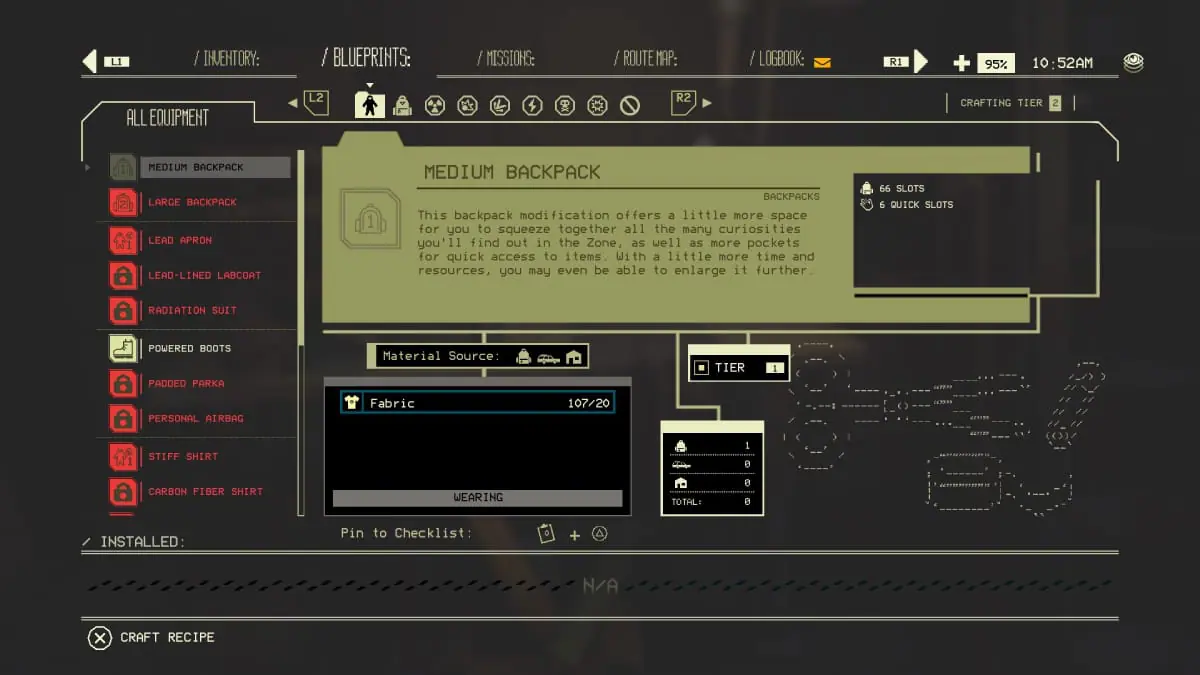
The first thing we recommend doing is increasing your backpack’s inventory size. To do that, you must use the Outfitting Station, which is unlocked by default. You’ll find it in the room where the upgrade machine is to your right. Once you spot it, here’s what you’ll need to do:

  1. Open the Outfitting Station.
  2. Select Medium Backpack.
  3. Use 20 pieces of Fabric to craft the upgrade.

Once you do that, the size of your inventory will increase instantly, allowing you to put more items in it.

Increasing Your Car’s Inventory
Car Storage Upgrades
Image Source: Kepler Interactive via The Nerd Stash

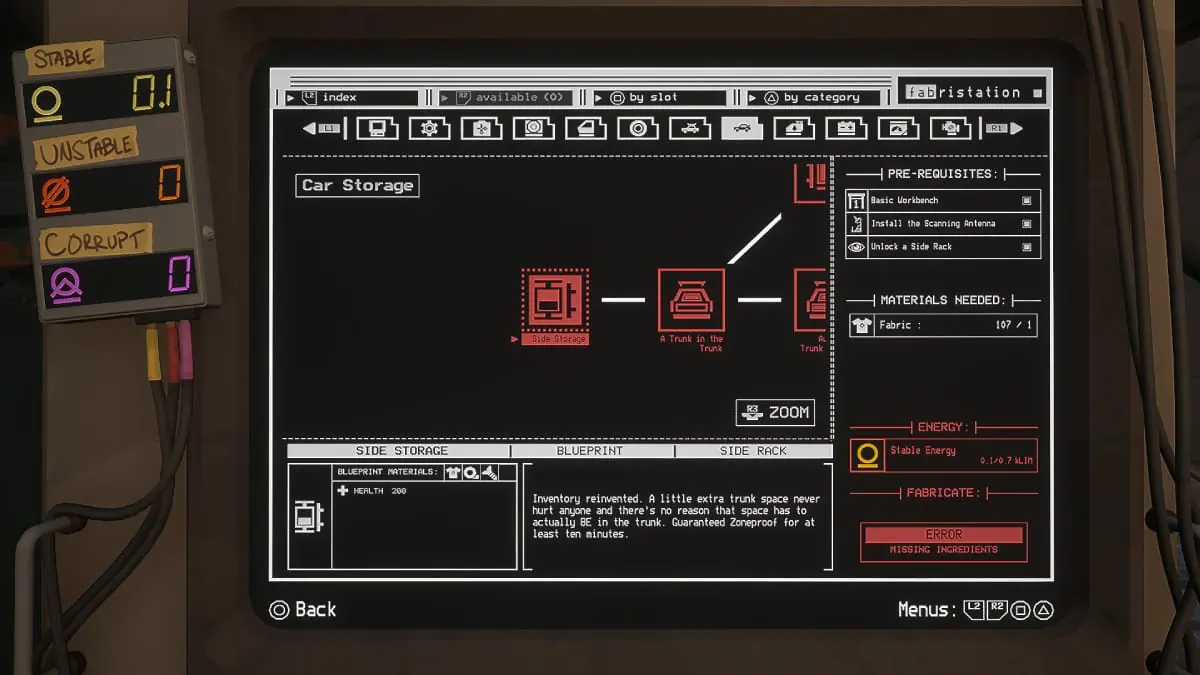
To increase your car’s inventory size in Pacific Drive, it is a whole different story. You’ll have to use the Fabrication Station and follow the next steps:

  1. Open the Fabrication Station menu and select the Car Storage tab.
  2. Start with the first node, which says Side Storage.
  3. You only need one piece of Fabric for the blueprint, but must craft the Side Storage at a workbench.
  4. Once you have it, take it to the car and install it.

Related:

5 Best JRPGs on Nintendo Switch for Persona & Final Fantasy Fans

These are only the steps to increase your inventory for the first time, which will get you going until you reach the mid-zone. Remember, if you want more space, you must bring Stable Energy and materials to your garage to unlock new upgrades and craft them. While it may seem like a daunting task, the payoff is great because you’ll be able to carry more things to outfit your trusty station wagon.

Related Topics
Guide Pacific Drive
Share. Facebook Twitter LinkedIn Reddit Email
Julio La Pine
  • Website

Been gaming since '99! I am a huge JRPG fan and my favorite franchise is Final Fantasy. I love writing about games and I hope I can do it for the rest of my days!

SUGGESTED READS

Minecraft Accused of Mocking Lonely Kids, Sparking Mental Health Backlash: 'One of the Ickiest Things I've Seen'
Features

Minecraft Accused of Mocking Lonely Kids, Sparking Mental Health Backlash: ‘One of the Ickiest Things I’ve Seen’

Destiny 2 Renegades PS5 Review
8.5
Features

Destiny 2: Renegades Review – The Shooter Strikes Back

Clair Obscur: Expedition 33 Loses GOTY, Other Award from Indie Game Awards Over Generative AI: 'Some Weird Performative BS'
Game News

GOTY Stripped Over AI?: Clair Obscur: Expedition 33 Loses Awards at Indie Game Awards, ‘Some Weird Performative BS’

Sony Patents Real-time AI Game Censorship Tech That Could Even Make GTA 6 Kid-Friendly
Game News

Sony Patents Real-Time AI Game Censorship Tech That Could Even Make GTA 6 Kid-Friendly

Zenless Zone Zero Version 2.5 Announcement
Game News

Zenless Zone Zero Version 2.5 Is Ready To Wrap Up the Year With Two New Agents and a Free Outfit

PC Gamers Can't Catch a Break as Nvidia Plans 40% GeForce GPU Production Cuts, Report: 'Who Needs a PC Anyways'
Game News

PC Gamers Can’t Catch a Break as Nvidia Reportedly Plans 40% GeForce GPU Production Cuts: ‘Who Needs a PC Anyways’

Trending
Minecraft Accused of Mocking Lonely Kids, Sparking Mental Health Backlash: 'One of the Ickiest Things I've Seen'

Minecraft Accused of Mocking Lonely Kids, Sparking Mental Health Backlash: ‘One of the Ickiest Things I’ve Seen’

Destiny 2 Renegades PS5 Review
8.5

Destiny 2: Renegades Review – The Shooter Strikes Back

Clair Obscur: Expedition 33 Loses GOTY, Other Award from Indie Game Awards Over Generative AI: 'Some Weird Performative BS'

GOTY Stripped Over AI?: Clair Obscur: Expedition 33 Loses Awards at Indie Game Awards, ‘Some Weird Performative BS’

Sony Patents Real-time AI Game Censorship Tech That Could Even Make GTA 6 Kid-Friendly

Sony Patents Real-Time AI Game Censorship Tech That Could Even Make GTA 6 Kid-Friendly

The Nerd Stash
Facebook X (Twitter) Instagram YouTube LinkedIn
  • About Us
  • Join Our Team
  • Meet the Team
  • Privacy Policy
  • DMCA Policy
  • Contact Us
  • Terms of Use
  • Sitemap
  • Editorial Guidelines
  • Advertising Policy
© 2025 The Nerd Stash. All Rights Reserved.

Type above and press Enter to search. Press Esc to cancel.