Close Menu
  • Gaming
    • Game Guides
    • Codes
    • Game News
    • Game Previews
    • Game Reviews
    • Game Features
    • Game Lists
    • Platforms
      • Nintendo
      • PC
      • PlayStation
      • Xbox
      • Mobile
  • Entertainment
    • Movies
    • Movie Features
    • Movie Reviews
    • TV
    • Reality TV
    • Royals
  • Celebrity
    • Hollywood
  • Human Interest
  • Astrology
  • Videos
  • More
    • Anime
    • Lists
    • Podcasts
    • Reviews
Facebook X (Twitter) Instagram LinkedIn YouTube
  • About Us
  • Join Our Team
  • Meet the Team
  • Privacy Policy
  • DMCA Policy
  • Contact Us
  • Terms of Use
  • Sitemap
  • Editorial Guidelines
  • Advertising Policy
The Nerd Stash
  • Gaming
  • Celebrity
    • Hollywood
  • Human Interest
  • Videos
The Nerd Stash
Home»Game Guides»How to Fix “Dealer Not Working” Bug in Schedule 1

How to Fix “Dealer Not Working” Bug in Schedule 1

Customer satisfaction

Nat CollazoBy Nat CollazoMarch 27, 20252 Mins Read
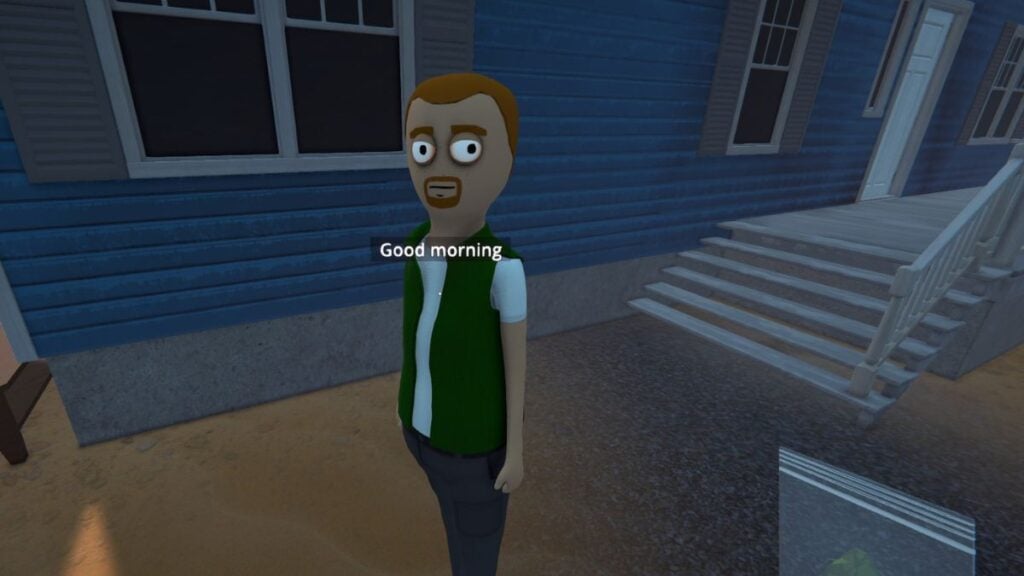
How to Fix Dealer Not Working Bug in Schedule 1
Image Source: TVGS via The Nerd Stash

Whenever a new game comes out, it’s almost expected that there are going to be game-breaking bugs. It shouldn’t be the norm for modern-day games, but those are just the facts of life. With the release of Schedule 1, some players are finding that their players won’t deal with their customers no matter what they do. Considering that these customers are the only way to make money in the game, that can be frustrating! The following is how to fix the ‘Dealer Not Working’ bug in Schedule 1.

Fixing ‘Dealer Not Working’ Bug in Schedule 1

The only way to fix the ‘Dealer Not Working’ bug in Schedule 1 is to restart the game, clear the Steam cache, and validate the files. Open up your Steam client and follow these instructions to do that:

  1. Close out the game completely using the Stop button on the Steam client.
  2. Clear out the game cache by:
    • Pressing the Steam button on the top left of the client.
    • Go to the Settings option.
    • Click on the Downloads category.
    • Scroll to where it says Clear Download Cache and click on the button.
  3. Validate your game files by:
    • Head to the game page in your library.
    • Click on the gear icon on the top right corner of the Steam client.
    • Select the Properties option.
    • Go to the Installed Files selection.
    • Click on the Verify Integrity of Game Files option.

When you go the game’s menu, there is an option to click a button that says ‘I’m Stuck’. However, this does nothing when you’re faced with this specific issue. I had this issue when I had to deliver to my second customer not even ten minutes into the game. After using the above fix, I could jump back in and continue from where I left without any issues.
3 Games to Look Out for This Steam Next Fest
Related: 3 Games to Look Out for This Steam Next Fest

Schedule 1 is available to play on PC.

Related Topics
Guide Schedule 1
Share. Facebook Twitter LinkedIn Reddit Email
Nat Collazo
  • Website
  • X (Twitter)
  • Instagram

I am a game journalist and guide writer with ten years of experience as well as the CEO/ Founder of Frowns Marketing, a marketing company that caters to indie games, tabletop games, and board games to help developers get more wishlists, backers, and players!

SUGGESTED READS

Blender Bee Swarm Simulator
Game Guides

Where Is the Blender in Bee Swarm Simulator on Roblox? Answered

How to Get Blue Extract in Bee Swarm Simulator on Roblox
Game Guides

How to Get Blue Extract in Bee Swarm Simulator on Roblox

Norse Oath of Blood PC Review
7
Game Reviews

NORSE: Oath of Blood Review – Not Ready for Valhalla

Secret Lucky Block Steal a Brainrot
Game Guides

How To Easily Get Secret Lucky Blocks in Steal a Brainrot in Roblox

Roblox Adopt Me! Players Scramble as Dire Wolf Arrives and Giant Panda Leaves: 'NOOO I Dont Have One'
Game News

Roblox Adopt Me! Players Scramble as Dire Wolf Arrives and Giant Panda Leaves: ‘NOOO I Dont Have One’

Battlefield 6 Season 2 Contaminated Map Preview
Game Previews

Battlefield 6 Season 2 Contaminated Map Preview – Masks Up

The Nerd Stash
Facebook X (Twitter) Instagram YouTube LinkedIn
  • About Us
  • Join Our Team
  • Meet the Team
  • Privacy Policy
  • DMCA Policy
  • Contact Us
  • Terms of Use
  • Sitemap
  • Editorial Guidelines
  • Advertising Policy
© 2026 The Nerd Stash. All Rights Reserved.

Type above and press Enter to search. Press Esc to cancel.