

For some reason, booting up MapleStory through Steam can sometimes lead to one frustrating result. You click the ‘Play’ button, expecting to spend time in the virtual world, the launcher flashes, but then… nothing. It might be caused by a Windows permission hiccup or a leftover install issue; nevertheless, troubleshooting it shouldn’t be too hard. Here’s our breakdown of the most effective fixes if your MapleStory is not launching on Steam for Windows 10 and 11 users.
Fix MapleStory Steam Not Launching on Windows 10/11
1. Run Nexon Launcher as an Administrator
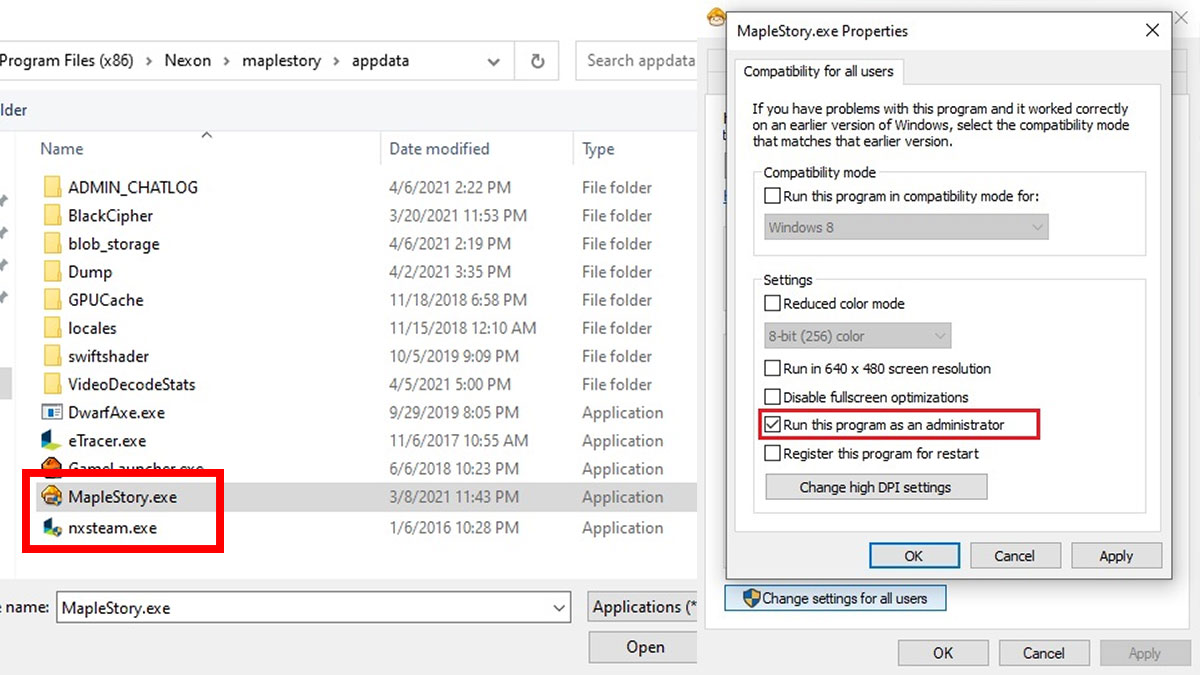
Running Nexon Launcher’s executable file, nxsteam.exe, could fix the problem. In your Steam Library, right-click MapleStory > Properties > Installed File to access the installation folder. Once you’ve opened the installation directory, locate the nxsteam.exe file.
Now, right-click on nxsteam.exe > Properties > Compatibility tab > Check ‘Run this program as administrator.’ The launcher should now consistently request admin access and launch properly. Always click ‘Yes’ on the anti-cheat prompt immediately, or the Nexon Launcher might close itself.
Despite being listed in the official FAQ page, many players report that this fix no longer works as of late 2023. Nevertheless, some users like Efficient_Manager944 on Reddit wrote that it still helps.
2. Do a Fresh Reinstallation of the Game
If you’ve ever reformatted your computer before encountering this issue, there’s another method you should try. The community also suggests doing this if you cannot run MapleStory via Steam after 2023.
- Make sure your nxsteam.exe is no longer set up to run as an administrator.
- Uninstall MapleStory via Steam. In your Steam Library, right-click MapleStory > Manage > Uninstall.
- Open your Steam installation directory and delete the entire MapleStory folder. It’s located in Steam\steamapps\common\MapleStory.
- Back up the screenshot folder if needed.
- Redownload and reinstall the game from your Steam Library.
3. Add MapleStory to Windows Defender Whitelist
Sometimes, having a firewall or antivirus active can interrupt a game’s process, making it fail to load. Disabling antivirus while playing the game or adding it to its whitelist, aka allowed apps list, could help it run smoothly.
Here’s how you can add MapleStory to Windows Defender’s whitelist. If the firewall was already disabled, re-enable it within the option menu first:
- Open the Start button.
- Type ‘Windows Defender’ and open it from the Control Panel menu.
- In the Windows Defender Firewall menu, click on ‘Allow an app or feature through Windows Defender Firewall.’
- Click the ‘Change Settings’ button in top-right corner if needed.
- In the ‘Allowed Apps’ window, select ‘Allow another app…’
- Click ‘Browse’ in the ‘Add an App’ menu.
- Go to your MapleStory installation folder > select MapleStory.exe > click Open.
4. Check if There’s a Server Maintenance
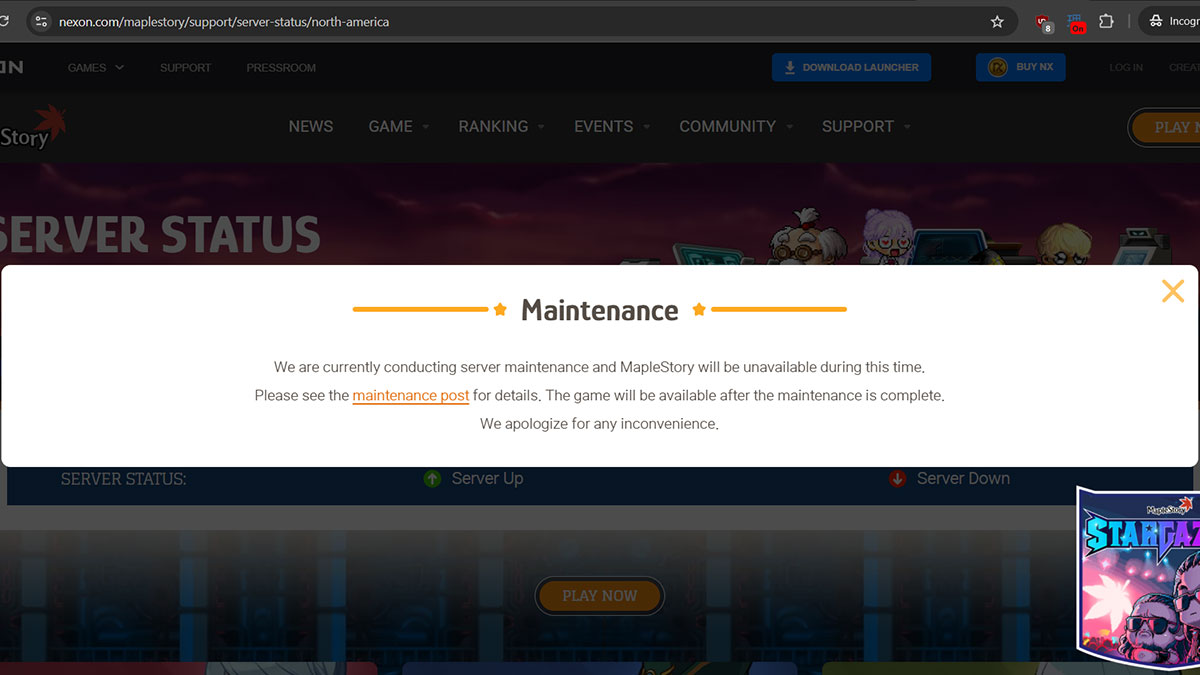
MapleStory Steam failed to launch error might happen during a server maintenance period. Check the dedicated Server Status page and see if the servers are currently active.
5. Use the Standalone Nexon Launcher Instead
If none of the above works or you’re tired of tinkering, you can bypass the issue entirely by using the official Nexon Launcher. Keep in mind, this isn’t actually a fix for MapleStory not launching via Steam, and your Steam progress may not carry over.
Why Can’t I Find MapleStory on the Steam Store?
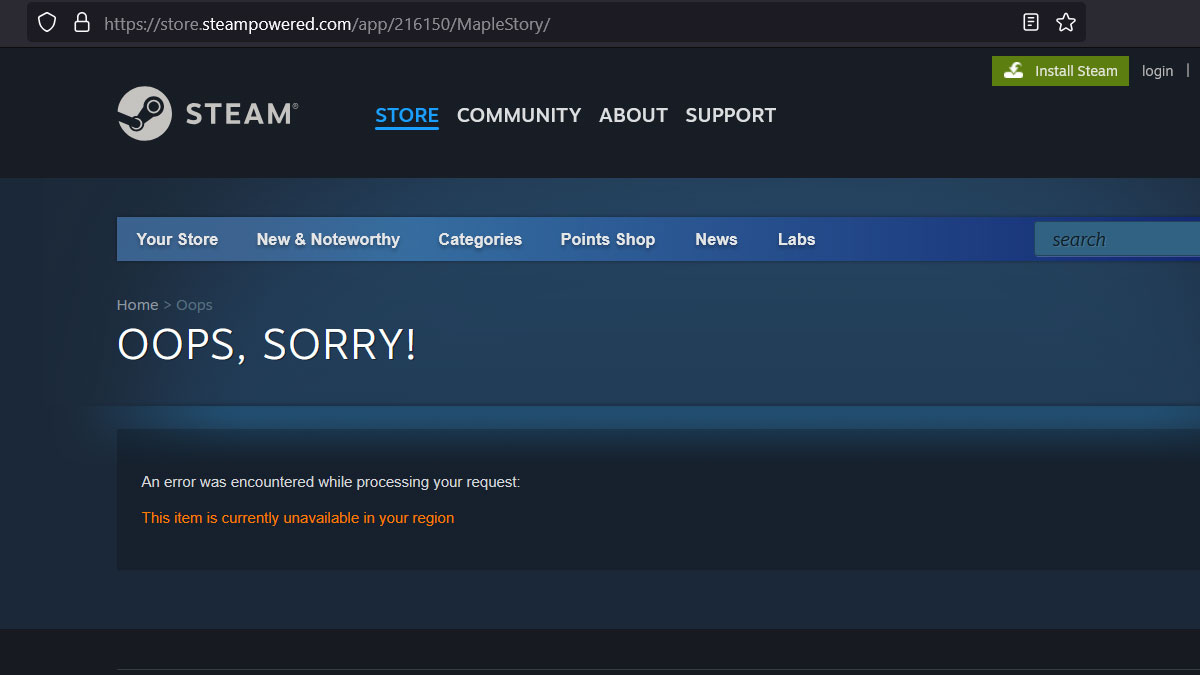
Unfortunately, the game’s servers are region-locked. If you’re located in Asia, MapleStory won’t show up on Steam due to regional restrictions. Instead, you’re expected to play MapleStory in the exclusive SEA server through MapleSEA.com.

To play MapleStory on Steam, you will need to create a US Steam account. Playing on a different server is actually against Nexon’s Terms of Service. However, although the rule is rarely enforced, there is still a chance that your account could be banned for bypassing regional restrictions.