Close Menu
  • Gaming
    • Platforms
      • Nintendo
      • PC
      • PlayStation
      • Xbox
  • Entertainment
    • Movies
    • TV
    • Royals
  • Celebrity
    • Hollywood
  • Human Interest
  • Astrology
  • More
    • Reviews
Facebook X (Twitter) Instagram LinkedIn YouTube
  • About Us
  • Join Our Team
  • Meet the Team
  • Privacy Policy
  • DMCA Policy
  • Contact Us
  • Terms of Use
  • Sitemap
  • Editorial Guidelines
  • Advertising Policy
The Nerd Stash
  • Gaming
  • Celebrity
  • Hollywood
  • Human Interest
The Nerd Stash
Home»Gaming»How To Use the Build Planner in Path of Exile 2

How To Use the Build Planner in Path of Exile 2

An easier path

Julio La PineBy Julio La PineMay 29, 20263 Mins Read
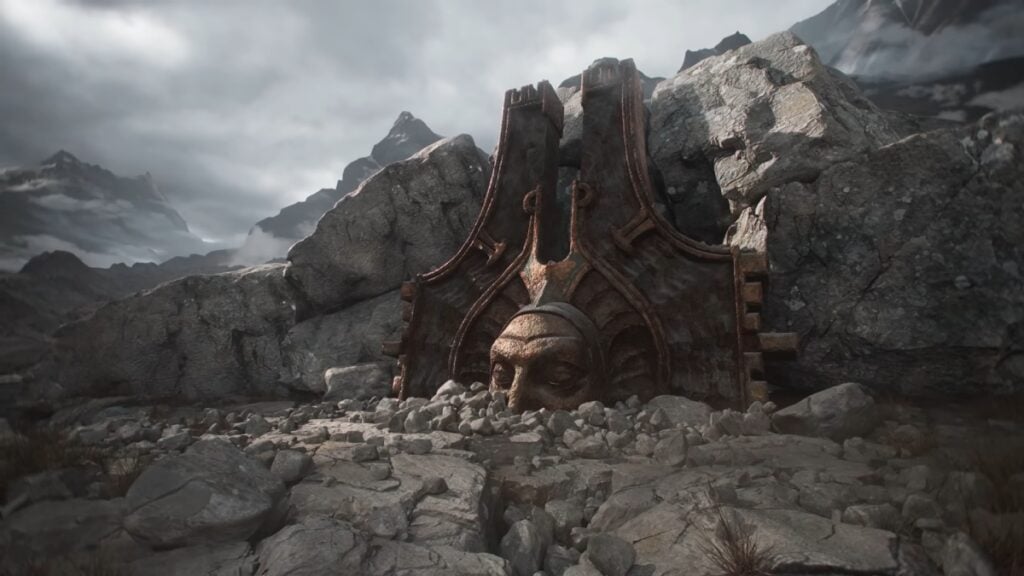
Path of Exiles 2 Build Planner Guide
Image Source: GGG

After a very long wait, everyone in Path of Exile 2 is ready to jump into Return of the Ancients. As many know, this is the game’s biggest update yet, and one that will pave the way to the imminent 1.0 release. And while some already know what features come with it, one of the biggest yet not-so-talked-about by the community is the brand-new in-game build planner of Path of Exile 2. Despite how easy it is to use, it can be a bit confusing to get it going, so we’ve made a quick guide to show how to activate it, so you can start using some community-made builds for your character.
Build Planner Guide for Path of Exile 2
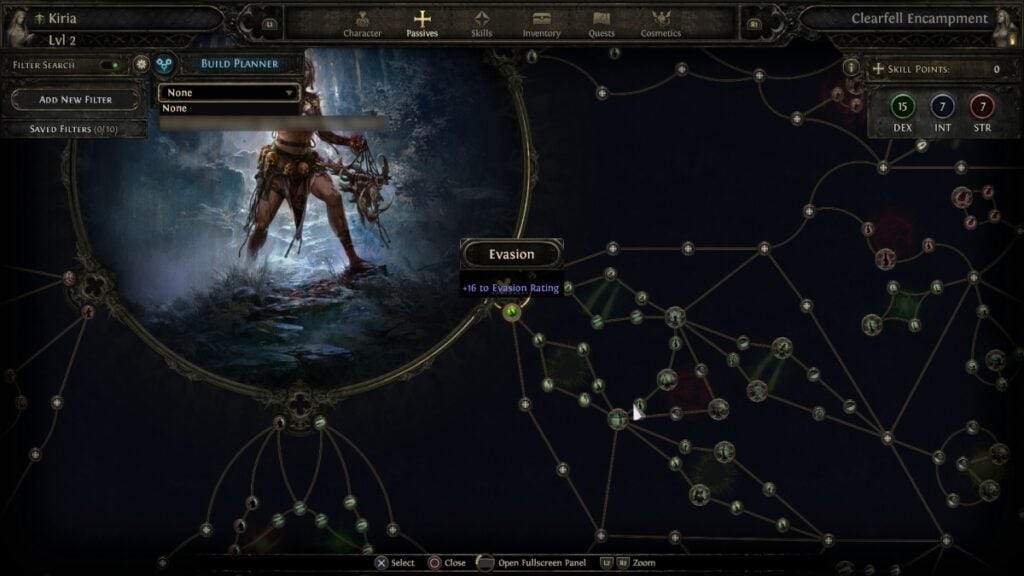
Path of Exile 2 In-game Build Planner
Image Source: GGG via The Nerd Stash

To get started with the build planner of Path of Exile 2, you’ll actually have to do some work outside of the game, ironic as that may sound. First, you need to locate your favorite website that contains character builds, and download the .build file from it. There are several out there, so pick the one you like the most.

Once you have it, follow the next steps:

  1. Locate the .build file in your Downloads folder (or wherever you download files from your browser).
  2. Copy it and head to Documents\My Games\Path of Exile 2\BuildPlanner\
  3. Drop the file inside the folder.
  4. Go back to your game (you can do all the above steps while the game is open) and head to your skills tab.
  5. Go to where the filter option is, and you’ll see a new build planner icon. Select it and choose any of the builds from the drop-down menu.

To make sure it worked, just take a look at the skill tree, which will now have skills you need to unlock highlighted. Just like the image below.
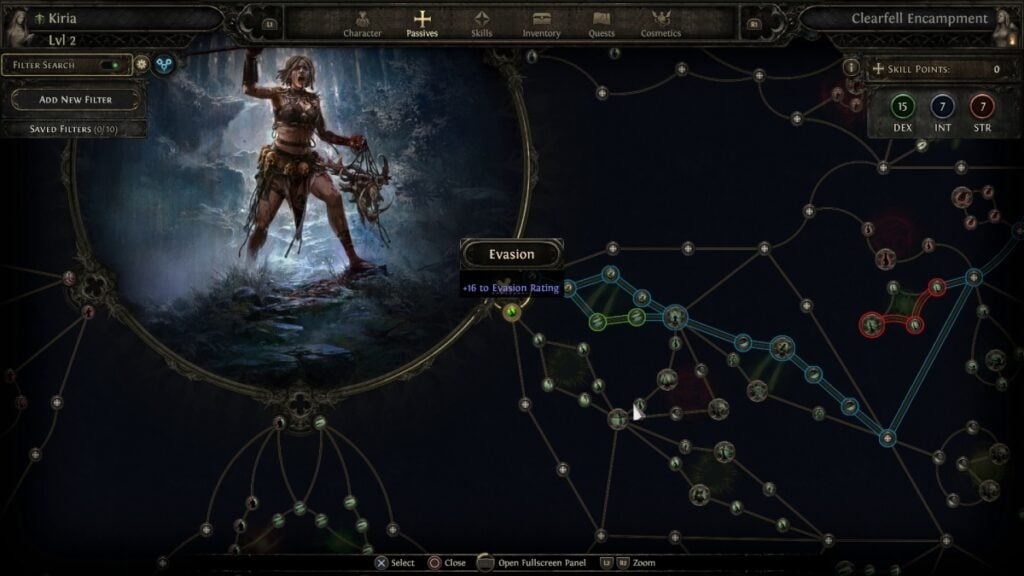
Build Planner
Image Source: GGG via The Nerd Stash

It is important to note that some builds may vary depending on the author. The in-game build planner in Path of Exile 2 lets authors add a few notes to help players, but if some of them don’t appear, you can always check the website where the author first uploaded the build to see the order of skills you should take.
Ultimate Druid Starter Guide for Path of Exile 2
Related: Ultimate Druid Starter Guide for Path of Exile 2

Still, even without notes, the build planner is an excellent addition to the game and will make navigating this daunting skill tree much easier, especially for new players.


Related Topics
Guide Path of Exile 2
Share. Facebook Twitter LinkedIn Reddit Email
Julio La Pine
  • Website

News/Guide Writer for The Nerd Stash. When not working, you'll find him playing Final Fantasy 14, any good JRPG, and modding Project Zomboid.

SUGGESTED READS

Ex-Valve Veteran Says Most Anti-Sony Boycotts Are 'Just Noise'
Gaming

Ex-Half-Life Veteran Says Most Anti-Sony Boycotts Are ‘Just Noise’

COD Modern Warfare 4 Free Open Beta Starts This August, Nintendo Switch 2 Included
Gaming

COD Modern Warfare 4 Free Open Beta Starts This August, Nintendo Switch 2 Included

All Wandering Merchant Locations in Palworld
Gaming

All Wandering Merchant Locations in Palworld

How to find Pure Quartz in Palworld 1.0
Gaming

Where To Find Pure Quartz in Palworld

Sicario Writer's Call of Duty Movie To Adapt 'Modern Warfare' Universe, Confirmed Paramount
Gaming

Sicario Writer’s Call of Duty Movie To Adapt ‘Modern Warfare’ Universe, Confirmed Paramount

Fatal Fury City of the Wolves Rick Strowd Hands-on Impressions
Gaming

Fatal Fury: City of the Wolves Rick Strowd Hands-On Impressions – A Strong Start

The Nerd Stash
Facebook X (Twitter) Instagram YouTube LinkedIn
  • About Us
  • Join Our Team
  • Meet the Team
  • Privacy Policy
  • DMCA Policy
  • Contact Us
  • Terms of Use
  • Sitemap
  • Editorial Guidelines
  • Advertising Policy
© 2026 The Nerd Stash. All Rights Reserved.

Type above and press Enter to search. Press Esc to cancel.