Fortnite Chapter 5 has changed the game for many long-standing players. More specifically, the settings have been completely overhauled. With that change, you’ll notice a difference in gameplay, especially regarding movement. Let’s take a look at the best controller settings and configuration for Fortnite Chapter 5.
The Best Controller Configuration for Fortnite Chapter 5
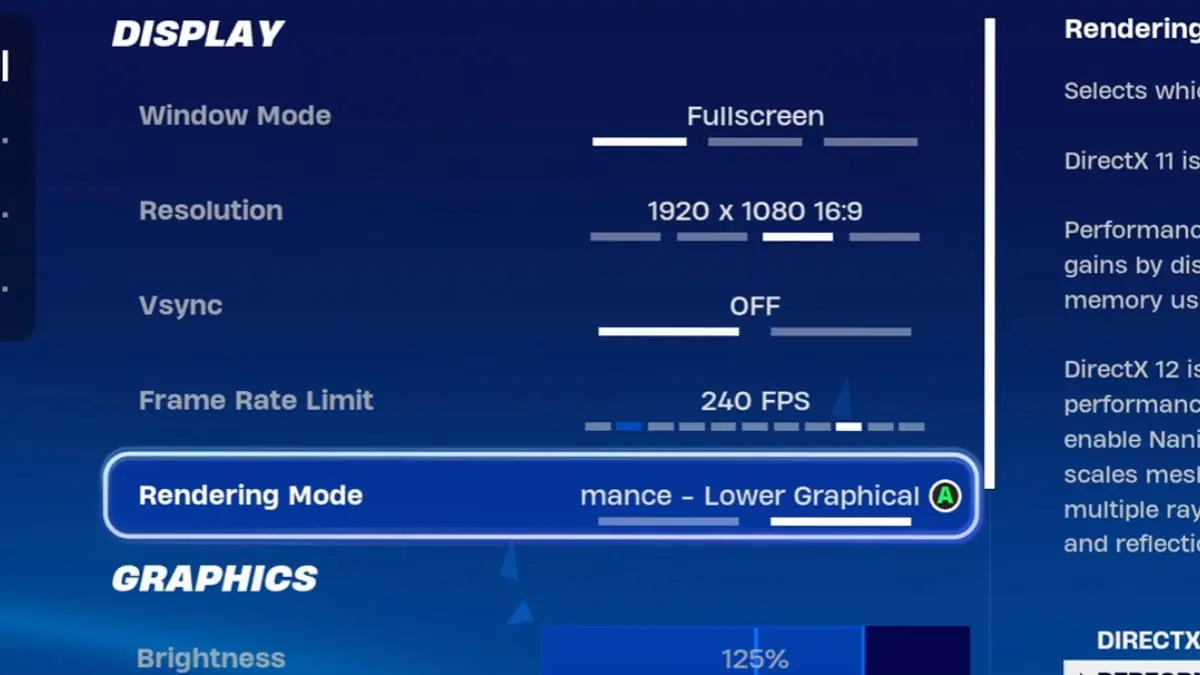
Before we start, it’s recommended that you change the Rendering Mode to Performance for the best possible FPS. Once that’s done, the best controller settings for Fortnite Chapter 5 are as follows. To be clear, there are some settings that we omitted because we felt that they were not important to the overall controller settings:
| Category | Setting | Selection |
|---|---|---|
| Movement | Toggle Sprint | On |
| Movement | Auto Open Doors | On |
| Movement | Mantle Activation | Hold Jump |
| Movement | Hurdle Activation | Press Jump |
| Combat | Hold to Swap Pickup | Off |
| Combat | Toggle Targeting | Off |
| Combat | Mark Danger When Targeting | On |
| Combat | Auto Pick Up Weapons | Off |
| Combat | Auto Sort Consumables to Right | On |
| Building | Reset Building Choice | On |
| Building | Disable Pre-Edit Option | On |
| Building | Turbo Building | On |
| Building | Auto Confirm Edits | Both |
| Preferred Item Slots | Preferred Item Slots | On |
| Preferred Item Slots | Loadout Slot 1 | Shotgun |
| Preferred Item Slots | Loadout Slot 2 | SMG |
| Preferred Item Slots | Loadout Slot 3 | Unassigned |
| Preferred Item Slots | Loadout Slot 4 | Consumable Item |
| Preferred Item Slots | Loadout Slot 5 | Unassigned |
| Extra Game Options | Insert View | Off |
| Extra Game Options | Invert Airborne Controls | On |
| Extra Game Options | Turbo Delete in Creative Mode | On |
| Extra Game Options | NVIDIA Highlights | Off |
| Extra Game Options | Peripheral Lighting | On |
| Extra Game Options | Tap to Search / Interact | On |
| Replays | Record Replays | Off |
| Replays | Record Large Team Replays | Off |
| Replays | Record Creative Replays | Off |
| Replays | Record High-Quality Replays | Off |
| Gyro | Gyro Aiming | Off |
| Gyro | Active Mode (Combat) | Scope of Aiming |
| Controller Input | Controller Auto-Run | On |
| Controller Input | Build Immediately (Builder Pro) | On |
| Controller Input | Edit Hold Time | 0.100 Seconds |
| Controller Input | Slide Hold Time | 0.090 Seconds |
| Controller Input | Reset Camera Axes | Pitch |
| Controller Input | Reset Vamera Time | 0.100 Seconds |
| Controller Input | Vibration | Off |
| Controller Sensitivity | Look Sensitivity | 1 (Slow) |
| Controller Sensitivity | Aim Sensitivity (ADS) | 1 (Slow) |
| Controller Sensitivity | Build Mode Sensitivity Multiplier | 2.1X |
| Controller Sensitivity | Edit Mode Sensitivity Multiplier | 2.1X |
| Controller Sensitivity | Use Advanced Options | On |
| Advanced – Look Sensitivity | Look Horizontal Speed | 40% |
| Advanced – Look Sensitivity | Look Vertical Speed | 40% |
| Advanced – Aim Down Sights (ADS) Sensitivity | ADS Look Horizontal Speed | 7% |
| Advanced – Aim Down Sights (ADS) Sensitivity | ADS Look Vertical Speed | 7% |
| Advanced – Sensitivity | Look Dampening Time | 0.00 Seconds |
| Advanced – Sensitivity | Look Input Curve | Linear |
| Advanced – Sensitivity | Aim Assist Strength | 100% |
| Controller Deadzone | Left Stick Dead Zone | 10% |
| Controller Deadzone | Right Stick Dead Zone | 11% |
Best Controller Binds for Fortnite Chapter 5
The settings featured below are based on a controller that has paddles on the back for extra button binds:
| Bind | Button |
|---|---|
| Jump | A / X |
| Crouch | B / Square |
| Sprint | Right D-Pad |
| Fire | RT / R2 |
| Target | LT / L2 |
| Reload | X / Circle |
| Next Weapon | RB / R1 |
| Previous Weapon | LB / L1 |
| Toggle Harvest Tool or Carry | Y / Triangle |
| Sprint / Auto-Run (Double Click) | Right D-Pad |
| Change Material | Left D-Pad |
| Trap Equip / Picker / Place or Use | X / Circle |
| Wall | RT / R2 |
| Floor | RB / R1 |
| Stairs | LT / L2 |
| Roof | LB / L1 |
| Toggle Inventory | Left Joystick |
| Switch Mode | Right Joystick |