Close Menu
  • Gaming
    • Platforms
      • Nintendo
      • PC
      • PlayStation
      • Xbox
  • Entertainment
    • Movies
    • TV
    • Royals
  • Celebrity
    • Hollywood
  • Human Interest
  • Astrology
  • More
    • Reviews
Facebook X (Twitter) Instagram LinkedIn YouTube
  • About Us
  • Join Our Team
  • Meet the Team
  • Privacy Policy
  • DMCA Policy
  • Contact Us
  • Terms of Use
  • Sitemap
  • Editorial Guidelines
  • Advertising Policy
The Nerd Stash
  • Gaming
  • Celebrity
  • Hollywood
  • Human Interest
The Nerd Stash
Home»Gaming»How to Create & Edit Units in Unicorn Overlord

How to Create & Edit Units in Unicorn Overlord

Rebels, assemble!

Julio La PineBy Julio La PineMarch 8, 20242 Mins Read
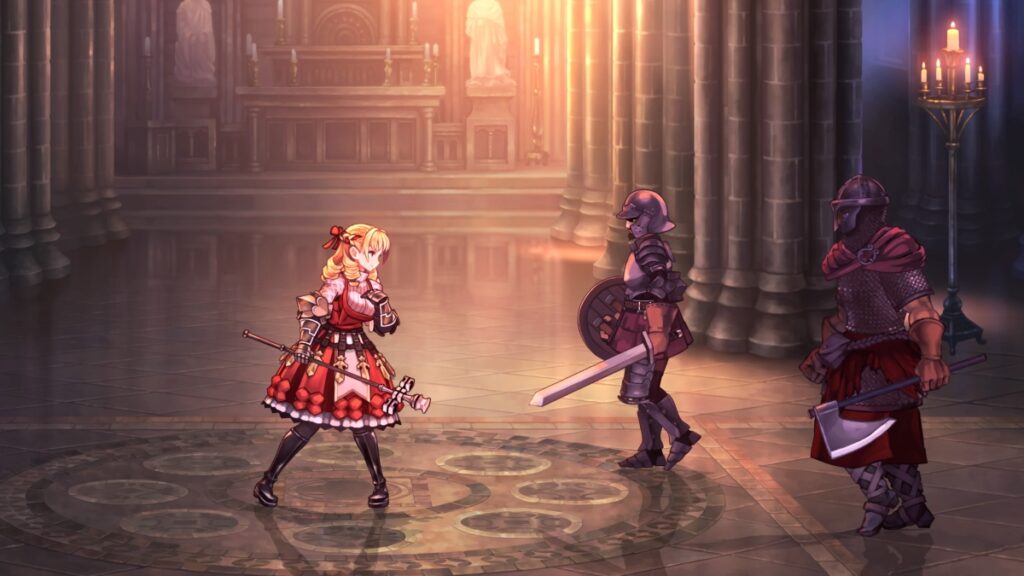
Unicorn Overlord Scarlett fighting enemies
Image Source: Vanillaware via The Nerd Stash
This article is over 2 years old and may contain outdated information.

One of the most important parts of Unicorn Overlord is learning how to create and edit units before engaging in combat. Contrary to other games where you can pick your characters in real-time and send them to the fray, here you must select them before starting a battle stage and stick with them. Furthermore, each army has a different formation, so knowing how to edit each one depending on its strengths and weaknesses is crucial.

How Do Units Work in Unicorn Overlord

Unit Selection Screen
Image Source: Vanillaware via The Nerd Stash

Before we talk about how to create units in Unicorn Overlord, we need to see how they function in the game. Units are the group of characters you send into a fight. Each one holds up to six characters and requires a leader. As you progress through the game, you’ll be able to unlock new units and expand the current ones. If you’re starting your playthrough, each one will only hold up to two characters. You’ll need to do quests and progress the story to put more characters into one.

Creating a Unit

By heading to the main menu during your open-world exploration, you can press unit formation to see the ones you’ve unlocked. From there, you can do the following:

  • Rearrange characters.
  • Remove and add characters to units.
  • Change a unit’s leader.

However, if you want to create a new unit besides the ones you have unlocked, you must spend Honors at Forts to unlock a new slot.

Editing a Unit

Inside the formation screen, you can move around your characters from any of the six spaces it has. However, if you’re in a battle stage, you can also edit your characters’ positions. Remember, you can only swap characters from one unit to another in the open world. Inside a combat stage, you can only swap positions inside the unit.

Related:

10 Most Exciting Video Game Releases of March 2024

If you feel your formations are getting cluttered, we recommend farming Honors to unlock new slots. Doing so will allow you to experiment with certain characters and classes and adapt your army to different situations.
Related Topics
Guide Unicorn Overlord
Share. Facebook Twitter LinkedIn Reddit Email
Julio La Pine
  • Website

News/Guide Writer for The Nerd Stash. When not working, you'll find him playing Final Fantasy 14, any good JRPG, and modding Project Zomboid.

SUGGESTED READS

WoW Forever Professions for Launch
Gaming

Best Professions At Launch for WoW Forever

WoW Forever Camping Guide
Gaming

How to Unlock Camping in WoW Forever

Fatal Fury City of the Wolves Tokyo Revengers
Gaming

Fatal Fury: City of the Wolves Tokyo Revengers Hands-On Impression – A Flashy Duo

Final Fantasy Resonance Titan Unlock
Gaming

How to Release Titan in Final Fantasy Resonance

Final Fantasy Resonance Airship Guide
Gaming

How To Unlock the Airship in Final Fantasy Resonance

Final Fantasy Resonance Sephiroth Guide
Gaming

Where To Find Sephiroth in Final Fantasy Resonance

The Nerd Stash
Facebook X (Twitter) Instagram YouTube LinkedIn
  • About Us
  • Join Our Team
  • Meet the Team
  • Privacy Policy
  • DMCA Policy
  • Contact Us
  • Terms of Use
  • Sitemap
  • Editorial Guidelines
  • Advertising Policy
© 2026 The Nerd Stash. All Rights Reserved.

Type above and press Enter to search. Press Esc to cancel.