
Close Menu
  • Gaming
    • Platforms
      • Nintendo
      • PC
      • PlayStation
      • Xbox
  • Entertainment
    • Movies
    • TV
    • Royals
  • Celebrity
    • Hollywood
  • Human Interest
  • Astrology
  • More
    • Anime
    • Reviews
Facebook X (Twitter) Instagram LinkedIn YouTube
  • About Us
  • Join Our Team
  • Meet the Team
  • Privacy Policy
  • DMCA Policy
  • Contact Us
  • Terms of Use
  • Sitemap
  • Editorial Guidelines
  • Advertising Policy
The Nerd Stash
  • Gaming
  • Celebrity
  • Hollywood
  • Human Interest
The Nerd Stash
Home»Gaming»How to Fix Eroded Badlands Minecraft Error 0x8004005

How to Fix Eroded Badlands Minecraft Error 0x8004005

A real head scratcher

Brady Klinger-MeyersBy Brady Klinger-MeyersJuly 19, 20242 Mins Read
how to fix erroded badlands 0x8004005 minecraft error
Image Source: Mojang
This article is over 1 years old and may contain outdated information.

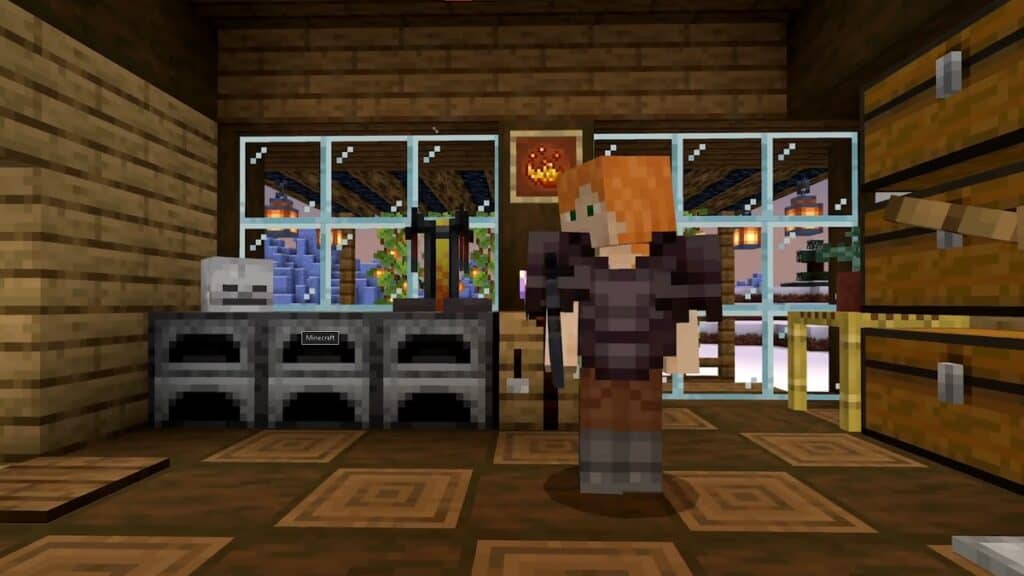
Every now and then, you might go to open Minecraft and instead are stopped by the Eroded Badlands error or, as it’s also called, error 0x8004005 or even “something went wrong in the login process.” They’re the same thing, but sometimes the error presents itself as one or the other or even both. The good news is that these steps apply to all three errors.

Luckily, there is not one but two ways to fix the Badlands Minecraft Error 0x8004005. I highly recommend using both solutions. It’s not entirely clear which errors are fixed by each solution, so it’s best to use them both to ensure you got the right one. Without further ado…

Check the Version of Your Minecraft Launcher

minecraft automatically downloading update
Image Source: Mojang via The Nerd Stash

First up on the list is to double-check the Minecraft Launcher is up-to-date. Sometimes you can get away with putting an update off. After all, it’s pretty common for mods to stop working after an update. Eventually, that stops working and then you get the error.

Related:

Top 5 Best Quality of Life Mods for Minecraft

If you launch the Minecraft Launcher, it should automatically update, assuming you’re connected to the internet. In the event an update drops while the launcher is already running in the background, simply shut it down for good and reboot it. You can even just boot up Minecraft and it’ll automatically update the game, anyway.

Repair the Xbox App’s Files

how to force minecraft on pc to update
Image Source: Microsoft via The Nerd Stash

Another way you could launch Minecraft is through the Xbox App. This option also has the benefit of forcing an update, which is handy if for some reason launching the game via the launcher doesn’t update the game. Stranger things have happened!

Start by first:

  1. Launching the Xbox App. It comes with Windows by default.
  2. On the left-hand side, select My Library.
  3. Find and select Minecraft.
  4. On its game page, select the dots and choose Manage from the drop down menu.
  5. Switch over to the Files tab and select either Check For Updates or Verify and Repair.

With any luck, Minecraft will be truly and most certainly up-to-date and the Eroded Badlands 0x8004005 error is nipped in the bud.

Related Topics
Guide Minecraft
Share. Facebook Twitter LinkedIn Reddit Email
Brady Klinger-Meyers
  • Website

Brady has been writing about video games for the better part of four years. When he isn't obsessing over RPGs or games from his childhood, there's a good chance he's working on another short story.

SUGGESTED READS

Diablo 4 Season 13 Tier List
Gaming

Class Tier List for Diablo 4 Season 13 (Best Classes for Endgame & Leveling)

Take-Two Boss Finally Explains Why GTA 6 Is Skipping PC at Launch: 'We'll See How It Works Out'
Gaming

Take-Two Boss Finally Explains Why GTA 6 Is Skipping PC at Launch: ‘We’ll See How It Works Out’

Rockstar Employee Review Claims 'Unrealistic' Crunch as GTA 6 Development Intensifies: 'Had to Work Till 3AM'
Gaming

Rockstar Employee Review Claims ‘Unrealistic’ Crunch as GTA 6 Development Intensifies: ‘Had to Work Till 3AM’

All Rewards from Admin Abuse Eggs & Box in Roblox Adopt Me
Gaming

All Rewards from Admin Abuse Eggs & Box in Roblox Adopt Me

Gaming

World Heroes Perfect Reminds Me of the Golden Age of Fighting Games

Fatal Fury City of the Wolves Mr Karate Reveal
Gaming

Fatal Fury: City of the Wolves Unveils Its Next Season 2 Fighter, and It’s a Classic

The Nerd Stash
Facebook X (Twitter) Instagram YouTube LinkedIn
  • About Us
  • Join Our Team
  • Meet the Team
  • Privacy Policy
  • DMCA Policy
  • Contact Us
  • Terms of Use
  • Sitemap
  • Editorial Guidelines
  • Advertising Policy
© 2026 The Nerd Stash. All Rights Reserved.

Type above and press Enter to search. Press Esc to cancel.