Close Menu
  • Gaming
    • Platforms
      • Nintendo
      • PC
      • PlayStation
      • Xbox
  • Entertainment
    • Movies
    • TV
    • Royals
  • Celebrity
    • Hollywood
  • Human Interest
  • Astrology
  • More
    • Reviews
Facebook X (Twitter) Instagram LinkedIn YouTube
  • About Us
  • Join Our Team
  • Meet the Team
  • Privacy Policy
  • DMCA Policy
  • Contact Us
  • Terms of Use
  • Sitemap
  • Editorial Guidelines
  • Advertising Policy
The Nerd Stash
  • Gaming
  • Celebrity
  • Hollywood
  • Human Interest
The Nerd Stash
Home»Gaming»How to Fix the Nightingale Error in Destiny 2

How to Fix the Nightingale Error in Destiny 2

Destiny 2  players have been experiencing a bug titled the “Nightingale” error, which can prevent players from progressing further in the game. Fortunately, you can…

Asanga WijeratneBy Asanga WijeratneJanuary 18, 20233 Mins Read
How to Fix the Nightingale Error in Destiny 2
This article is over 3 years old and may contain outdated information.

Destiny 2  players have been experiencing a bug titled the “Nightingale” error, which can prevent players from progressing further in the game. Fortunately, you can take a few easy steps to fix this error. This guide will tell you how to fix the Nightingale error in Destiny 2.

What is Nightingale’s error in Destiny 2?

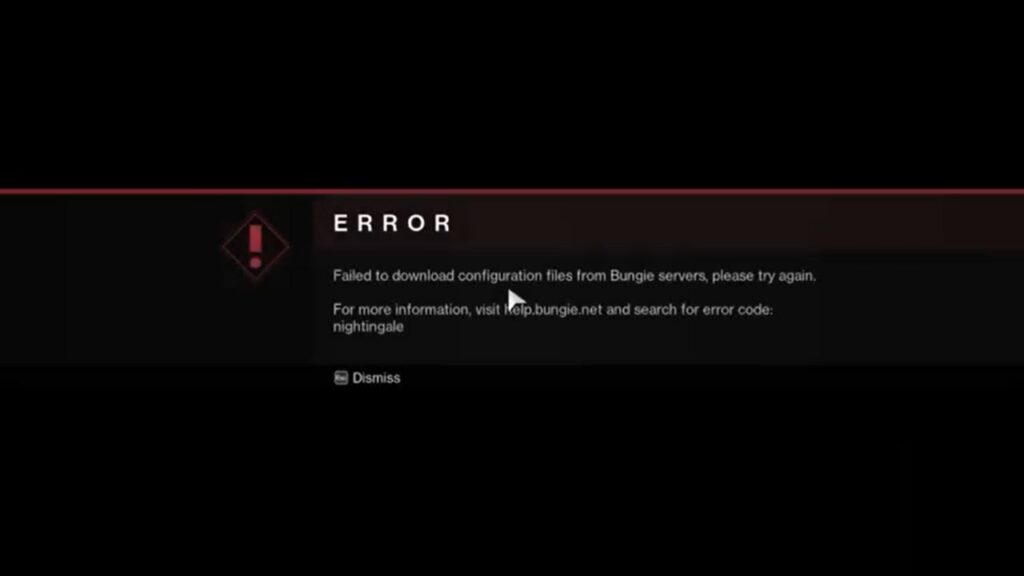
The Nightingale error occurs when you try to log in to the game, and you will receive the message “Failed to download configuration files from Bungie server. Please try again. For more information, visit help.net.bungie.net and search for the error code: Nightingale “.

The Nightingale error is a checkpoint or connection error that can prevent players from accessing certain game sections. It is typically caused by corrupted game files or damaged or malfunctioning hardware, such as graphics cards and hard drives. Although it can be frustrating when encountered, Bungie has resources to help resolve the issue so gamers can continue enjoying their Destiny 2 experience.

Related:

How to fix the Destiny 2 Character Deletion Bug

How to Fix the Nightingale Error in Destiny 2?

How to Fix the Nightingale Error in Destiny 2

You can fix the Nightingale error in Destiny 2 by changing your DNS settings to Google DNS. This is the best fix for this error so far. Bungie suggests two main things to fix this error on their help page. Reinstall the game or fix corrupted hardware. However, most players have fixed it by changing their DNS settings to Google’s. Here is the complete guide:

  1. Open the Control panel and go to Network and Sharing Center
  2. Select Change Adapter Settings.
  3.  Right-click on Ethernet Connection and select Properties.
  4. Select Internet Protocol Version 4 (TCP/IPv4) and click Properties.
  5. Select Use the following DNS server addresses option,
  6. Input 8.8.8.8 as the Preferred DNS server. Input 8.8.4.4 as the Alternate DNS server.
  7. Click on the Advanced button to ensure you have made the changes correctly from the DNS tab.
  8.  Now click OK and restart your P.C. This should fix the Nightingale Error.

Follow these steps, and you should be able to fix the Nightingale error in Destiny 2 without any further issues.

If you’re one of the many Guardians affected by this error, don’t worry. You can take a few easy steps to fix it and get back to your Light grinding in no time. Be sure to follow this guide to continue your crusade against the Darkness. And if you need any more help with Destiny 2, be sure to check out our other guides on the site.

Sources: Sarvaeth

Related Topics
Destiny 2 Guide
Share. Facebook Twitter LinkedIn Reddit Email
Asanga Wijeratne
  • Website

SUGGESTED READS

Assassin's Creed Black Flag Resynced PS5 Review
9
Gaming

Assassin’s Creed Black Flag Resynced Review – A Pirate’s Life for Me

PlayStation Fighting Controller Backlash
Gaming

PlayStation’s Return to Social Media is Met With Backlash and Angry Consumers: ‘I Was Hoping It Was a Digital Controller’

Black Flag Resynced
Gaming

Assassin’s Creed Black Flag Remake Delivers Brutal Skull & Bones Comparison Before Launch

PlayStation Reportedly Didn't Warn Asian Partners, Local Branches Before Physical Disc Shut Down Announcement: 'They Didn't Know Either'
Gaming

PlayStation Reportedly Didn’t Warn Asian Partners, Local Branches Before Physical Disc Shut Down Announcement: ‘They Didn’t Know Either’

XBOX Sells Off Four Studios, Cuts 3,000 Jobs, as Marvel's Blade Reportedly Goes Over Budget
Gaming

Xbox Sells Off Four Studios and Cuts 3,000 Jobs as Marvel’s Blade Reportedly Goes Over Budget

PSN Region Ban Claims Another Victim as Marvel Tokon is Blocked in 132 Countries
Gaming

PSN Region Ban Claims Another Victim as Marvel Tokon is Blocked in 132 Countries

The Nerd Stash
Facebook X (Twitter) Instagram YouTube LinkedIn
  • About Us
  • Join Our Team
  • Meet the Team
  • Privacy Policy
  • DMCA Policy
  • Contact Us
  • Terms of Use
  • Sitemap
  • Editorial Guidelines
  • Advertising Policy
© 2026 The Nerd Stash. All Rights Reserved.

Type above and press Enter to search. Press Esc to cancel.