Close Menu
  • Gaming
    • Platforms
      • Nintendo
      • PC
      • PlayStation
      • Xbox
  • Entertainment
    • Movies
    • TV
    • Royals
  • Celebrity
    • Hollywood
  • Human Interest
  • Astrology
  • More
    • Reviews
Facebook X (Twitter) Instagram LinkedIn YouTube
  • About Us
  • Join Our Team
  • Meet the Team
  • Privacy Policy
  • DMCA Policy
  • Contact Us
  • Terms of Use
  • Sitemap
  • Editorial Guidelines
  • Advertising Policy
The Nerd Stash
  • Gaming
  • Celebrity
  • Hollywood
  • Human Interest
The Nerd Stash
Home»Gaming»How To Play Phasmophobia in VR

How To Play Phasmophobia in VR

Phasmphobia is an interesting game, to say the least. Not only is this a supernatural, paranormal horror game scary enough on PC, but some players…

Faith LaneBy Faith LaneJuly 3, 20232 Mins Read
Phasmophobia, how to play vr
This article is over 3 years old and may contain outdated information.

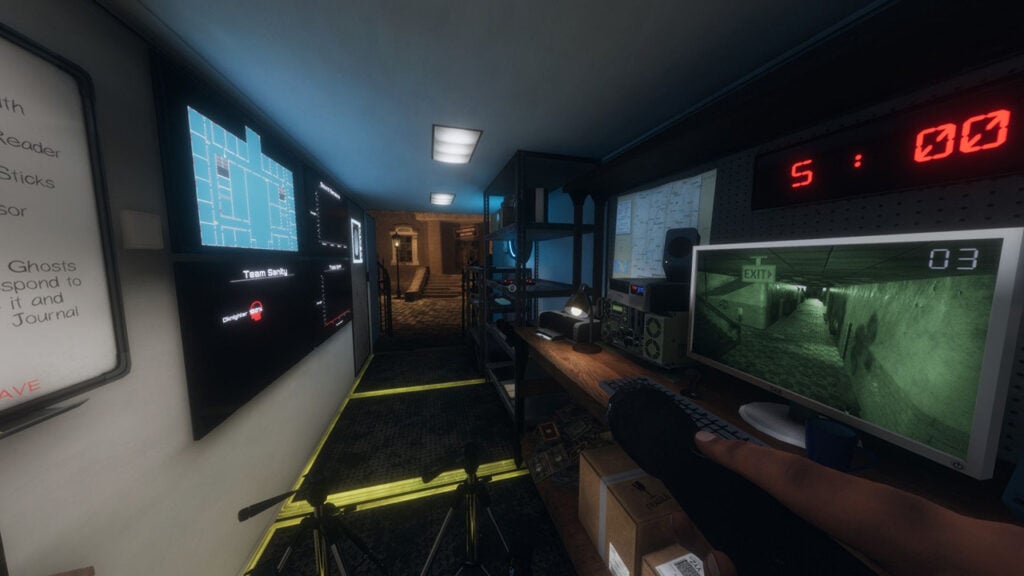
Phasmphobia is an interesting game, to say the least. Not only is this a supernatural, paranormal horror game scary enough on PC, but some players might not know that this game is also available to be played as a VR game as well. This game is based on the hobby of ghost hunting, and it is multiplayer, where more than one player can help uncover ghosts. The game even goes as far as letting players talk into their mics to the ghost. The game even allows players to feed cookies to a Santa Ghost. The game received virtual reality support back in September 2020. Here’s how to play Phasmophobia in VR.

How To Play Phasmophobia on Oculus VR Headset

Phasmophobia, how to play vr
Image source: Kinetic Games via The Nerd Stash

Setting up Phasmophobia on the Meta Quest (Oculus) 2 is fairly simple. Players that wish to do this will need to first have the game on Steam. Besides the game title, it will have a VR symbol that lets players know the game is available to be played in VR mode. Players will want to launch the game directly from what is called SteamVR, which is Steam’s listing of VR games. Don’t use any of the shortcuts but rather click it directly from inside SteamVR. A cord will be required to play VR games from a PC or using the Cloud Link.

The way to set up SteamVR is simple, after plugging the headset into the PC, download the Oculus app on the computer, then go to Steam. This is then where SteamVR can be found, and Phasmophobia can be launched. Now, players can go into the Options menu on the whiteboard and choose what VR settings they wish to use, this allows for customizing controls. That’s everything to know about playing Phasmophobia on VR from your PC. SteamVR can be used to launch other VR games straight to the headset as well.

Phasmophobia is available on PC via Steam and will be available on Xbox Series X | S, PlayStationVR2, and PlayStation 5 in August 2023.

Related Topics
Guide
Share. Facebook Twitter LinkedIn Reddit Email
Faith Lane
  • Website
  • X (Twitter)
  • Instagram

Faith Lane is a self-published Christian author, journalist, editor, ghostwriter, and fangirl. She loves all things fandom and video games and loves to share her passion with her readers through her writing.

SUGGESTED READS

007 First Light Story Review
Gaming

007 First Light Launches Its Update #1 With New TacSim Content

XBOX Backward Compatibility on PC Could Support Xbox 360 Games Too, Dataminers Confirm
Gaming

XBOX Backward Compatibility on PC Could Support Xbox 360 Games Too, Dataminers Confirm

Aliens Fireteam Elite 2 Release Date
Gaming

Aliens: Fireteam Elite 2 Launches on August 25 With Movie-inspired DLC Packs

Sony Reportedly Knew the PlayStation Disc Shut Down Would 'Piss Everyone Off,' Warned Employees to Stay Silent
Gaming

Sony Reportedly Knew the PlayStation Disc Shut Down Would ‘Piss Everyone Off,’ Warned Employees to Stay Silent

How to play Halo: Campaign Evolved Co-Op
Gaming

Halo Campaign Evolved Co-Op Guide

Aliens Fireteam Elite 2 Horde Mode
Gaming

Aliens: Fireteam Elite 2 Has Revamped Its Horde Mode In the Best Possible Way

The Nerd Stash
Facebook X (Twitter) Instagram YouTube LinkedIn
  • About Us
  • Join Our Team
  • Meet the Team
  • Privacy Policy
  • DMCA Policy
  • Contact Us
  • Terms of Use
  • Sitemap
  • Editorial Guidelines
  • Advertising Policy
© 2026 The Nerd Stash. All Rights Reserved.

Type above and press Enter to search. Press Esc to cancel.