Close Menu
  • Gaming
    • Platforms
      • Nintendo
      • PC
      • PlayStation
      • Xbox
  • Entertainment
    • Movies
    • TV
    • Royals
  • Celebrity
    • Hollywood
  • Human Interest
  • Astrology
  • More
    • Anime
    • Reviews
Facebook X (Twitter) Instagram LinkedIn YouTube
  • About Us
  • Join Our Team
  • Meet the Team
  • Privacy Policy
  • DMCA Policy
  • Contact Us
  • Terms of Use
  • Sitemap
  • Editorial Guidelines
  • Advertising Policy
The Nerd Stash
  • Gaming
  • Celebrity
  • Hollywood
  • Human Interest
The Nerd Stash
Home»Gaming»How To Publish a Game on Roblox and Follow Your Game Dev Dreams

How To Publish a Game on Roblox and Follow Your Game Dev Dreams

Hello, world

Patrick ArmstrongBy Patrick ArmstrongNovember 20, 20242 Mins Read
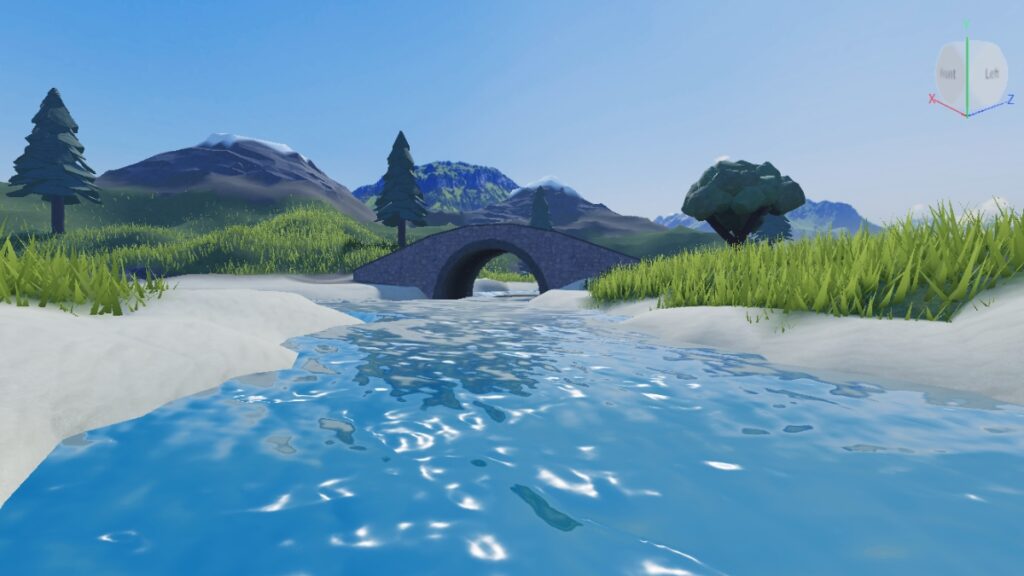
A river and bridge in the default Roblox Studio castle map
Image Source: Roblox via The Nerd Stash

The Roblox sandbox is a world of possibilities and not just for players. For creators, too, the platform offers a spectrum of fun experiences. You can build flight sims, cake competitions, sci-fi shooters, and ninja RPGs. Making a game to play yourself is one thing, but most creators will want to share their creations with the world. Even if it’s just you and a few friends who play it, that’s enough. Every legacy starts somewhere. Here’s how to publish a game on Roblox and take the next step in your game dev journey.

Roblox Game Publication Guide
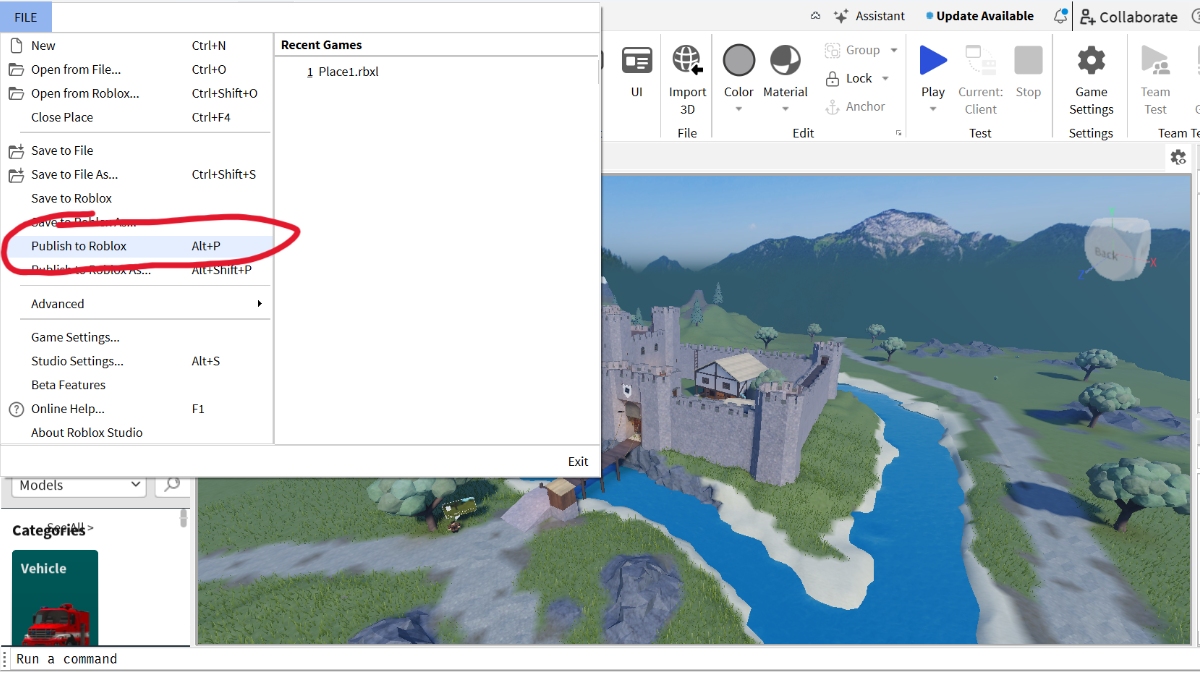
The menu used to publish a game on Roblox
Image Source: Roblox via The Nerd Stash

Before you worry about finding some friends (or fans) to play your game, you need to develop and publish it. While developing is a lengthy process, publication is surprisingly easy. Roblox even includes a variety of template maps and experiences if you’re eager to test out publication and see how the process works. Here’s what you need to do:

  1. Open Roblox Studio
  2. Select the game you want to publish
  3. Navigate to “File” and then “Game Settings”
  4. Press “Save to Roblox”
  5. Give the game a name, description, creator name, and genre
  6. Select the platforms the game is playable on
  7. Select “Save”
  8. Navigate to “File” and then “Game Settings” again
  9. Navigate to “Permissions”
  10. Set “Who can play this game?” to “Public” and save
  11. Navigate to “File” and then “Publish to Roblox”
How To Have Multiple Roblox Accounts Open at Once
Related: How To Have Multiple Roblox Accounts Open at Once

At this point, you’ll have a bunch of new options to explore in Game Settings. These include monetization, localization, and security options, so you’ll want to take some time checking everything out. You can also copy the link to your game by clicking the Share button in the top-right corner of Roblox Studio. Your first games won’t be perfect, but the experience you gain can make you a master Roblox builder in the end. Happy creating, Robloxian.

Related Topics
Guide Roblox
Share. Facebook Twitter LinkedIn Reddit Email
Patrick Armstrong
  • Website

Artist and writer with a lifelong love of video games. Their favorite games include Dead by Daylight, Meet Your Maker, and Project Zomboid.

SUGGESTED READS

Shuhei Yoshida Says He Was Fired From Playstation Studios for Saying 'No' to Jim Ryan: 'He Asked For Ridiculous Things'
Gaming

Shuhei Yoshida Says He Was Fired From Playstation Studios for Saying ‘No’ to Jim Ryan: ‘He Asked For Ridiculous Things’

Splinter Cell Remake Shows Signs of Life Despite Recent Layoffs at Ubisoft Toronto
Gaming

Splinter Cell Remake Shows Signs of Life Despite Recent Layoffs at Ubisoft Toronto

Fastest Ways to Get a Purrowl in Roblox Adopt Me
Gaming

Fastest Ways to Get a Purrowl & Trade Value in Roblox Adopt Me

Fatal Fury City of the Wolves Krauser Hands-On Preview
Gaming

Fatal Fury: City of the Wolves Wolfgang Krauser Hands-On Preview – A Regal Fighter

EU Warns Live-Service Games Ownership is 'Fleeting,' Plans Regulation This Year: 'A Disgrace for the Consumers'
Gaming

EU Warns Live-Service Games Ownership is ‘Fleeting,’ Plans Regulation This Year: ‘A Disgrace for the Consumers’

REPLACED game
8.5
Gaming

REPLACED Review – Absolute Cyberpunk Cinema

The Nerd Stash
Facebook X (Twitter) Instagram YouTube LinkedIn
  • About Us
  • Join Our Team
  • Meet the Team
  • Privacy Policy
  • DMCA Policy
  • Contact Us
  • Terms of Use
  • Sitemap
  • Editorial Guidelines
  • Advertising Policy
© 2026 The Nerd Stash. All Rights Reserved.

Type above and press Enter to search. Press Esc to cancel.