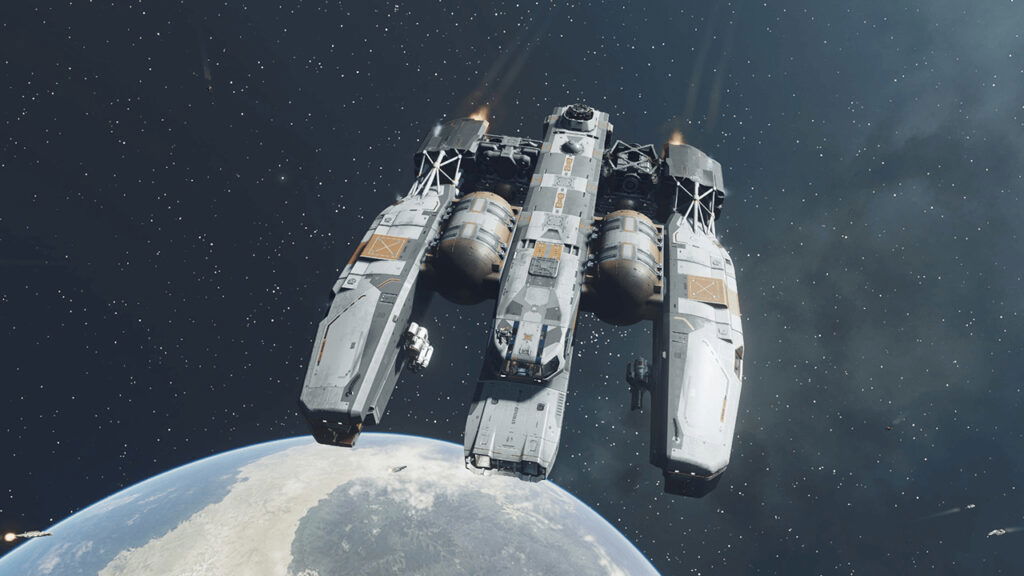
Starfield‘s vast expanse is filled to the brim with different items—these range from valuable resources to keepsakes worth nothing. Unfortunately, with a limited inventory, you will need to leave a few items behind on your travels. Luckily, Starfield offers a few storage options for carrying an extra load. One of the options is to store items on your ship. However, there is no tutorial on how to store items on your ship in Starfield, but we will let you on a little secret. It involves the ship’s cargo hold. Whether you are a hoarder of alien artifacts or you just want to sell items later, continue reading.
How to Use the Ship Cargo Hold to Store Items in Starfield
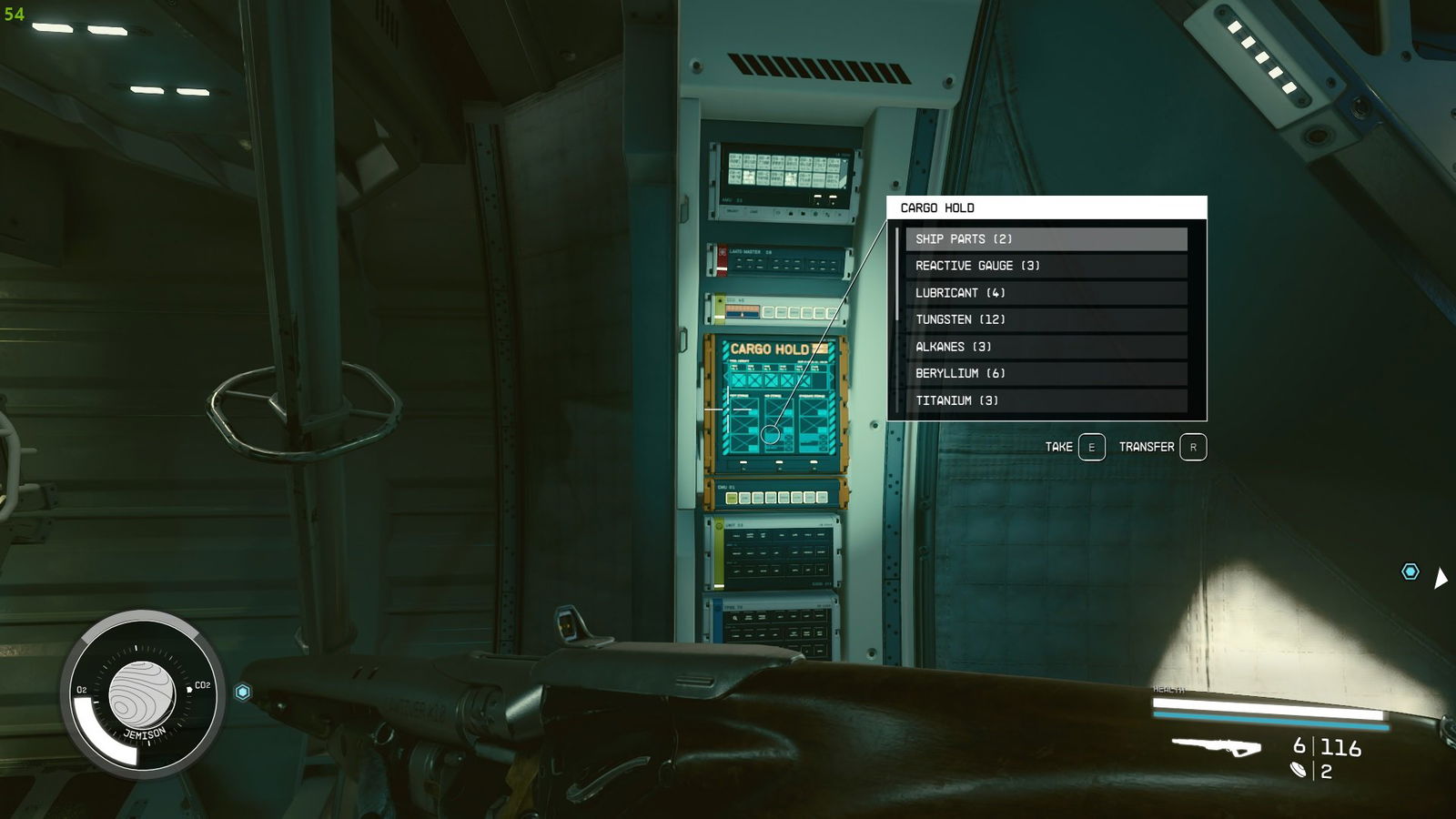
There are two ways to store items on your ship and these are through the Cargo Hold Panel or the Ship Menu. Both ways work similarly, so follow the steps below to store items on your ship in Starfield.
Using the Cargo Hold Panel:
- Locate Your Ship and Enter:Find your ship and press the A button (or the equivalent button on your controller).
- Access the Cargo Hold Panel:Locate the cargo hold panel within your ship.
Press the A button to interact with it. - Transfer Items to Cargo Hold:Once inside the cargo hold panel interface, find the Transfer option.
On a mouse and keyboard, press R or X if you play on your controller. - Access Your Inventory:Look for the “Your Inventory” prompt within the interface.
On a mouse and keyboard, press Q or LB on your controller. - Select Items to Move:Highlight and select the items you want to transfer to your ship’s cargo hold.
- Move Items:Transfer the selected items over to the cargo hold.
Using the Ship Menu
- Access the Ship Menu:Open the main menu and navigate to the ship menu accordingly.
- Transfer Items to Cargo Hold:In the ship menu, locate the Transfer option.
On a mouse and keyboard, press R or X on your controller. - Access Your Inventory:Find the Your Inventory prompt within the ship menu.
On a mouse and keyboard, press Q or LB on your controller. - Select Items to Move:Choose the items you want to move to the cargo hold.
- Move Items:Transfer the selected items over to the cargo hold.
Additional Tips:
- To store items on your ship, open your inventory with Q or LB and select the items you no longer want to carry.
- Keep an eye on the Mass limit of your ship to avoid exceeding its capacity.
- Be cautious not to accidentally take items from your ship when you intend to store them. Make sure to swap to your own inventory before performing the transfer.
-
Related:
How To Increase Ship Cargo Size in Starfield
Starfield is available on PC and