Close Menu
  • Gaming
    • Platforms
      • Nintendo
      • PC
      • PlayStation
      • Xbox
  • Entertainment
    • Movies
    • TV
    • Royals
  • Celebrity
    • Hollywood
  • Human Interest
  • Astrology
  • More
    • Reviews
Facebook X (Twitter) Instagram LinkedIn YouTube
  • About Us
  • Join Our Team
  • Meet the Team
  • Privacy Policy
  • DMCA Policy
  • Contact Us
  • Terms of Use
  • Sitemap
  • Editorial Guidelines
  • Advertising Policy
The Nerd Stash
  • Gaming
  • Celebrity
  • Hollywood
  • Human Interest
The Nerd Stash
Home»Gaming»How To Take Pictures in Pokemon Scarlet and Violet

How To Take Pictures in Pokemon Scarlet and Violet

It’s time for a selfie!

Nat CollazoBy Nat CollazoDecember 15, 20232 Mins Read
How To Take Pictures in Pokemon Scarlet and Violet
Image Source: The Pokemon Company via The Nerd Stash
This article is over 2 years old and may contain outdated information.

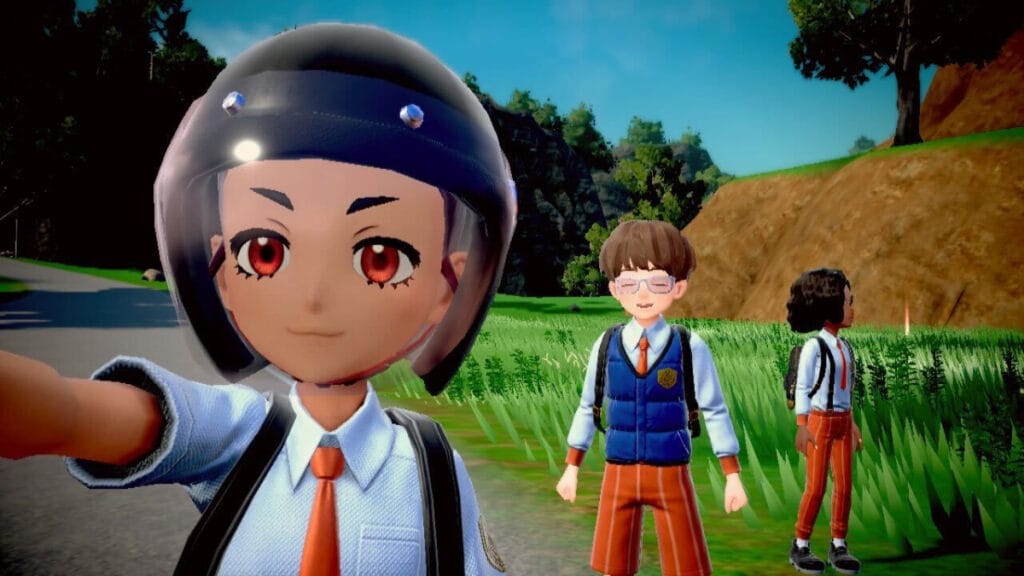
What’s the point of having objectively cute Pokemon if you can’t take selfies with them? Fortunately, it’s a feature that’s now in Pokemon Scarlet and Violet via a dedicated photo mode. You need to play a little bit before you get access to the mode, but it’s worth it when you do. Let’s get into how to take pictures in Pokemon Scarlet and Violet.

Taking Pictures – Pokemon Scarlet and Violet Walkthrough

How To Take Pictures in Pokemon Scarlet and Violet
Image Source: The Pokemon Company via The Nerd Stash

The ability to take photos in Pokemon Scarlet and Violet comes after you reach Poco Path Lighthouse. At the very top of the tower, you’ll meet with rival Nemona. After speaking with her, you’ll be given the ability to take pictures from your Rotom Phone. Press down on the D-Pad and the mode will immediately pop up.

If it’s been a while since the last time you used the in-game photo mode, then there are some changes. At least, we felt that there was a point where you could press A to remove the photo mode HUD, allowing you to take a photo. This doesn’t seem to be present anymore, with the feature being automatically removed when you go to take a photo. You can also press either the A button or the screenshot button to take the photo instead of just the screenshot button as before.

Photo Mode Details

In photo mode, you can change your expression, rotate the camera, and more. The following are all the actions you can perform.

ActionButton
Change selfie expressionDown D-Pad
Change musicZL/ZR
Rotate cameraL/R
Left and Right D-PadFilters
Reset CameraRight joystick
Selfie modeY
Change poseUp D-Pad

Related:

Best Pokemon Counters for Dialga and Palkia Tera Raid in Pokemon Scarlet and Violet

Pokemon Scarlet and Violet is available on Nintendo Switch.
Related Topics
Guide Pokemon Scarlet and Violet
Share. Facebook Twitter LinkedIn Reddit Email
Nat Collazo
  • Website
  • X (Twitter)
  • Instagram

Nat is a journalist with over ten years of online publishing experience. They are a massive fan of hanging out with both their wife and cat which would ideally be all the time. Nat received an undergraduate degree in English Literature from Florida International University, then returned to complete a graduate degree in Mass Communications before moving across the country to settle in New England.

SUGGESTED READS

XBOX is Giving Away 13 Ubisoft Games on PC for Free
Gaming

XBOX is Giving Away 13 Ubisoft Games on PC for Free

Endless Ragnarok PC Review
9
Gaming

Granblue Fantasy Relink: Endless Ragnarok Review – Once More Into Zegagrande

CS2 weapon skin collection
Gaming

The Smartest Ways to Start a CS2 Collection from Scratch

007 First Light Story Review
Gaming

007 First Light Launches Its Update #1 With New TacSim Content

XBOX Backward Compatibility on PC Could Support Xbox 360 Games Too, Dataminers Confirm
Gaming

XBOX Backward Compatibility on PC Could Support Xbox 360 Games Too, Dataminers Confirm

Aliens Fireteam Elite 2 Release Date
Gaming

Aliens: Fireteam Elite 2 Launches on August 25 With Movie-inspired DLC Packs

The Nerd Stash
Facebook X (Twitter) Instagram YouTube LinkedIn
  • About Us
  • Join Our Team
  • Meet the Team
  • Privacy Policy
  • DMCA Policy
  • Contact Us
  • Terms of Use
  • Sitemap
  • Editorial Guidelines
  • Advertising Policy
© 2026 The Nerd Stash. All Rights Reserved.

Type above and press Enter to search. Press Esc to cancel.