Close Menu
  • Gaming
    • Game Guides
    • Codes
    • Game News
    • Game Previews
    • Game Reviews
    • Game Features
    • Game Lists
    • Platforms
      • Nintendo
      • PC
      • PlayStation
      • Xbox
      • Mobile
  • Entertainment
    • Movies
    • Movie Features
    • Movie Reviews
    • TV
    • Reality TV
    • Royals
  • Celebrity
    • Hollywood
  • Human Interest
  • Astrology
  • Videos
  • More
    • Anime
    • Lists
    • Podcasts
    • Reviews
Facebook X (Twitter) Instagram LinkedIn YouTube
  • About Us
  • Join Our Team
  • Meet the Team
  • Privacy Policy
  • DMCA Policy
  • Contact Us
  • Terms of Use
  • Sitemap
  • Editorial Guidelines
  • Advertising Policy
The Nerd Stash
  • Gaming
  • Celebrity
    • Hollywood
  • Human Interest
  • Videos
The Nerd Stash
Home»Game Guides»How To Make a Palworld Server (Dedicated Server Setup)

How To Make a Palworld Server (Dedicated Server Setup)

Bring all your pals together. The human kind, that is.

Mykel BrightBy Mykel BrightJanuary 21, 20243 Mins Read
palworld multiplayer
Image Source: Pocketpair
This article is over 2 years old and may contain outdated information.

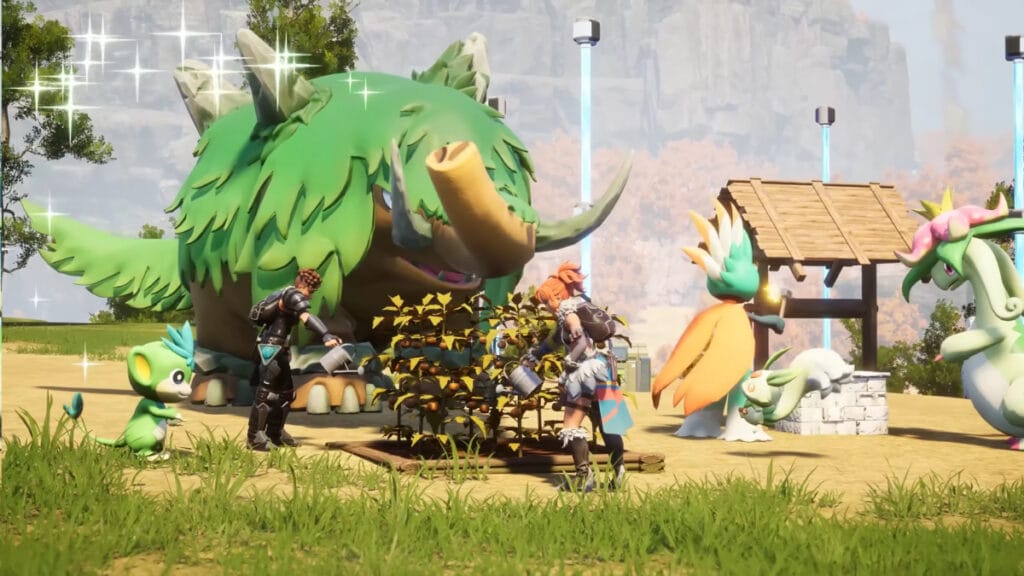
Despite its multiplayer design, many want to play Palworld in a more private setting with friends. Well, now you can rejoice. Palworld has a free dedicated server setup function just for that very thing. If you want to run around with just a couple of friends or cause anarchy with more than a dozen players, you must take matters into your own hands. It’s not as hard as it sounds thanks to Steam. Just follow our guide and you’ll dive into the game with your pals in no time.

Palworld Dedicated Server Setup Guide

palworld dedicated server setup
Image Source: Pocketpair and Xiosiolent (YouTube)

You may have heard of horror stories from setting up dedicated servers in different multiplayer games. Thankfully, that concern isn’t true here. You can learn how to make a Palworld server in a few steps. This easy method works once you download the game via Steam. When you do, it automatically adds the Palworld Dedicated Server program to the library.

Below is a step-by-step guide to help steer you through the process. This way, there’s no risk of you getting lost.

  1. Launch the Steam client and navigate to the Library
  2. In the search filter, check Tools and type Palworld in the Library search bar
  3. Install the Palworld Dedicated Server and once launched, you have two options:
    • Choose Play Palworld Dedicated Server for private setup
    • Choose Open and start as a community server for public setup
  4. Select Play and wait for the black command prompt window to pop up
  5. Share your IPv4 address with others so they can join
  6. Port forward UDP Port 8211 via your router settings

As long as you keep the window open, the server can run 24/7. You can always rent a server from a third-party website, but if you don’t want to spend anything, simply use the steps above.

Related:

Palworld Starter Guide

How To Protect Your Server

If you opt to set up a public dedicated server, yet still want to restrict who can visit, you’ll need a password. Take the following steps to protect your server:

  1. Go to your Steam drive to reach \Steam\steamapps\common\PalServer\Pal\Saved\Config\WindowsServer
  2. Launch PalWorldSettings.ini and add [ServerPassword= ] with your chosen password
  3. Save your file

Now, your Palworld server is better protected. Anyone clicking on it must enter your password to continue.

Related:

How To Fast Travel in Palworld

You can get in on the action with friends now in Palworld as it’s available in Early Access. Play it on PC or Xbox.

Related Topics
Guide Palworld
Share. Facebook Twitter LinkedIn Reddit Email
Mykel Bright
  • Website

Since childhood, Mykel has had a passion for writing, drawing, comic books, video games, and all things horror. She finds various ways to blend her loves such as sketching out ideas for potential comics and working out ideas for choice-based visual novels.

SUGGESTED READS

Crimson Desert PC Review
9.5
Features

Crimson Desert Review – It’s Real, All of it

Death Stranding 2 PC Launch Adds Fuel to DLSS 5 AI Slop Backlash: 'It Is a Disgrace'
Game News

Death Stranding 2 PC Launch Adds Fuel to DLSS 5 AI Slop Backlash: ‘It Is a Disgrace’

Starfield Free Lanes & Terran Armada DLC
Game Previews

Starfield Free Lanes & Terran Armada Hands-Off Preview – Revitalizing This Spacefaring Adventure

Resident Evil 9 DLSS5
Game Features

DLSS 5 Isn’t the Future of Graphics; It’s a Filter Over Them

What is Honey Candy in Adopt Me? How to Get It and What It's For
Game Guides

What is Honey Candy in Adopt Me on Roblox? How to Get It and What It’s For

Honkai Star Rail Version 4.1
Game News

The Phantasmoon Games Continue in Honkai: Star Rail Version 4.1

The Nerd Stash
Facebook X (Twitter) Instagram YouTube LinkedIn
  • About Us
  • Join Our Team
  • Meet the Team
  • Privacy Policy
  • DMCA Policy
  • Contact Us
  • Terms of Use
  • Sitemap
  • Editorial Guidelines
  • Advertising Policy
© 2026 The Nerd Stash. All Rights Reserved.

Type above and press Enter to search. Press Esc to cancel.