Close Menu
  • Gaming
    • Game Guides
    • Codes
    • Game News
    • Game Previews
    • Game Reviews
    • Game Features
    • Game Lists
    • Platforms
      • Nintendo
      • PC
      • PlayStation
      • Xbox
      • Mobile
  • Entertainment
    • Movies
    • Movie Features
    • Movie Reviews
    • TV
    • Reality TV
    • Royals
  • Celebrity
    • Hollywood
  • Human Interest
  • Astrology
  • Videos
  • More
    • Anime
    • Lists
    • Podcasts
    • Reviews
Facebook X (Twitter) Instagram LinkedIn YouTube
  • About Us
  • Join Our Team
  • Meet the Team
  • Privacy Policy
  • DMCA Policy
  • Contact Us
  • Terms of Use
  • Sitemap
  • Editorial Guidelines
  • Advertising Policy
The Nerd Stash
  • Gaming
  • Celebrity
    • Hollywood
  • Human Interest
  • Videos
The Nerd Stash
Home»Game Guides»Where Does Content Warning Save Videos? Explained

Where Does Content Warning Save Videos? Explained

Look back at what you’ve done!

Nat CollazoBy Nat CollazoApril 3, 20242 Mins Read
Where Does Content Warning Save Videos? Explained
Image Source: Skog, Zorro, Wilnyl, Philip, and thePetHen via The Nerd Stash
This article is over 1 years old and may contain outdated information.

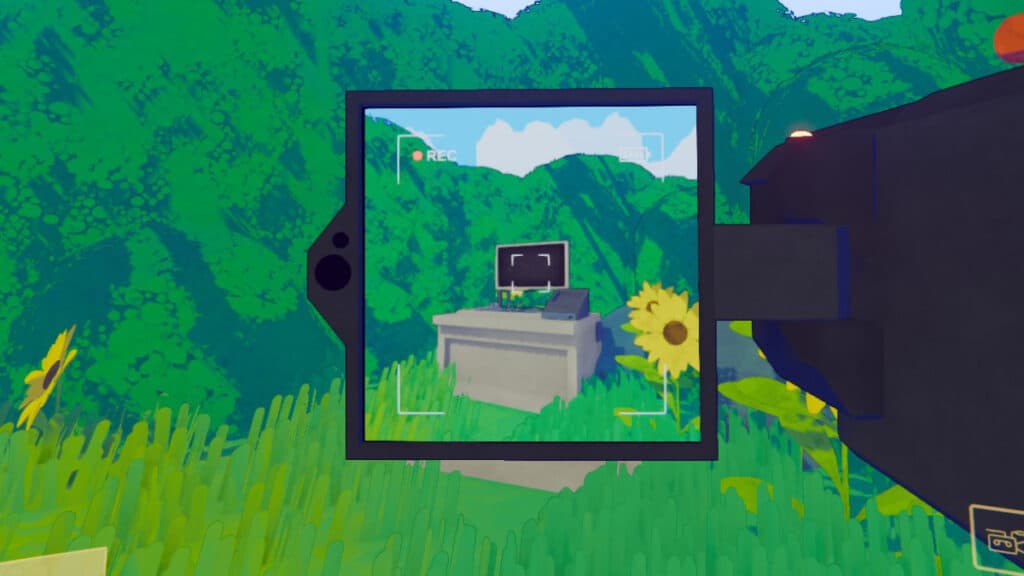
Normally, when you upload a video to the web, you can save it to a local device and keep it forever and ever. The videos you can save in Content Warning might be a little different, on account of the fact that they normally depict terrifying creatures. Nonetheless, you can still save those videos and show them off to your friends outside of the game. This is also great for keeping videos that might not have uploaded correctly into the video encoder when you came back from the Old World.

How To Save Videos in Content Warning

Where Does Content Warning Save Videos? Explained
Image Source: The Nerd Stash

All of your footage gets recorded onto your PC in Content Warning. Yes, ALL OF IT. The folder where you can find everything is hidden deep within your Program Files. However, you can also press F3 after you’ve recorded something on the camera while in-game to bring up that folder specifically. If you’re trying to find it without having to open the game, follow these instructions carefully.

  1. Open your File Explorer and locate the This PC selection.
  2. Select the Windows (C:) option.
  3. Open the Users folder.
  4. Select the folder that is named after whatever you named your PC.
  5. Open the AppData folder.
  6. Open the Local folder.
  7. Open the Temp folder.
  8. Open the rec folder.

All of the videos that you took will be located there with a folder that also has every individual frame of the footage. Any footage that you previously took will also be located in that same folder. You’re more than welcome to delete them if so needed. The videos and photos are really there for your own convenience if you want to upload it to social media or even show off to your friends that you were able to survive.

Related:

Content Warning Starter Guide: Beginners Tips & Tricks

Content Warning is available to play on PC.
Related Topics
Content Warning Guide
Share. Facebook Twitter LinkedIn Reddit Email
Nat Collazo
  • Website
  • X (Twitter)
  • Instagram

I am a game journalist and guide writer with ten years of experience as well as the CEO/ Founder of Frowns Marketing, a marketing company that caters to indie games, tabletop games, and board games to help developers get more wishlists, backers, and players!

SUGGESTED READS

Sony Closes Bluepoint Games
Game News

‘Canceling Projects and Closing Teams Is Not Strategy, It Is Chaos’: Gamers Outraged After Sony Shuts Down Bluepoint Games

Inner voice key art
Game News

Inner Voice Brings Grief-Soaked Psychological Horror to Steam With New PC Demo

Nightmare Geese Gameplay
Game Previews

Fatal Fury: Nightmare Geese Hands-On Impressions – The Boss Is Here

Destiny 2 Shadow and Order Delay
Game News

‘At This Point, I Don’t Think It’s Enough to Save the Game,’ Destiny 2 Players Heartbroken After Shadow and Order Delay

How to Spectate a Trade in Adopt Me on Roblox
Game Guides

How to Spectate a Trade in Adopt Me on Roblox

People of Note Release Date
Game News

Musical RPG, People of Note, Announces Its Release Date and Launches Public Demo

The Nerd Stash
Facebook X (Twitter) Instagram YouTube LinkedIn
  • About Us
  • Join Our Team
  • Meet the Team
  • Privacy Policy
  • DMCA Policy
  • Contact Us
  • Terms of Use
  • Sitemap
  • Editorial Guidelines
  • Advertising Policy
© 2026 The Nerd Stash. All Rights Reserved.

Type above and press Enter to search. Press Esc to cancel.