Close Menu
  • Gaming
    • Game Guides
    • Codes
    • Game News
    • Game Previews
    • Game Reviews
    • Game Features
    • Game Lists
    • Platforms
      • Nintendo
      • PC
      • PlayStation
      • Xbox
      • Mobile
  • Entertainment
    • Movies
    • Movie Features
    • Movie Reviews
    • TV
    • Reality TV
    • Royals
  • Celebrity
    • Hollywood
  • Human Interest
  • Astrology
  • Videos
  • More
    • Anime
    • Lists
    • Podcasts
    • Reviews
Facebook X (Twitter) Instagram LinkedIn YouTube
  • About Us
  • Join Our Team
  • Meet the Team
  • Privacy Policy
  • DMCA Policy
  • Contact Us
  • Terms of Use
  • Sitemap
  • Editorial Guidelines
  • Advertising Policy
The Nerd Stash
  • Gaming
  • Celebrity
    • Hollywood
  • Human Interest
  • Videos
The Nerd Stash
Home»Game Guides»How to Toggle UI Navigation and Get Moving Again on Roblox

How to Toggle UI Navigation and Get Moving Again on Roblox

HUD hijinks

Patrick ArmstrongBy Patrick ArmstrongNovember 12, 20242 Mins Read
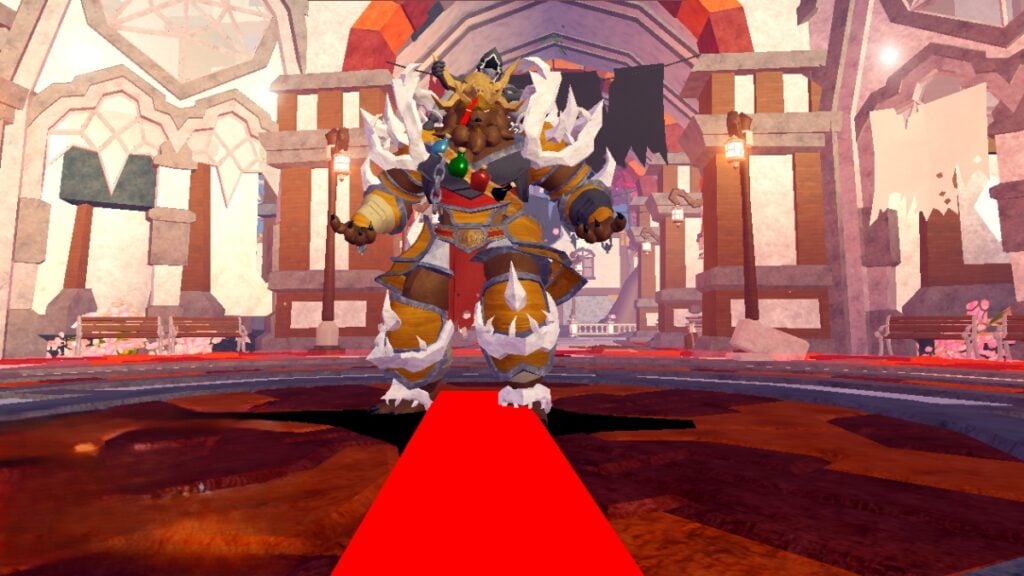
The player confronts a towering boss in Fabled Legacy
Image Source: Fabled Legacy via The Nerd Stash

A dragon soars above you, mouth dripping fire. The forest is burnt, and the houses are crushed, leaving only one blackened boulder as cover. As the dragon wheels about in the sky, you try to dash for safety, but your character stops. You’re frozen, but it wasn’t magic that halted you. You accidentally toggled UI Navigation (aka UI Selection), and now instead of controlling your character, you’re stuck in menus. Although this problem won’t always get you eaten by an ancient serpent, it’s better to know how to get yourself unstuck. Here’s how to toggle UI Navigation and give yourself the freedom to move again in Roblox.

Roblox UI Navigation Guide
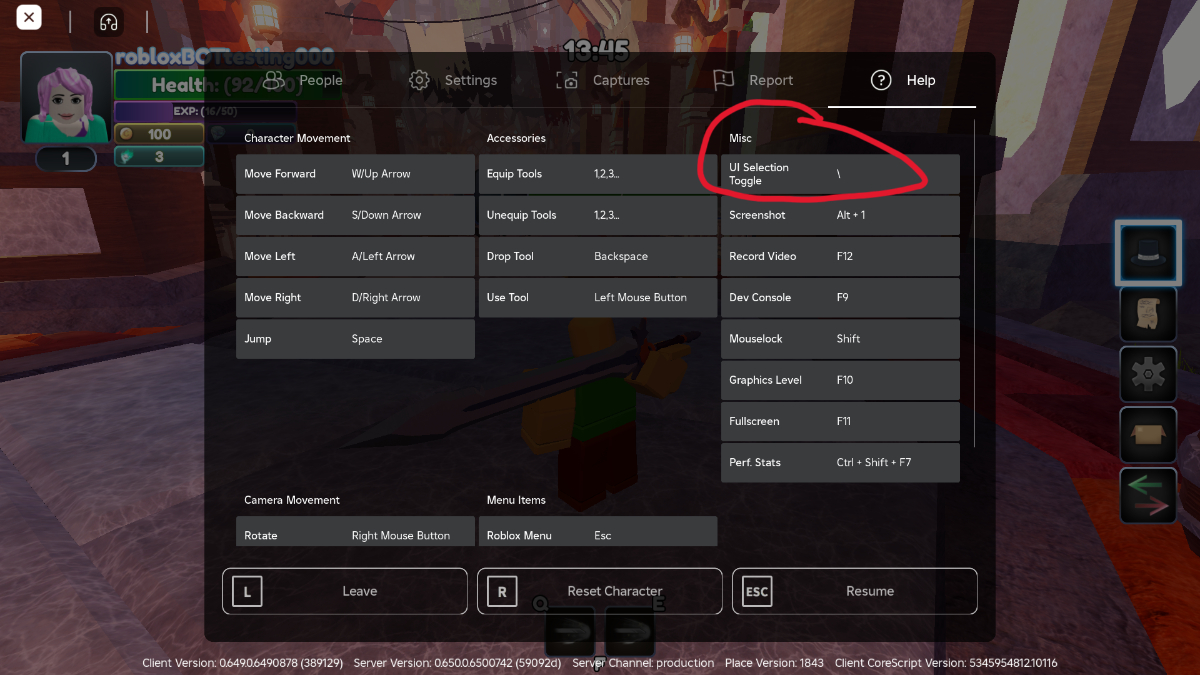
The settings menu with the UI navigation toggle in Roblox
Image Source: Fabled Legacy via The Nerd Stash

The first step to getting unstuck is to understand how you got stuck in the first place. When it comes to UI Selection, the culprit is usually a misclick. On PC, the UI Selection toggle is bound to “\” by default, and it only takes one accidental tap to disable your character’s movements. Although UI Selection can be useful for navigating cumbersome menus in certain games, triggering it in the middle of battle is a good way to lose your current mission. Here’s how to adjust your settings and fix the problem:

  1. Open the pause menu
  2. Open “Settings”
  3. Navigate to “Help”
  4. Look for “UI Selection Toggle” under “Misc”
  5. Exit the pause menu and press the UI Selection Toggle key to get unstuck
  6. Optionally, you can also rebind UI selection to another, less troublesome key
How to Follow People and Stay Up to Date on Roblox
Related: How to Follow People and Stay Up to Date on Roblox

Because UI Navigation snaps the game’s focus to the HUD instead of your character controls, one tap is enough to halt your movement or get you going again. Once you’ve identified the problem, you’re unlikely to fall victim to it again, but it never hurts to double-check your keybindings upon starting a new game. It’s a good way to familiarize yourself with new controls anyway, so you might as well fix any problematic bindings while you’re at it. The next dragon’s in for a surprise.

Related Topics
Guide Roblox
Share. Facebook Twitter LinkedIn Reddit Email
Patrick Armstrong
  • Website

Artist and writer with a lifelong love of video games. Their favorite games include Dead by Daylight, Meet Your Maker, and Project Zomboid.

SUGGESTED READS

Highguard Launch Day
Game News

With No Marketing But a Lot of Hype, Highguard Finally Launches Its 3v3 PvP Raid Experience

PlayStation Recruited Talents Over 'Free Company-Funded Dinners,' Former Sony Exec Reveals
Game News

PlayStation Recruited Talents Over ‘Free Company-Funded Dinners,’ Former Sony Exec Reveals

Dragon Ball 40th Anniversary Event
Anime

Dragon Ball Fans Are Having a Feast With New Anime Arc, DLC for Sparking ZERO, and a Brand-New Game

Blizzard 2026 Game Showcases
Game News

Blizzard Is Gearing Up for 2026 With Showcases for World of Warcraft, Diablo, Overwatch, and Hearthstone

Arknights Endfield Preview
8
Features

Arknights: Endfield Review: Bigger, Better, But a Bit Overwhelming

Akira Toriyama's Final Designs? New Dragon Ball Game 'AGE 1000' Project Hints at Now-Defunct Dragon Ball Online Ties
Game News

Akira Toriyama’s Final Designs? New Dragon Ball Game ‘AGE 1000’ Project Hints at Now-Defunct Dragon Ball Online Ties

The Nerd Stash
Facebook X (Twitter) Instagram YouTube LinkedIn
  • About Us
  • Join Our Team
  • Meet the Team
  • Privacy Policy
  • DMCA Policy
  • Contact Us
  • Terms of Use
  • Sitemap
  • Editorial Guidelines
  • Advertising Policy
© 2026 The Nerd Stash. All Rights Reserved.

Type above and press Enter to search. Press Esc to cancel.