

Halo Campaign Evolved is more than a remake because of the three brand-new missions it brings to the table, and you can enjoy the full experience solo with a click of a button. If you choose to play Halo: Campaign Evolved Co-Op, however, you’re going to have to do a couple of steps and run an extra mile if you’re planning to use the cross-play feature on PS5, Xbox, or Steam.

What Is Halo: Campaign Evolved Co-Op Mode?

Just like the OG Halo: Combat Evolved, Campaign Evolved allows for playing the story mode with friends in co-op with up to 4 players online. Of course, if you want to play split-screen, that’s also an option on Xbox Series and PS5 consoles, but to play online with friends on different platforms, there are a few steps you’d need to take to invite them to your party.
How To Play Co-Op on Every Supported Device

Starting off, you’ll need Xbox accounts to play Halo: Campaign Evolved. This means that no matter if you’re playing on PS5, Steam, or Xbox itself, you’re going to need an Xbox/Microsoft account to play the game online. For this, you have to visit Xbox.com and, from the top right corner, create an account with your email and personal info. Once that’s done, we can proceed to the next step.
There are two ways to play Halo: Campaign Evolved Co-Op with your friends:
- Split-screen
- Online (Cross Platform included)
1. How To Play Halo Campaign Evolved Split-Screen Co-Op
In order to play Halo: Campaign Evolved split-screen Co-Op, you must be playing on either PS5 or Xbox Series XlS consoles with 2 controllers connected. No, the PC version of the game does not support split-screen mode. Now, before jumping into the game, connect each controller to a different account. And remember that each one of those must also be linked to an Xbox account.
For PlayStation Users: After creating an Xbox account with your email, install the Xbox mobile app. Log in, and jump into the game. Log in to your Xbox account in the game, and turn on the second controller. Press X on the second controller on the main menu and complete the same process for the second account. With both controllers and accounts connected, you can now jump into the game with your friend.
For Xbox Users: Connect 2 controllers to 2 different Xbox accounts. Launch the game, and press A with the second controller on the main menu. Select a different account with the second controller if asked, and enjoy.

It’s important to note that you can only play Halo: Campaign Evolved with 2 players in split-screen mode on PS5 and Xbox Series XlS consoles. For the 4-player experience, you’d have to go online.
2. How To Play Halo Campaign Evolved Co-Op Online
The same process as the Split Screen mode, but this time, on different consoles or PC. Halo: Campaign Evolved features 2 separate friends lists, one that says Platform and the other Cross-Platform. The former is your friends on the same platform, and the latter is your mates on other platforms.
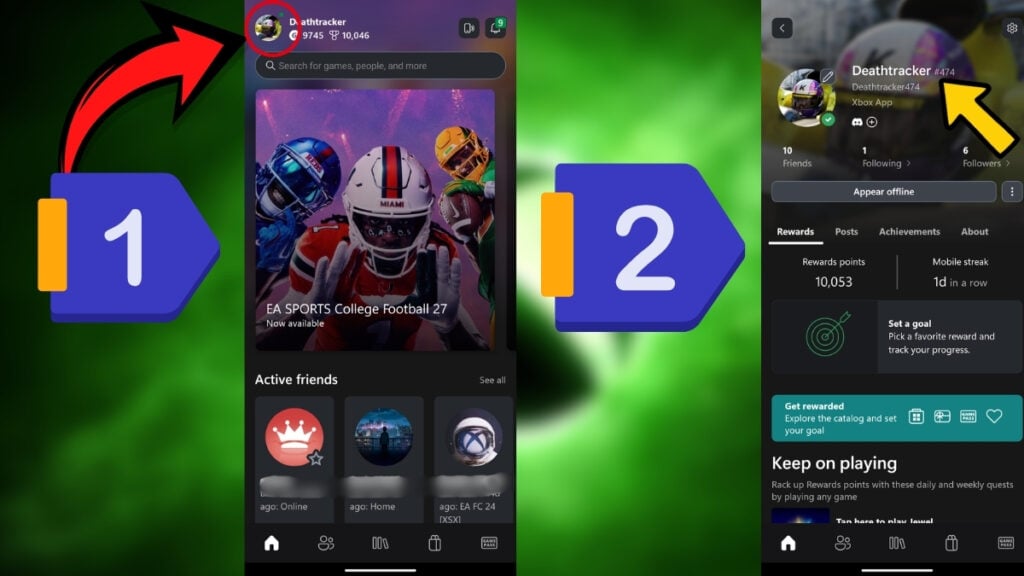
Now, if you want to add a friend to your list, you must take their Xbox Gamer Tag and enter it in the search menu. The best way to find your Xbox Gamer Tag is by opening the Xbox mobile app and pressing your account icon in the top left corner. Your Gamer Tag is the one with a # on its right-hand side.
Remember to type your friend’s Gamer Tag fully with the # number after it. For example, Deathtracker#443 is the right way to enter the tag. Once you find your friend, you can invite them over or join them regardless of the platform. Have fun, Spartans!